
AQLign MemaSys Pro AI
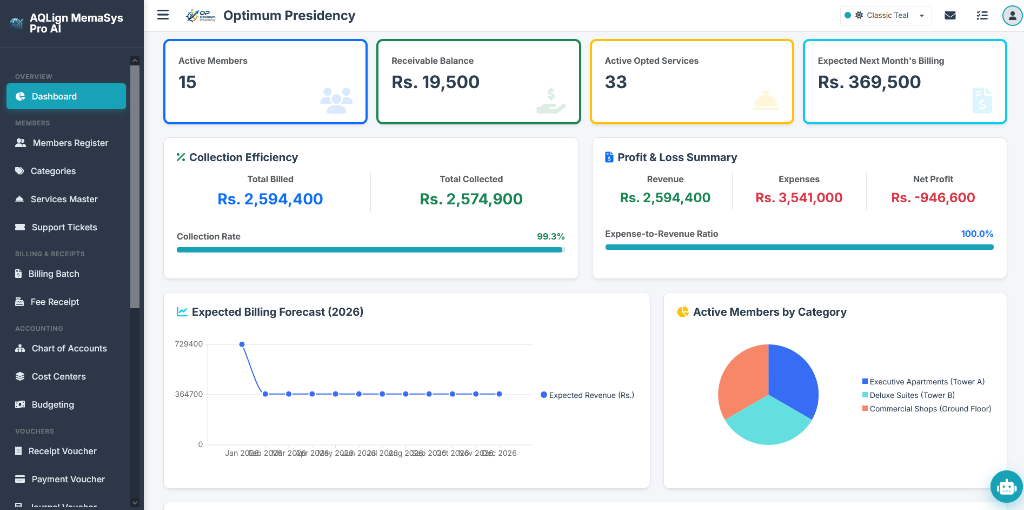
AQLign MemaSys Pro AI is an enterprise-grade membership management, automated subscription billing, and financial accounting platform engineered by AQLign SYSTEMS. Designed for commercial real estate towers, residential societies, trade associations, and multi-tenant facilities, the platform integrates member lifecycle management, recurring batch invoicing, multi-bank collection counters, segment cost centers, month-wise budgeting, post-dated cheques custody, a 20-report business intelligence suite, and an AI-supported virtual assistant.
- 1. Product Overview, Packaging & Global Commercial SEO Introduction
- 2. Portal Authentication Gateway
- 3. Overview — Executive Management Dashboard (13 Cards Deep-Dive)
- 4. Members — Member Profiles Registry & Opted Services Configuration
- 5. Members — Categories & Services Master (Core Backbone)
- 6. Members — Support Tickets (Optional Module A)
- 7. Billing & Receipts — Billing Batch Engine
- 8. Billing & Receipts — Fee Receipt Entry
- 9. Accounting — Chart of Accounts (Base Variant)
- 10. Accounting — Cost Centers Engine (Advance Acc.)
- 11. Accounting — Month-wise Budgeting (Advance Acc.)
- 12. Vouchers — Receipt Voucher & PDC Integration
- 13. Vouchers — Payment Voucher (PV)
- 14. Vouchers — Journal Voucher (JV)
- 15. Vouchers — PDC Receipts Register (Advance Acc.)
- 16. Financial Reports Suite (Exhaustive Guide for All 20 Platform Reports)
- 17. Utilities & Settings — System & Control Settings (Architectural Backbone)
- 18. Utilities & Settings — Manage Users & Role-Based Access Control (RBAC)
- 19. Utilities & Settings — Audit History (Optional Module B)
- 20. Utilities & Settings — Tasks, DB Backup Sovereignty, & Agency Support Governance
- 21. AI-Supported Virtual Assistant (MemaBot AI Engine)
- 22. Member Self-Service Portal (Client Portal)
1 Product Overview, Packaging & Global Commercial SEO Introduction
AQLign MemaSys Pro AI is a premier enterprise financial accounting, member subscription management, and operational automation system engineered by AQLign SYSTEMS (official portal: https://aqlign.com/profile.php). The platform seamlessly unifies real-time double-entry general ledger accounting, automated recurring monthly billing, cost center budget tracking, and post-dated cheque management into a single, cohesive software architecture. It eliminates financial leakage, automates complex pro-rata fee calculations, and guarantees 100% control account reconciliation across all business departments.
The platform is purposefully engineered to empower every commercial enterprise, institution, and organization worldwide that collects recurring monthly or yearly fees, member dues, retainers, tuition, maintenance tariffs, or service surcharges from clients and members. Beyond multi-unit service apartment complexes (such as Optimum Presidency), the software natively serves an exhaustive global array of business sectors:
- Educational Academies & Private Schools: Primary/secondary schools, tuition academies, language institutes, vocational colleges, and professional training centers collecting monthly tuition fees, laboratory dues, and annual admission retainers.
- Shared Workspaces & Flexible Real Estate: Coworking spaces, shared desk hubs, virtual office providers, incubator desks, and serviced executive suites charging monthly workspace rentals and utility surcharges.
- Fitness, Health & Athletic Centers: Health clubs, crossfit gyms, swimming academies, martial arts dojos, and personal training studios collecting recurring monthly membership dues.
- Country Clubs, Resorts & Recreation Facilities: Golf resorts, yacht clubs, sports complexes, country clubs, and luxury service apartment towers collecting annual membership retainers and monthly amenity surcharges.
- Housing Societies & Residential Property Management: Housing societies, gated communities, condominium towers, commercial plazas, and real estate management firms collecting monthly maintenance levies, security surcharges, and standby generator power tariffs.
- Trade Associations & Professional Guilds: Trade associations, chambers of commerce, engineering guilds, medical societies, and non-profit NGOs collecting annual membership subscription dues.
- SaaS Subscriptions, IT Retainers & Digital Agencies: Software-as-a-Service platforms, managed IT service providers, cloud infrastructure hosts, and digital marketing retainer agencies collecting monthly client fees.
- Medical Membership Clinics & Wellness Spas: Concierge healthcare practices, medical membership clinics, wellness spas, and beauty clubs collecting recurring health plan retainers.
- Commercial Leasing & Storage Facilities: Self-storage facilities, commercial booth markets, equipment rental firms, and vehicle fleet leasing enterprises collecting recurring rental charges.
At its core, the software is anchored upon a mandatory dual foundation: the Base Application Variant (Chart of Accounts, Financial Vouchers, and reports up to Trial Balance) coupled with the Advance Accounting Module (Cost Centers, Month-wise Budgeting, and Post-Dated Cheques). This advance accounting infrastructure is an absolute compulsory prerequisite for the Members Management Module because all member invoices, fee receipts, and pro-rata utility surcharges post directly into General Ledger control accounts (Members Receivable Control Account 1031) and cost center ledgers (CC-101 to CC-301), establishing un-alterable double-entry integrity.
Building directly upon this accounting bedrock, the Members Management Module automates the entire client lifecycle. It houses the Services Master Engine—the true backbone of the system—where organizations define recurring service catalogs, monthly vs. yearly billing terms, default prices, and specific Chart of Accounts revenue account links (On Account Credit Account). Invoicing batches generate thousands of accurate member invoices in seconds, while the Fee Receipt Engine credits member subsidiary ledgers, updates cash/bank accounts, and issues official payment receipts.
For organizations seeking complete digital client engagement, Optional Module A (Member Self-Service Portal & Support Ticket System) empowers members to log into their private dashboards, view running statements of account, inspect billing history, and submit support tickets. Staff manage real-time conversation threads, assign department handlers, update priority levels, and transition ticket statuses (Open to Closed), providing transparency and superior client satisfaction.
By bringing together real-time general ledger financial accounting, automated subscription invoicing, cost center budget analytics, and client self-service portals, AQLign MemaSys Pro AI delivers an unparalleled competitive advantage for modern recurring-revenue businesses. Organizations seeking to modernize operations, enforce zero-leakage financial controls, and boost collection efficiency are urged to procure an enterprise software license today. Visit the official publisher portal at https://aqlign.com to evaluate licensing options and deploy the platform for your enterprise.
To deliver cutting-edge operational speed and conversational business intelligence, AQLign MemaSys Pro AI incorporates an AI-Supported Virtual Assistant (AQLign MemaBot AI Engine) accessible throughout the platform. Supporting both hands-free voice speech recognition (speech-to-text input with audio feedback) and interactive text chat, MemaBot operates out-of-the-box on a high-speed offline command-based engine for direct page navigation and automated transaction form pre-filling (including fee receipts, member entries, Chart of Accounts creation, and voucher postings). Organizations seeking advanced natural language reasoning can configure a personal Google Gemini API key in System Settings, unlocking full conversational LLM capabilities that execute read-only database queries dynamically to answer complex multi-lingual financial inquiries across English, Urdu, Arabic, and other supported languages.
1.1 Packaging & Branding Combo Matrix
AQLign MemaSys Pro AI is offered under a flexible two-tier enterprise licensing model, catering to organizations ranging from standalone property management setups to multi-facility corporate conglomerates. Core operational features—including Cost Centers, Month-Wise Fiscal Budgeting, and PDC Receipts Management—are fully included in both standard and pro editions. The primary operational distinction between editions centers on the Member Self-Service Portal & Support Tickets Module, while the Security Audit Log Engine is available as an optional add-on module across both editions.
| Platform Feature / Module | AQLign MemaSys AI (Standard Edition) | AQLign MemaSys Pro AI (Pro Edition) |
|---|---|---|
| Member Management & Services Directory | Included | Included |
| Automated Monthly & Annual Billing Batch Engine | Included | Included |
| Member Fee Receipts & Bank Counter Collections | Included | Included |
| Core Financial Accounting & Chart of Accounts | Included | Included |
| Voucher Suite (Receipt, Payment & Journal Vouchers) | Included | Included |
| Cost Centers Segment P&L & Line Splitting Engine | Included | Included |
| Month-Wise Fiscal Budgeting & Overrun Safeguards | Included | Included |
| PDC Receipts Register & Maturity Engine | Included | Included |
| Member Self-Service Portal & Support Tickets | Optional Add-on | Included |
| Security Audit Log & Forensic Tracking Engine | Optional Add-on (Both Editions) | Optional Add-on (Both Editions) |
1.2 Learning Framework: Real-World Scenarios & Product Whitepaper Study
To ensure that complex double-entry financial accounting workflows, multi-unit subscription setups, and automated billing mechanics are easily digestible for enterprise users, this user manual illustrates key features through concrete, real-world operational scenarios (such as Optimum Presidency). These practical examples guide administrators, CFOs, and helpdesk personnel through real daily operations step-by-step.
To gain a comprehensive understanding of the platform's overarching mathematical architecture, database design principles, and enterprise security framework, users are strongly encouraged to review the official Product Whitepaper available on the product page at https://aqlign.com. Studying the whitepaper alongside this operational manual provides maximum clarity, enabling corporate teams to leverage the full potential of AQLign MemaSys Pro AI.
2 Portal Authentication Gateway
The Portal Authentication Gateway provides secure, encrypted access validation for authorized company staff and members. It acts as the primary access gatekeeper, validating credentials, enforcing licensing concurrency thresholds, monitoring session lifecycles, and managing password recovery workflows.
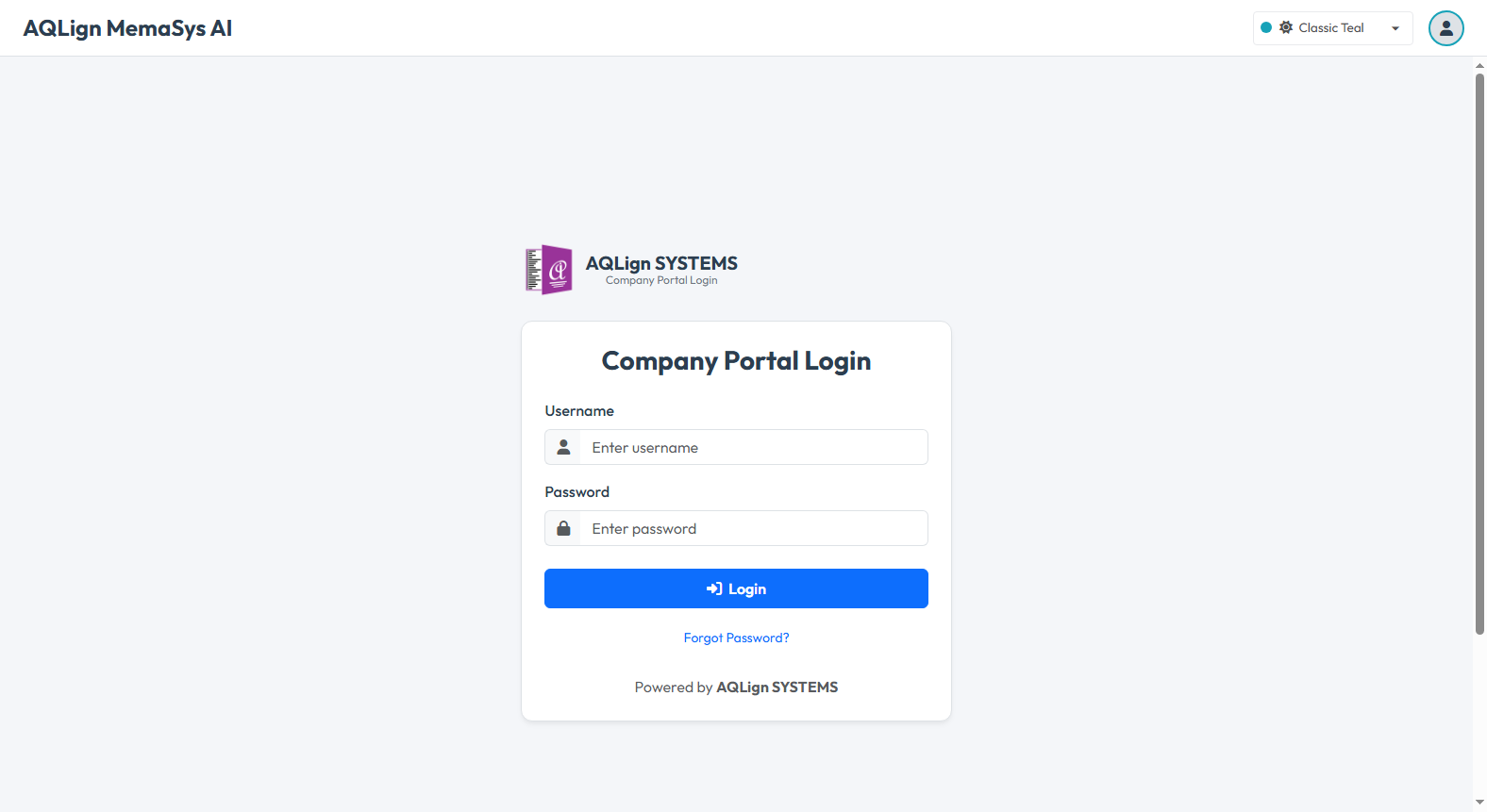
2.1 Credential Validation Rules & Input Parameters
To gain entry to the system, users must submit valid authentication parameters:
- Username: Case-insensitive staff or member account identifier. Must match an active user profile in the system directory.
- Password: Case-sensitive security password verified against encrypted credentials stored in the database store.
- Session Idle Timeout (30-Minute Boundary): For security against unattended workstations, active user sessions automatically time out after 30 minutes of idle inactivity (via the automatic session expiration protocol), requiring re-authentication to resume work.
2.2 Concurrent User Session Limit Policy & Active Session Overrides
Each enterprise license includes a defined Concurrent User Limit (the licensed user limit), which specifies the maximum number of staff members permitted to be logged in simultaneously:
When a staff member attempts to log in and the number of active logged-in staff sessions has reached the company's licensed limit:
- Login Block & Warning Alert: The authentication engine blocks entry and displays an explicit Active Sessions Limit Reached warning card.
- Active Session Inspection Grid: The screen displays a real-time list of all currently active staff sessions, detailing each active user's Username, Device Type (e.g. Windows PC, MacBook, Mobile Phone), IP Address, and Idle Duration (in minutes).
- Force Termination Procedure: If an active session belongs to a user who forgot to log out or left an idle computer, an authorized administrator can click the
Force Terminatebutton next to that specific session. This immediately terminates the stale session and logs the new user into the system without administrative delay.
2.3 Account Status Checks & 15-Day Read-Only Grace Period
During login validation, the authentication service evaluates account subscription status and validity dates:
- Suspended Account Status: If an enterprise account status is flagged as
Suspended, login attempts are blocked immediately with a prompt directing users to contact the developer (AQLign SYSTEMS). - 15-Day Read-Only Grace Period: If an enterprise trial or subscription end date passes, the platform grants an automatic 15-Day Read-Only Grace Period (triggering read-only grace status). During this 15-day window:
— Staff can log in to view data, audit ledgers, and export financial reports.
— All data creation, editing, voucher posting, and deletion privileges are automatically revoked with all add, edit, voucher posting, and deletion privileges disabled.
— Once the 15-day grace period expires, access is fully locked until subscription renewal.
2.4 Staff Password Recovery & Forgot Password Procedure
If a staff member forgets their login password, the platform provides a self-service password recovery mechanism:
- Initiating Password Reset: Click the
Forgot Password?link located at the bottom of the portal login card. - Submitting Account Identifiers: Enter the registered Username or Email Address in the recovery form.
- Automated Credential Emailing: Upon submission, the system verifies the account details. If a matching user record with a registered email address exists, an automated password recovery email containing the user's Full Name, Username, Password, Company Name, and Direct Portal Link is dispatched via the automated email dispatch service.
- Enumeration Protection & Console Logging: To protect against username harvesting, generic success confirmation messages are displayed regardless of user matching. If local SMTP email servers are unconfigured, recovery credentials are securely logged to the server system console for administrator assistance.
3 Overview — Executive Management Dashboard (13 Cards Deep-Dive)
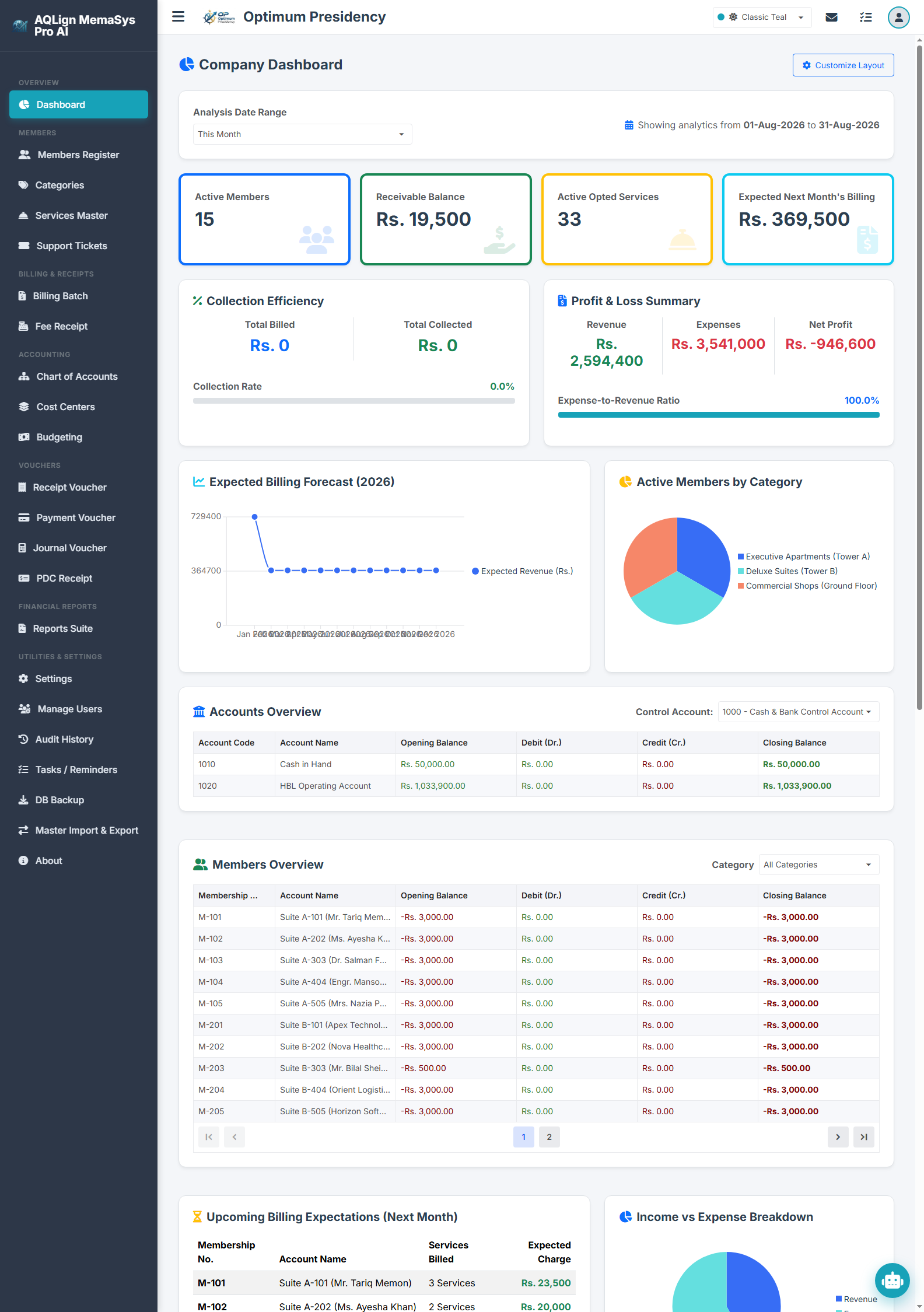
The Executive Management Dashboard (`/company/dashboard`) serves as the central operational command center for AQLign MemaSys Pro AI. It synthesizes real-time double-entry general ledger transactions, member subscription ledgers, collection efficiency analytics, 12-month billing forecasts, and staff work task assignments into an interactive visual dashboard.
Designed for corporate executives, financial controllers, and operational managers, the dashboard enables users to monitor key performance indicators (KPIs) at a glance, apply flexible date range filters, and customize the layout display via the Customize Layout dialog modal. Below is the complete full-page scrolling view of the Executive Management Dashboard displaying live transaction data across the operational fiscal period:
Strict Segregation of Confidential Financial Data:
To guarantee complete data confidentiality and prevent unauthorized staff from viewing sensitive corporate figures, every single dashboard card is strictly governed by Role-Based Access Control (RBAC). Administrators configure card visibility permissions for individual staff user profiles within the User Access Management (UAM) Rights Matrix (`/company/users`).
For example, highly confidential financial widgets—such as Profit & Loss Summary, Accounting Summary KPIs, Collection Efficiency Analysis, 12-Month Expected Billing Forecast, and Income vs. Expense Breakdown—can be completely hidden from non-financial operational staff (e.g. receptionists, entry clerks, front-desk coordinators). Ordinary operational staff will ONLY see non-confidential cards relevant to their job duties (e.g. Pending Tasks & Reminders or Active Members Overview), ensuring total privacy and peace of mind for prospective corporate buyers evaluating enterprise licensing.
The following sub-sections provide an exhaustive, card-by-card breakdown of all 13 dashboard widgets, explaining their general accounting purpose, database calculation mechanics, RBAC security controls, and operational business benefits:
3.1 Accounting Summary KPIs Widget
General Accounting & Management Perspective: A foundational financial dashboard widget that summarizes corporate chart of accounts structure, liquid monetary reserves, and total balance sheet obligations. It provides executives with an instant pulse on liquid solvency versus outstanding debt.
- Total Accounts: Real-time query counting all active account nodes configured within the Chart of Accounts (via the Chart of Accounts database registry).
- Cash & Bank Balance: Aggregates liquid cash in hand (Default Cash Account 1010) and bank balances (Default Bank Account 1020). Formatted dynamically in green for positive balances or red for overdrafts (formatted automatically with balance status color coding).
- Total Accounts Receivable: Calculates total outstanding debit balances across all accounts receivable ledgers within the selected analysis date range.
- Total Accounts Payable: Calculates aggregate credit balances across all liability, vendor payable, and accrued expense accounts.
Business Benefits & Operational Use Cases: Gives CFOs immediate clarity on working capital solvency. Allows accounting supervisors to spot liquidity crunches before approving major vendor disbursements.
3.2 Active Members & Subscription Revenue KPIs Widget
General Accounting & Management Perspective: Focuses specifically on subscriber portfolio volume, outstanding member dues, active service contracts, and near-term recurring revenue potential.
- Active Members: Counts active client profiles (from the active member directory).
- Receivable Balance: Fetches the exact running debit balance of General Ledger Control Account 1031 (Members Receivable Control Account).
- Active Opted Services: Counts all active recurring service subscriptions opted across member accounts (from the active service subscriptions registry).
- Expected Next Month's Billing: Sums default monthly charges for all active opted services (summing default monthly charges), providing an accurate baseline estimate for the upcoming automated billing batch.
Business Benefits & Operational Use Cases: Enables membership managers to monitor active subscriber growth, evaluate contract retention rates, and verify upcoming billing run totals prior to batch execution.
3.3 Collection Efficiency Analysis Widget
General Accounting & Management Perspective: Evaluates cash realization efficiency by comparing total revenue invoiced against cash collections received within the selected date window.
- Total Billed in Range: Sums all member invoice journal vouchers posted during the date window.
- Total Collected in Range: Sums all fee receipts and receipt vouchers posted to member accounts during the date window.
- Collection Rate Percentage: Calculated as
(Total Collected / Total Billed) * 100, rendered with a dynamic interactive progress bar indicator.
Business Benefits & Operational Use Cases: High collection efficiency (>90%) indicates healthy cash flow, whereas low collection rates highlight financial leakage or lax credit enforcement, prompting timely collection follow-ups.
3.4 Profit & Loss Summary Widget
General Accounting & Management Perspective: Provides a high-level executive P&L statement, comparing total operational revenue against total operating expenses to compute net operating profit.
- Revenue: Aggregates total credit entries posted across 4000-series income accounts (e.g. 4010 Membership Fee Income, 4020 Utility Income).
- Expenses: Aggregates total debit entries posted across 5000-series expense accounts (e.g. 5010 Janitorial, 5020 Electricity Expense).
- Net Profit: Computed as
Revenue - Expenses. Displayed in green for profit or red for loss. - Expense-to-Revenue Ratio: Computed as
(Expenses / Revenue) * 100, showing the percentage of gross income consumed by operating overhead.
Business Benefits & Operational Use Cases: Allows senior management to monitor operational profitability continuously without having to generate formal, multi-page financial statements.
3.5 12-Month Expected Billing Forecast Line Chart
General Accounting & Management Perspective: A predictive financial analytics widget that charts projected monthly billing revenue across a 12-month calendar horizon.
Iterates across the 12 calendar months (via the 12-month billing forecast engine), factoring in monthly recurring services and yearly maintenance services linked to specific renewal months (Default Yearly Billing Month selector). Rendered via an interactive line chart chart with smooth trend curves and hover tooltips.
Business Benefits & Operational Use Cases: Assists financial planners in identifying seasonal revenue spikes (e.g. annual membership renewal months) and planning capital expenditures accordingly.
3.6 Active Members Category Distribution Pie Chart
General Accounting & Management Perspective: Visualizes client portfolio composition across membership classifications, property zones, or service tiers.
Groups active member records by Category ID (from the member category distribution registry) and renders a color-coded interactive pie chart chart displaying member counts per category.
Business Benefits & Operational Use Cases: Helps commercial managers identify dominant client segments (e.g. Executive Suites vs. Commercial Shops) and tailor marketing or expansion strategies.
3.7 Accounts Overview & Control Account Filter Grid
General Accounting & Management Perspective: A granular ledger audit grid providing detailed visibility into liquid asset accounts under a selected General Ledger control account.
Queries child GL accounts under the selected Control Account (e.g. Control Account 1000 Cash & Bank Accounts). Renders an interactive data grid displaying Account Code, Account Name, Opening Balance, Debit (Dr), Credit (Cr), and Closing Balance with custom column resizing.
Business Benefits & Operational Use Cases: Facilitates daily cash book audits, bank reconciliation reviews, and petty cash oversight.
3.8 Members Overview & Category Filter Grid
General Accounting & Management Perspective: A subsidiary ledger audit grid listing individual member financial balances, filtered by membership category.
Queries member subsidiary ledgers (from the subsidiary member ledgers), displaying Member ID, Member Name, Opening Balance, Debit (Dr), Credit (Cr), and Closing Balance with color-coded balance indicators.
Business Benefits & Operational Use Cases: Enables credit control officers to spot high-balance overdue members and initiate targeted recovery actions.
3.9 Upcoming Billing Expectations Table
General Accounting & Management Perspective: A pre-billing audit table detailing expected member invoice charges for the upcoming monthly billing cycle.
Queries active members and sums their active opted services (from the upcoming renewal schedules), displaying Membership #, Member Name, Services Billed Count, and Expected Charge Amount.
Business Benefits & Operational Use Cases: Allows billing clerks to audit member billing profiles and verify pricing accuracy prior to executing automated invoice runs.
3.10 Income vs. Expense Breakdown Pie Chart
General Accounting & Management Perspective: A visual comparative widget highlighting the proportion of total income earned versus total expenses incurred during the analysis date range.
Renders a interactive pie chart chart comparing total operational revenue against total operational expenses (comparing total revenue vs operating overhead).
Business Benefits & Operational Use Cases: Offers immediate visual feedback on expenditure control and operating margin health.
3.11 Pending Service Cancellation Requests Table
General Accounting & Management Perspective: A governance widget for managing client unsubscription requests and preventing un-authorized subscription cancellations.
Displays member service cancellation requests (from the pending unsubscription requests queue), detailing Member Name, Service to Cancel, Monthly Revenue Saved/Lost, Request Date, and interactive Approve / Reject action buttons.
Business Benefits & Operational Use Cases: Protects against revenue churn, ensures operational verification before stopping service delivery, and maintains audit trails for service cancellations.
3.12 Pending Tasks & Reminders Work Assignment Widget
General Accounting & Management Perspective: An integrated task management widget tracking staff work assignments, accounting deadlines, and pending operational tasks.
Displays pending staff tasks (from the pending task assignments queue), detailing Priority Badge (High, Medium, Low), Task Title, Deadline Date (highlighted in red if overdue), Created By, and quick Mark Completed action buttons.
Business Benefits & Operational Use Cases: Enforces staff accountability, prevents missed accounting deadlines, and streamlines cross-departmental task delegation.
3.13 Pending Post-Dated Cheques (PDC) List
General Accounting & Management Perspective: A forward cash flow management widget tracking un-matured cheques logged in the system (Advance Accounting Module).
Lists pending cheques from the PDC Receipts Register (from the pending Post-Dated Cheques register), detailing Receipt Date, Cheque Date, Cheque Number, Bank Name, Drawer Name, and Cheque Amount.
Business Benefits & Operational Use Cases: Ensures accounting staff deposit mature Post-Dated Cheques promptly on their due dates, preventing cheque expiration losses.
4 Members — Member Profiles Registry & Opted Services Configuration
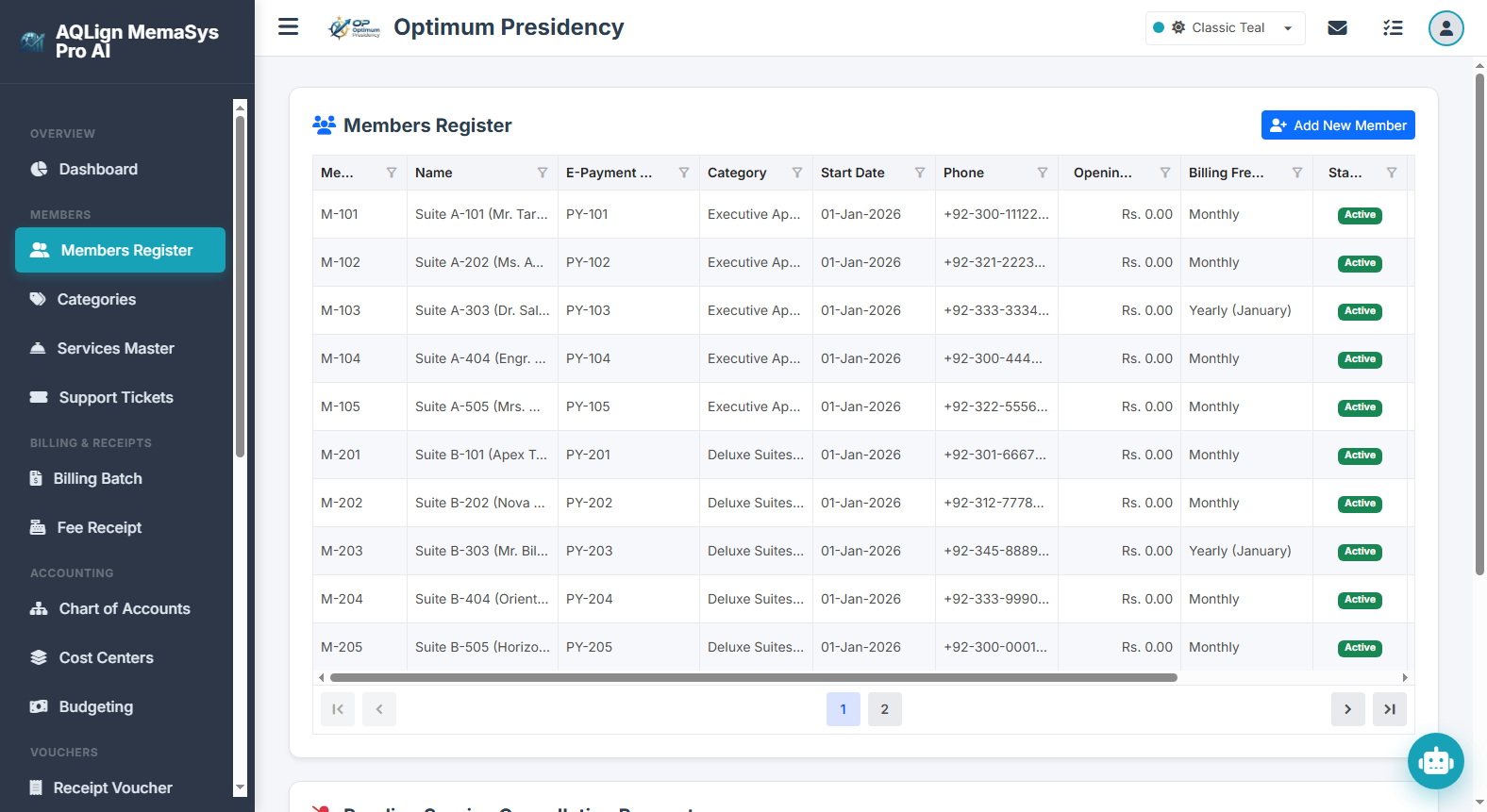
The Member Profiles Registry (`/company/members`) is the central operational foundation of the entire Member Subscription Management subsystem in AQLign MemaSys Pro AI. It houses member master profiles, client contact records, unit/membership categorizations, billing preferences, and individual opted service subscriptions.
4.1 Strategic Architectural Importance of Member Setup
The Member Profiles Registry does not function as a static client phonebook; it acts as the primary data feeder for the entire financial billing and accounting pipeline. Every automated monthly billing run, fee receipt posting, Member Receivable Control Account 1031 reconciliation, and 12-month income forecast depends 100% on the accuracy of member setup configured in this module.
Any mistake or omission during member profile registration or service opting creates cascading financial corruption across all subsequent operational stages:
- Invalid Billing Frequency or Missing Yearly Month: Setting an incorrect billing method (e.g. setting an annual contract to monthly) or omitting the default yearly billing month causes automated billing runs to miss annual maintenance charges or invoice client accounts prematurely, leading to severe financial leakage.
- Incorrect Service Rates & Credit Account Links: Overriding default service rates incorrectly or linking services to wrong General Ledger income accounts misstates income accounts during automated invoice posting.
- Unlinked Member Ledgers & Statement Errors: Duplicate or un-linked member profiles for multi-unit owners prevent unified balance tracking, leading to erroneous member statements of account, inaccurate collection reports, and customer disputes.
4.2 Multi-Unit Ownership Architecture & Shared Credentials Framework
In commercial real estate, multi-family housing societies, or flexible shared workspaces, a single client (e.g. Mr. Tariq Memon) frequently owns or leases multiple units (e.g. Suite M-101 and Suite M-102). The platform incorporates a native Shared Credentials Framework designed specifically for multi-unit property management:
- Single Unified Portal Credential: When an administrator registers a secondary unit for an existing client, they enter the SAME Portal Login ID (e.g.
tariq_memon) and password. - Automated Account Linking Popup: Upon saving, the system detects that the Login ID is already assigned to an active member profile and prompts a confirmation dialog:
"The Portal Login ID 'tariq_memon' is already assigned to active member(s): Mr. Tariq Memon (M-101). Do you want to link this account under the same login credentials?" - Account Linking Confirmation: Clicking
Yes, Linkbinds both member profile records under the single unified login credential while maintaining separate financial ledgers and unit numbers. - Top Navbar Unit Selection Dropdown (Member Portal): When the member logs into the Member Portal, a Unit Selection Dropdown appears in the top navigation bar, allowing them to switch seamlessly between Suite M-101 and Suite M-102 to view unit-specific invoices, opted services, and ledger statements.
- Accumulated Outstanding Balance KPI: The Member Portal Personal Dashboard features an Accumulated Pending Balance KPI, calculating and displaying the total aggregated balance owed across ALL units owned by that client for complete payment transparency.
4.3 Real-World Enterprise Implementation Example
Consider a real-world deployment scenario for Optimum Presidency (a premium serviced apartment complex):
Client Profile: Mr. Tariq Memon owns two executive suites: Suite M-101 and Suite M-102.
- Unit 1 (Suite M-101 Setup):
— Registered as Member ID M-101 under Category Executive Suites.
— Set Billing Method = Monthly.
— Set Portal Login ID =tariq_memon, Password =pass123.
— Opted Services: Fiber Internet 100Mbps (Rs. 3,500/mo) and Standby Power Generator (Rs. 5,000/mo). - Unit 2 (Suite M-102 Setup & Shared Account Linking):
— Registered as Member ID M-102 under Category Executive Suites.
— Set Billing Method = Monthly.
— Set Portal Login ID =tariq_memon(Triggers shared account linking confirmation dialog → clickedYes, Link).
— Opted Services: Janitorial & Security Levy (Rs. 2,000/mo). - Operational Execution & Automated Results:
1. During automated monthly billing runs, the engine generates separate monthly invoices for M-101 (Rs. 8,500) and M-102 (Rs. 2,000), posting debit entries to Member Control Account 1031.
2. When Mr. Tariq Memon logs into the Member Portal withtariq_memon, he uses the top navbar unit dropdown to inspect each suite, while his personal dashboard displays an Accumulated Outstanding Balance of Rs. 10,500.
4.4 Step-by-Step Guide for Adding & Editing Member Profiles
To register a new member profile or modify an existing record (`/company/members`):
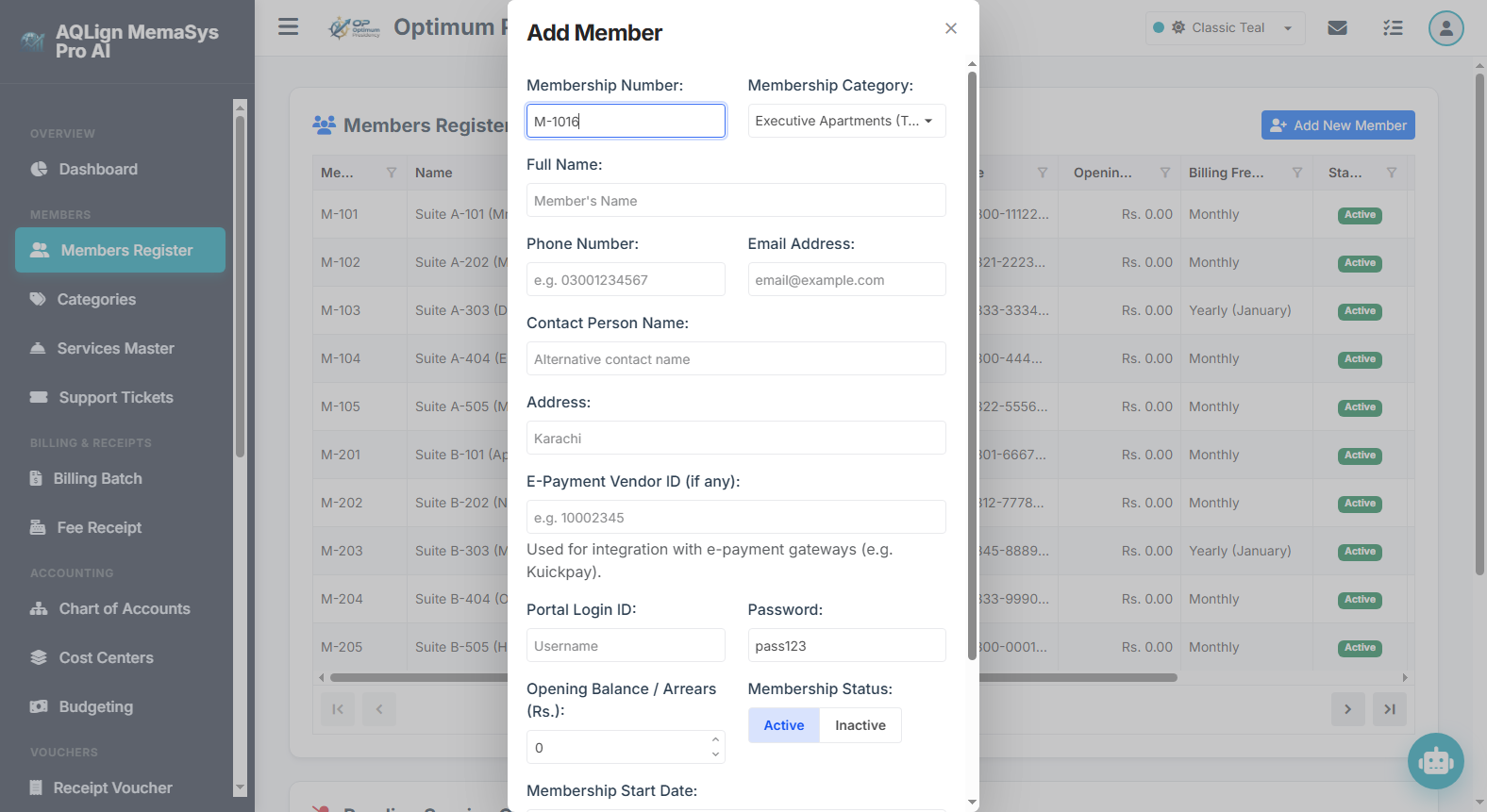
- Open Registration Dialog: Click the
Add New Memberbutton at the top of the Member Directory grid (or clickEditon an existing member row). - Membership Number (Member ID): Enter a unique membership code (e.g.
M-101). For new registrations, the system automatically suggests the next sequential membership number (e.g.M-1002). - Membership Category: Select the member's operational tier or physical classification (e.g. Executive Suites, Commercial Shops, Standard Membership).
- Full Name & Contact Details: Input the member's Full Name, primary Phone Number, Email Address, alternative Contact Person Name, and official mailing Address.
- E-Payment Vendor ID: (Optional) Enter the external e-payment integration identifier (e.g. 10002345) used for automated bank bill-presentment gateways (e.g. 1Bill / Kuickpay).
- Portal Login Credentials:
— Portal Login ID: Enter the username for client portal access (e.g.tariq_memon). If the Login ID matches an existing active member, confirm account linking in the popup dialog.
— Password: Assign an initial portal access password. - Opening Balance / Arrears (Rs.): Input pre-existing historical arrears or opening ledger balances. Positive numbers represent receivables owed by the member, while negative numbers represent advance credits.
- Membership Status: Toggle between Active (eligible for automated billing runs and portal access) and Inactive.
- Membership Start Date: Select the official contract commencement date.
- Billing Method & Yearly Billing Month:
— Select Monthly for recurring monthly invoices.
— Select Yearly for annual billing. When Yearly is selected, choose the Yearly Billing Month (January through December) to specify the exact month annual invoices trigger. - Save Profile: Click
Save Memberto commit the profile to the database store.
4.5 Step-by-Step Guide for Opting & Managing Member Services
To configure opted recurring services for a member profile:
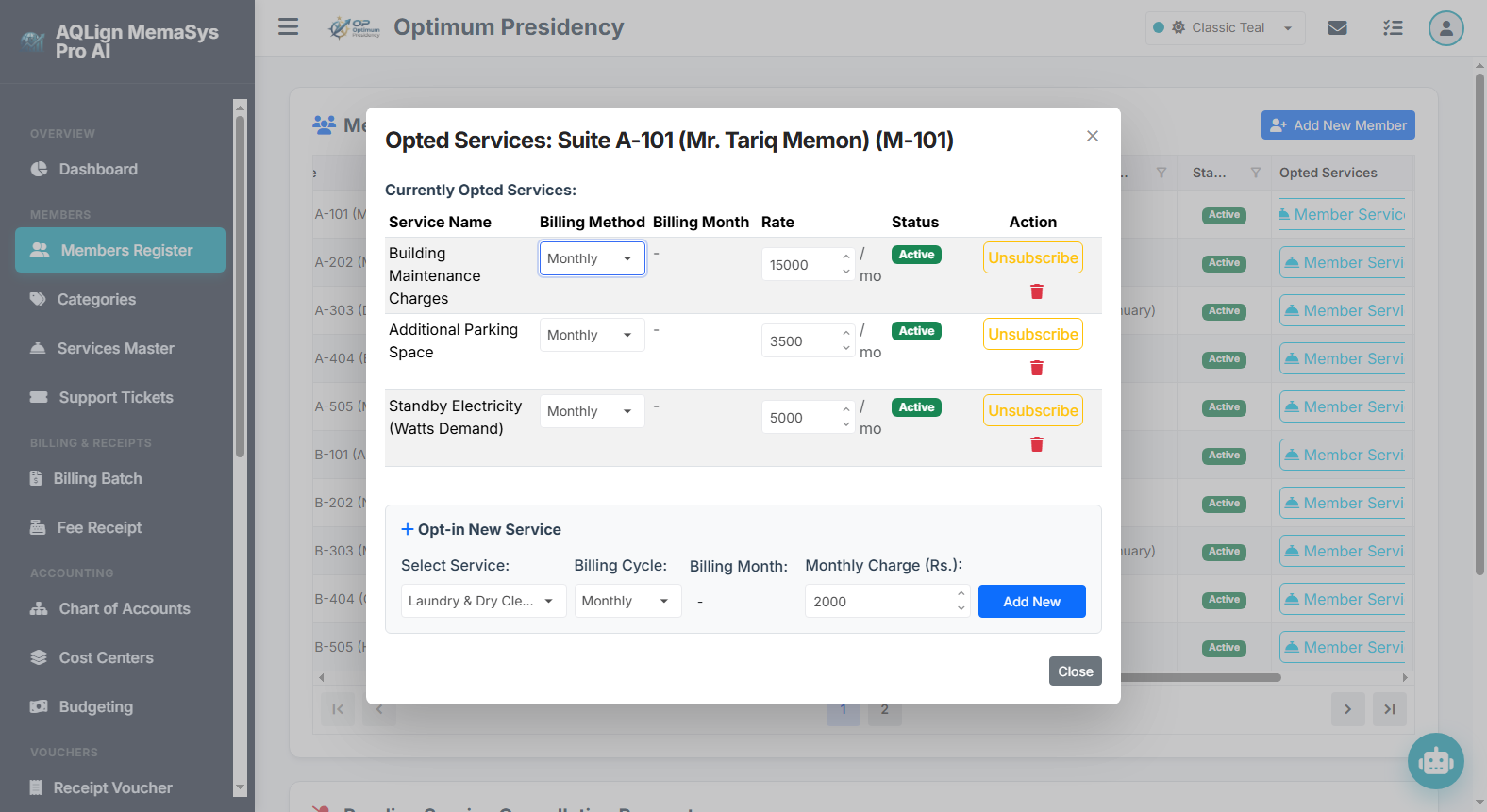
- Launch Services Dialog: Locate the member row in the Member Directory grid and click the
Servicesbutton in the Opted Services column. - Inspect Currently Opted Services: The top table displays all currently opted services, showing Service Name, Billing Method, Billing Month, Monthly/Yearly Rate, and Active/Unsubscribed Status.
- Opt-In New Service:
— In the Opt-in New Service section, select a service item from the Select Service dropdown (e.g. Fiber Internet 100Mbps).
— Verify or adjust the Billing Cycle (Monthly vs. Yearly).
— Specify the Billing Month for yearly services.
— Enter or override the default price in the Charge Amount (Rs.) field.
— ClickAddto append the service to the member's profile. - Modify Existing Service Rates or Cycles: Adjust the billing method, yearly month, or price rate directly in the table row. Changes save automatically.
- Unsubscribe or Reactivate Services: Click
Unsubscribeto pause recurring billing for a service without deleting historical billing data. ClickRe-activateto resume billing. - Close Dialog: Click
Closeto exit the modal.
5 Members — Categories & Services Master (Core Backbone)
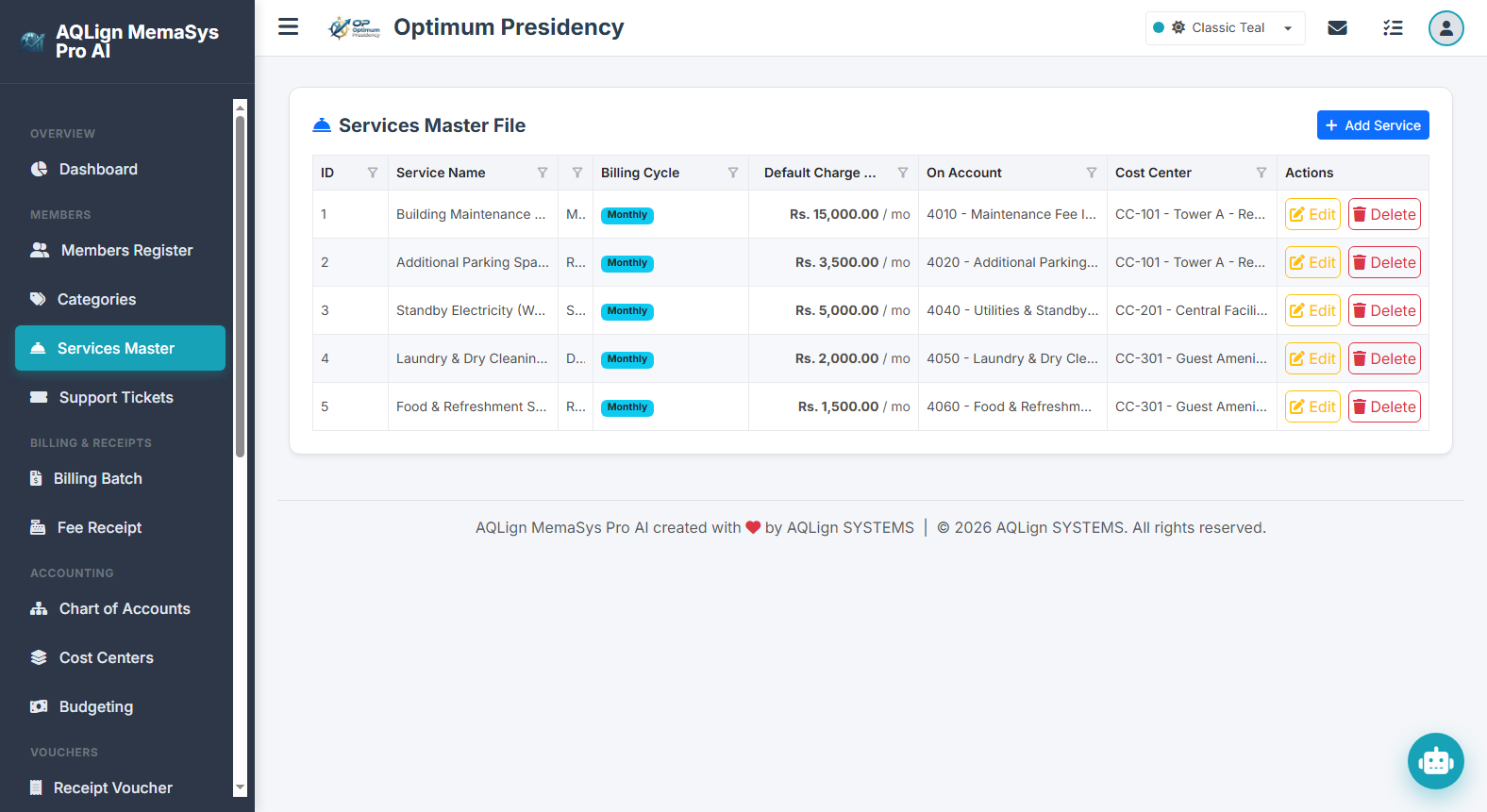
The Services Master Engine forms the functional backbone of the Members Management Module. It defines the recurring service catalog, pricing terms, billing cycles, and General Ledger revenue account integrations.
5.1 Categories Registry (`/company/categories`)
Categories classify membership types, physical zones, or subscription tiers (e.g. Executive Suites, Commercial Shops, Standard Membership).
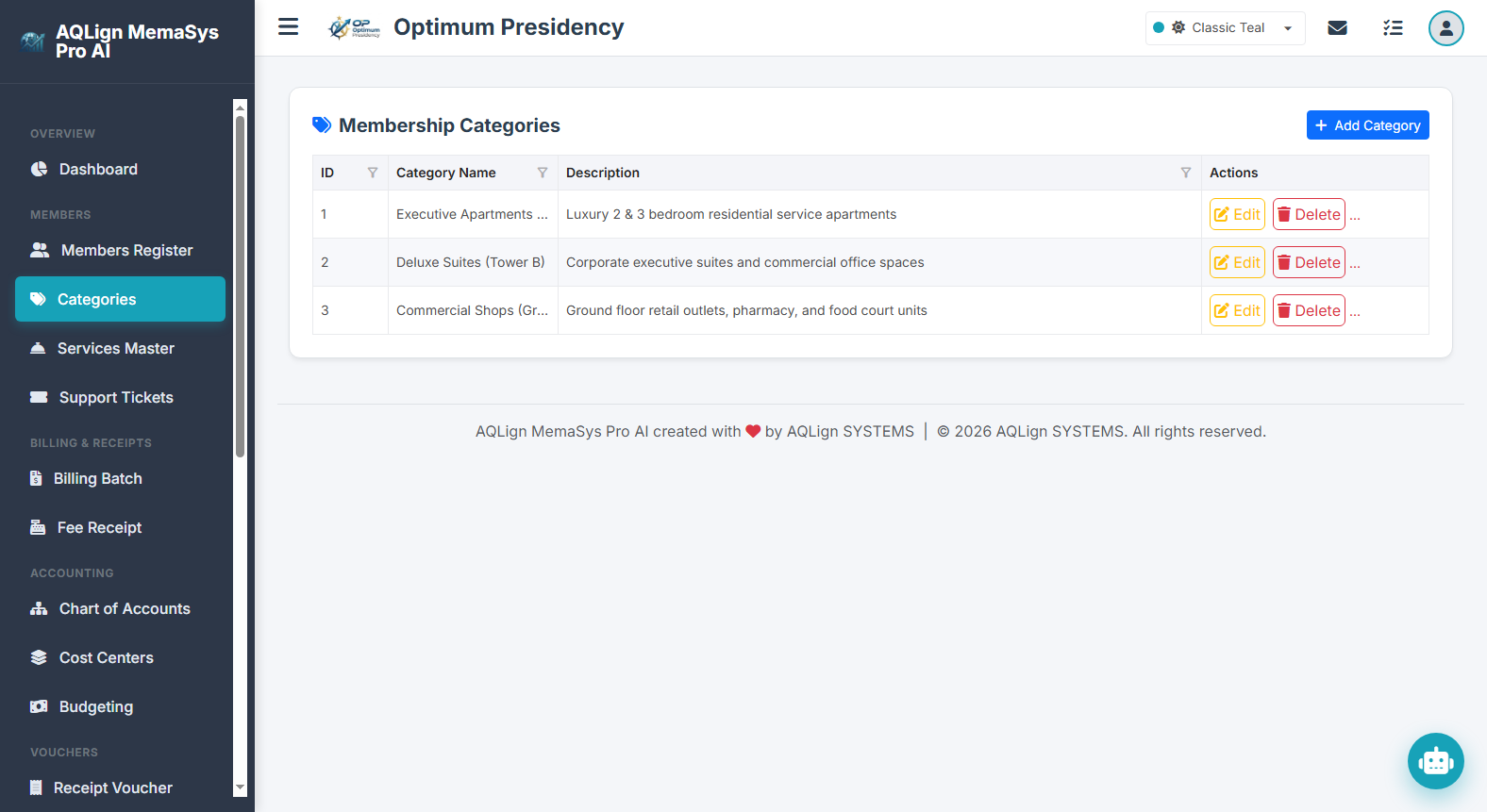
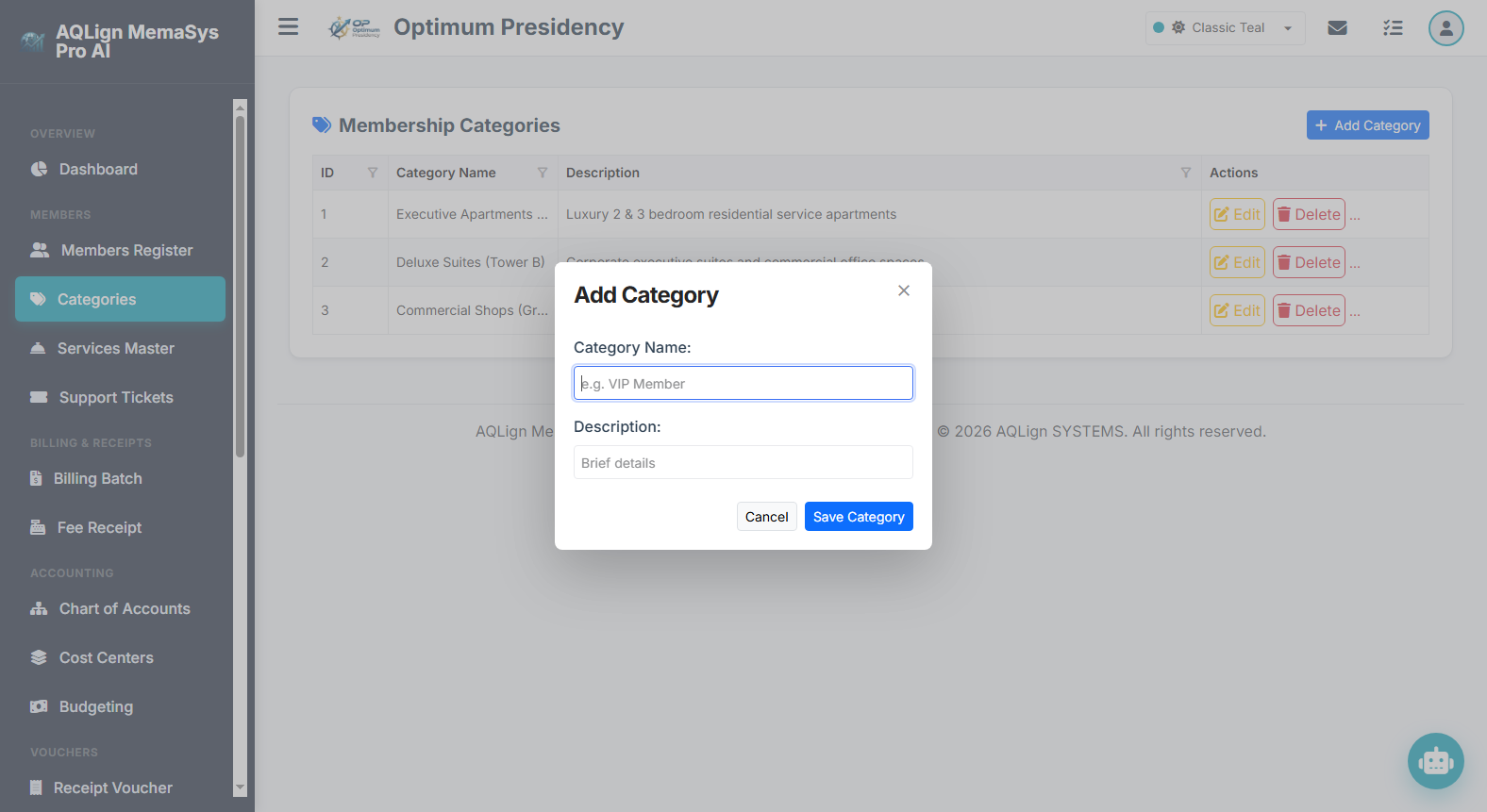
5.2 Services Master Engine (`/company/services`) — Subscription & Accounting Integration Backbone
The Services Master defines every recurring charge item (e.g. Fiber Internet 100Mbps, Standby Power Generator Watts, Dedicated Parking Slot, Food Orders, Security Levy). Rather than serving as a static catalog, it directly controls automated invoicing and general ledger credit postings:
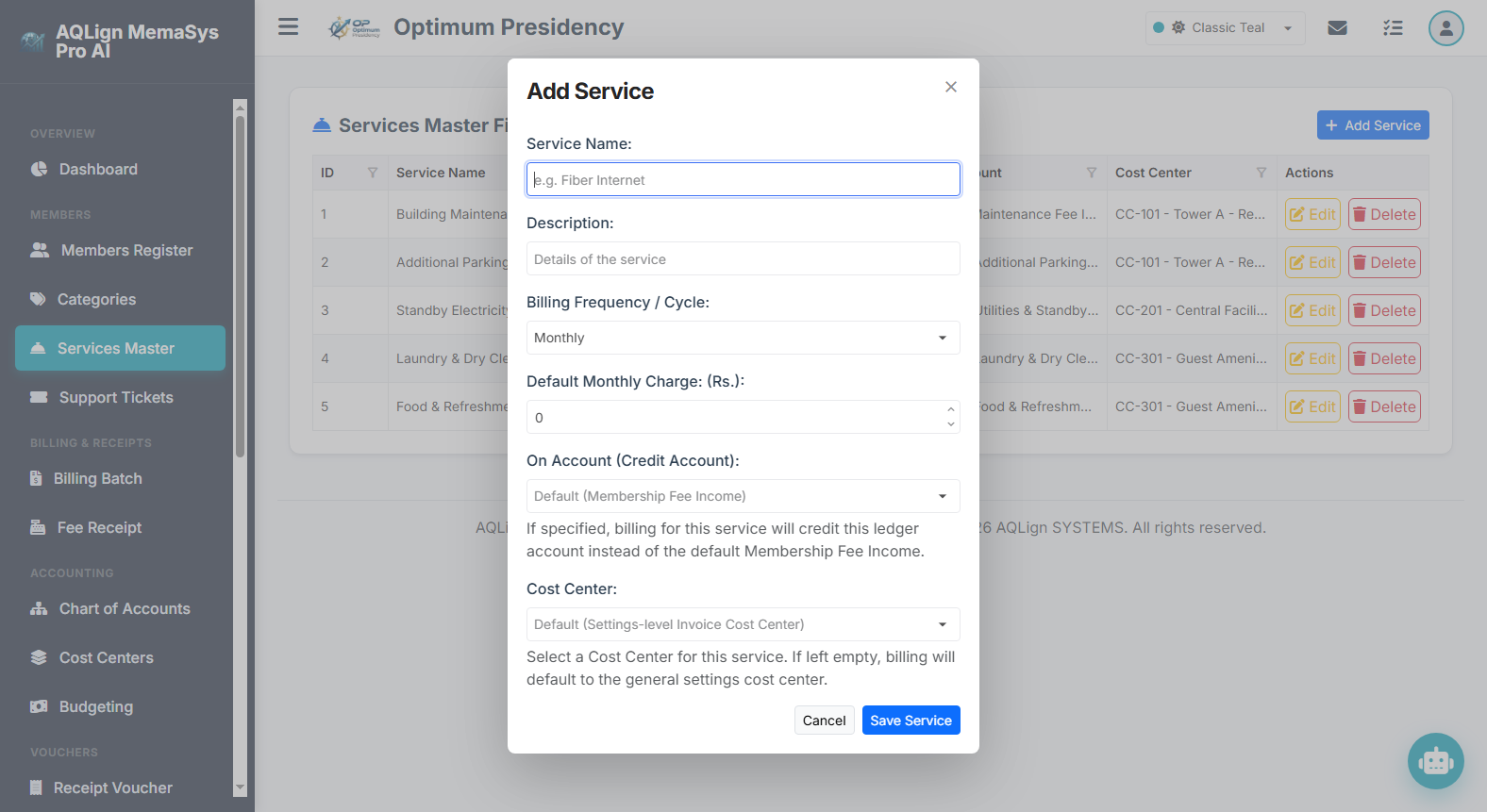
- Billing Frequency / Cycle:
Users configure services as either Monthly (billed every single recurring billing cycle) or Yearly. For yearly services, users define the Default Yearly Billing Month (January through December dropdown), ensuring annual maintenance or annual membership renewals trigger ONLY during the specified calendar month. - Default Charges & Term Pricing:
Defines the standard base price rate in local currency (Rs.). When opting a member into this service, this charge acts as the default pricing benchmark. - On Account (Credit Account Link):
Crucial General Ledger Integration: Each service can be explicitly linked to a specific Revenue Account from the Chart of Accounts (COA). When the Billing Batch engine runs, billing for this service will credit this exact specified ledger account (e.g. Utility Revenue Account 4020, Parking Revenue Account 4030) instead of defaulting to generic Membership Fee Income Account 4010! - Cost Center Assignment:
Integrates directly with Advance Accounting cost centers (CC-101 Standby Power, CC-102 Janitorial/Utilities). This tags service billing revenue directly to specific cost centers for budget variance and comparative P&L reporting.
6 Members — Support Tickets (Optional Module A)
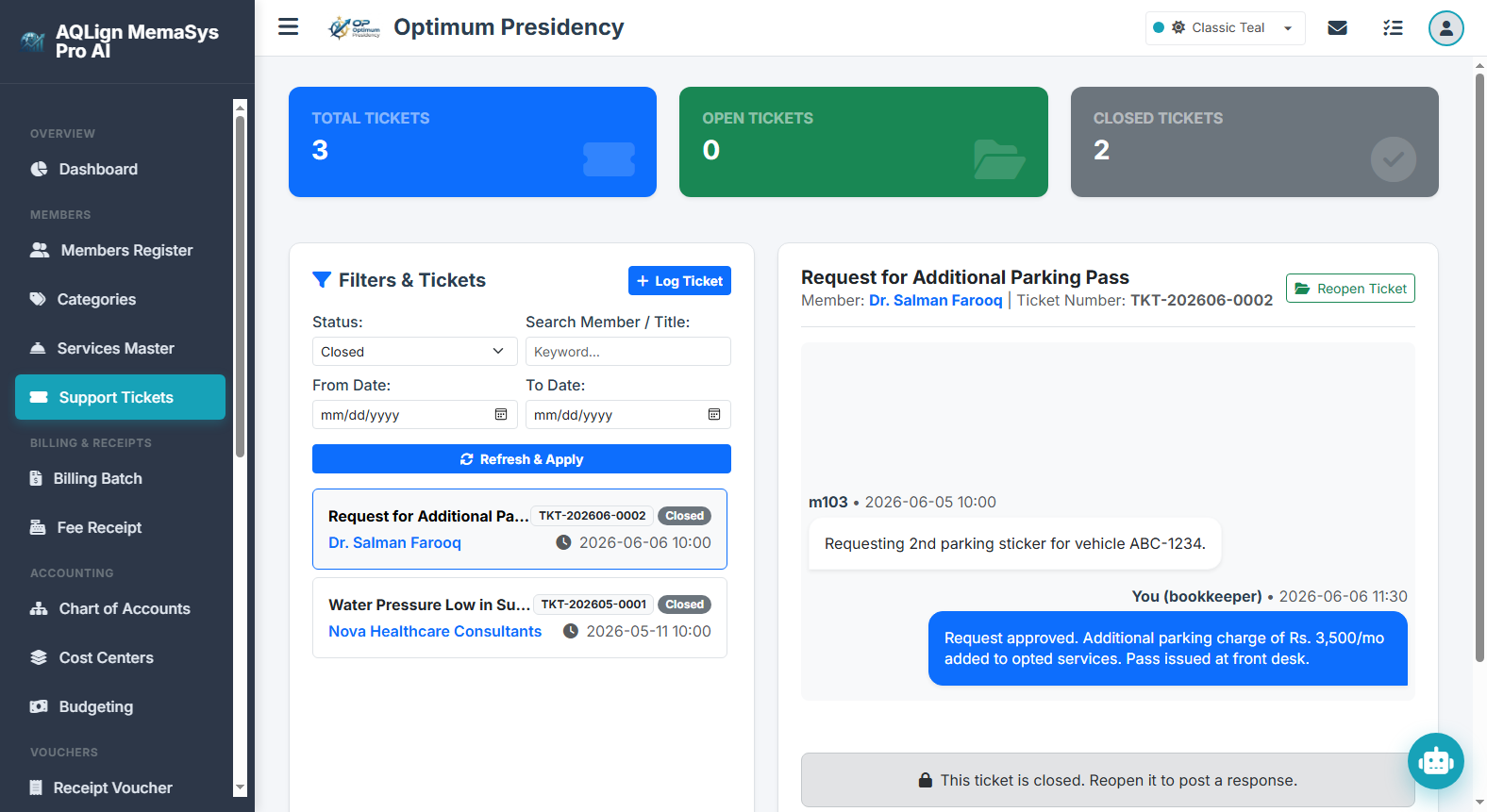
The Member Support Tickets Module (`/company/tickets`) provides an integrated, multi-user helpdesk and issue resolution system within AQLign MemaSys Pro AI. It enables client members and company staff to log complaints, track operational inquiries, assign specialized staff handlers, and maintain full conversation histories.
6.1 Operational Overview & Strategic Value of Helpdesk Automation
Client satisfaction and operational transparency require that every member inquiry—whether regarding facility maintenance, standby power generator issues, billing discrepancies, or access cards—be logged, assigned, and tracked through a formal resolution lifecycle. The Support Tickets module replaces informal phone calls and scattered text messages with an audited, central helpdesk registry.
6.2 Dual Ticket Generation Pathways
The platform provides two distinct pathways for initiating a support ticket:
Client members log into their private Member Portal (`/member/tickets`), click Submit New Ticket, select an issue priority (Low, Medium, High), enter a descriptive subject title, and type their query. Upon submission, the system automatically assigns a unique Ticket Number (e.g. TKT-202608-0001), sets status to Open, and dispatches instant email notifications to both the member and the central management team.
In many real-world operational scenarios, a client member may call the management front desk via phone or walk into the administrative office in person to report an issue. Company staff can log the ticket directly on the member's behalf:
- In the staff Ticket Management dashboard (`/company/tickets`), the staff user clicks the
Log Ticket On Behalfbutton. - In the modal dialog, the staff user selects the specific member from the Select Member dropdown list (searchable by Member Name or Membership Number).
- The staff user inputs the Ticket Title, selects the Priority Level (High, Medium, Low), and types the member's initial verbal complaint into the description field.
- Upon clicking
Log Ticket, the ticket is registered in the member's name, assigned to the logging staff member, and an automated email confirmation copy is dispatched to the member's registered email address for complete transparency.
6.3 Administrative Ticket Assignment & Multi-Department Re-Allocation Engine
To ensure that complex technical or financial complaints reach the appropriate staff specialist, the platform includes a native Ticket Assignment & Re-allocation Engine:
- Initial Handler Assignment: When a ticket is created, it is assigned by default to a general helpdesk queue or to the staff member who logged the ticket on-behalf.
- Multi-Department Re-Allocation / Shifting: While reviewing an open ticket thread, an administrator or supervisor can click the Assign To dropdown selector in the chat header and choose a specialized staff user (e.g. shifting from Front Desk Coordinator to Accounts Officer or Maintenance Engineer).
- Automated Re-Allocation Notifications & Audit Trail: Upon shifting ticket assignment, the system automatically inserts a system audit event message into the thread (e.g. "Ticket assigned to Maintenance Engineer by Admin on 2026-08-09 19:05") and dispatches an automated email alert to the newly assigned staff member.
6.4 Real-Time Conversation Sync Engine & Live Message Threading
Communication within a support ticket occurs inside an interactive, threaded chat interface:
- Real-Time Conversation Sync Engine: The communication interface is powered by a real-time conversation sync engine that updates incoming replies and thread status live on screen without requiring manual browser page refreshes.
- Visual Role Styling & Sender Badges: Member responses render in distinct left-aligned white speech bubbles, while staff responses render in right-aligned primary blue bubbles with explicit staff name tags and timestamps. System events (assignments, status changes) display as centered pill badges.
- Keyboard Shortcut Quick Reply: Staff can type responses and press
Ctrl + Enterto instantly dispatch replies to the member.
6.5 Complete Lifecycle Resolution & Closing Protocols
A support ticket remains active until the underlying issue is fully resolved:
- Open Status & Thread Exchange: Staff and member exchange detailed diagnostic notes, attachments, or instructions within the thread.
- Operational Execution & Verification: The assigned staff specialist completes the physical repair or financial adjustment and posts a resolution summary in the chat thread.
- Closing the Ticket: Once satisfied with the resolution, either the staff member (via the
Close Ticketbutton in the staff dashboard) or the client member (via their Member Portal) marks the ticket status as Closed. - Reopening Capability: If the issue recurs or requires further clarification, either party can click
Reopen Ticketto reactivate the thread and resume communication.
6.6 Real-World Enterprise Operational Scenario
Consider a practical operational example at Optimum Presidency:
Step 1: Verbal Phone Complaint: Member Mr. Tariq Memon (M-101) calls the reception desk reporting a standby generator power voltage fluctuation in Suite 101.
Step 2: Staff Logs Ticket On-Behalf: Front Desk Coordinator opens the Ticket Management screen (`/company/tickets`), clicks Log Ticket On Behalf, selects Mr. Tariq Memon (M-101), sets Title = "Generator Voltage Fluctuation in Suite 101", Priority = High, and logs the complaint. Mr. Memon instantly receives an automated SMS/email ticket confirmation.
Step 3: Department Re-Allocation: The Helpdesk Administrator reviews the new high-priority ticket and uses the Assign To selector to re-allocate the ticket from Front Desk Coordinator to Chief Electrical Engineer.
Step 4: Live Technical Exchange & Resolution: The Electrical Engineer inspects Suite 101's circuit panel, fixes the automatic transfer switch (ATS), and replies in the live ticket thread: "Inspected ATS switch in Suite 101, replaced control relay. Voltage stabilized at 220V."
Step 5: Ticket Closure: Mr. Tariq Memon receives the live update in his Member Portal, verifies the power supply, and clicks Close Ticket to complete the resolution lifecycle.
7 Billing & Receipts — Automated & Manual Billing Batch Engine
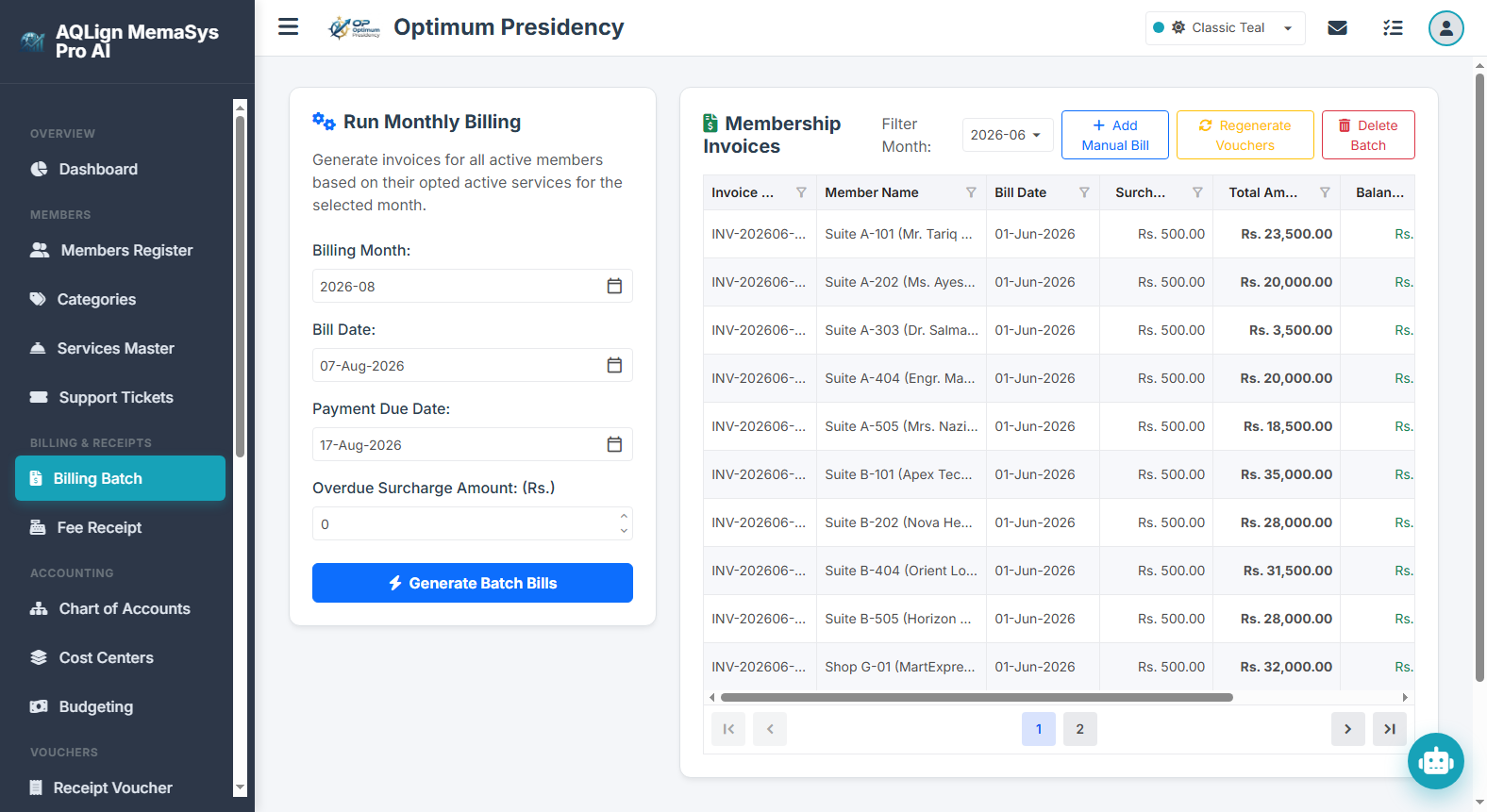
The Billing Batch Engine (`/company/billing/generation`) represents the operational core of the Member Subscription Management subsystem in AQLign MemaSys Pro AI. It bridges client member profiles and opted service catalogs with the core financial accounting engine, converting active subscription contracts into double-entry General Ledger journal vouchers and member accounts receivable balances.
7.1 Operational Overview & Strategic Value of Automated Invoicing
In recurring revenue enterprises, manually calculating, typing, and posting invoices for hundreds or thousands of members every month is prone to human error, missed billing items, and severe financial leakage. The Billing Batch Engine automates this entire lifecycle, executing month-end billing runs in seconds with 100% mathematical precision.
- Zero Financial Leakage: Automatically captures 100% of active opted services, pro-rata charges, and penalty surcharges across all active member profiles.
- Automated Double-Entry Ledger Posting: Every billing run automatically generates a consolidated Journal Voucher (JV) that debits the Members Receivable Control Account 1031 and credits specific revenue accounts based on service settings.
- Dual Overdue Surcharge Enforcement: Incorporates a sophisticated two-tier surcharge architecture that levies automated surcharges on prior pending balances during batch runs AND assesses dynamic late payment surcharges during fee receipt collection for payments received after the due date.
- Integrated Cost Center Tagging: Tags revenue postings directly to specific cost centers (e.g. CC-101 Standby Power) for department-level P&L tracking.
7.2 Automated Billing Batch Mechanics & Dual Inclusions Rule
When executing an automated billing batch, the engine evaluates all active member profiles and their opted services against a strict calculation matrix:
The billing engine applies the Dual Inclusions Rule during every monthly batch execution:
- Monthly-Paying Members & Services: All active services configured with a Monthly billing cycle are automatically included in every single monthly billing run.
- Yearly-Paying Members & Annual Renewal Services: Services configured with a Yearly billing cycle are billed ONLY when the selected billing batch month matches the member's or service's configured Yearly Billing Month (January through December). In that generative month, annual maintenance retainers or membership renewal fees are automatically billed alongside monthly utility charges.
- Membership Start Date Validation: Members whose contract start date falls after the end of the selected billing month are automatically excluded from the batch run, preventing pre-contract invoicing errors.
7.3 The Two-Tier Overdue Surcharge Architecture
Financial discipline requires enforcing financial penalties on delinquent member accounts. The software embeds two distinct, complementary surcharge features:
During the automated monthly billing run, the engine automatically audits each member's ledger statement history:
- Prior Balance Detection: If a member has unpaid invoices from previous billing cycles or carries an outstanding debit balance (prior arrears > 0), the system flags the member as delinquent.
- Automated Surcharge Levy: The engine automatically appends the configured Overdue Surcharge Amount (e.g. Rs. 500) to the new invoice total, itemizing the penalty in the invoice remarks (e.g. "Automated monthly billing (Includes surcharge of Rs. 500.00)").
- Accounting Journal Voucher Credit: When the billing Journal Voucher posts to the General Ledger, the surcharge portion is credited to Account 4040 (Late Payment Surcharge Income Account), isolating penalty revenue from standard service income.
The second surcharge feature operates dynamically during payment collection at the cashier desk (`/company/fee-receipt`):
- Post-Due-Date Payment Detection: When a member presents payment after the invoice's official Payment Due Date (e.g. paying on June 15th for a bill due June 10th), the fee receipt entry module automatically detects the overdue condition.
- On-the-Fly Surcharge Assessment: The cashier screen prompts the late payment surcharge amount, allowing staff to collect the late fee alongside the base bill amount.
- Automated Surcharge Voucher (SRCH) Generation: Saving the fee receipt automatically generates a dedicated Late Payment Surcharge Voucher (e.g. `SRCH-00001`). This voucher debits Members Receivable Control Account 1031 and credits Late Payment Surcharge Income Account 4040 in real time before the fee receipt credit is applied, maintaining perfect double-entry ledger balance.
7.4 Manual Bill Creation & Ad-Hoc Member Charges
While the automated batch handles recurring subscriptions, staff often need to invoice members for one-off operational charges (e.g. event hall rental fees, damage replacements, administrative transfer fees, or lost access cards):
- Click the
Add Manual Billbutton on the Billing Runs dashboard. - Select the target member, specify the invoice date, payment due date, and enter ad-hoc line items with custom charge amounts and service descriptions.
- Upon saving, the system creates an individual manual invoice, posts a debit entry to the member's subsidiary ledger, and posts a corresponding Journal Voucher to the General Ledger.
7.5 Invoice Regeneration Engine & Audit Integrity Controls
If an administrator modifies service pricing or updates a service's revenue credit account mapping in the Services Master after a billing run has executed, the Regenerate Vouchers Engine allows updating the accounting records without deleting transaction history:
- Regenerate Vouchers Action: Clicking
Regenerate Vouchersrecalculates credit account allocations on all accounting vouchers for the selected month, ensuring General Ledger revenue credits match updated service account links. - Strict Audit Protection for Paid Invoices: To safeguard audit trails and prevent ledger corruption, invoices with existing payment postings or fee receipts (where Paid Amount > 0) cannot be edited, regenerated, or deleted. The system blocks modifications on partially or fully paid invoices, protecting financial integrity.
7.6 Real-World Enterprise Operational Scenario
Consider a real-world billing execution at Optimum Presidency for the billing month of June 2026:
Batch Parameters: Selected Billing Month = 2026-06, Bill Date = 01-Jun-2026, Due Date = 10-Jun-2026, Overdue Surcharge Amount = Rs. 500.
- Monthly Member M-101 (Mr. Tariq Memon - Clear History): Has zero prior arrears. Billed monthly Fiber Internet (Rs. 3,500) + Power Generator (Rs. 5,000) = Rs. 8,500.
- Monthly Member M-102 (Delinquent History - Tier 1 Batch Surcharge): Carries an unpaid balance of Rs. 4,000 from May. The batch engine detects the prior balance and automatically adds the Rs. 500 Overdue Surcharge to his June bill (Janitorial Rs. 2,000 + Surcharge Rs. 500 = Rs. 2,500 new bill). Total balance due = Rs. 6,500.
- Yearly Member M-105 (Executive Suite): Configured with Yearly Billing Month = June. Billed monthly utilities (Rs. 2,000) PLUS annual building maintenance retainer (Rs. 60,000) = Rs. 62,000.
- Post-Due-Date Fee Receipt Collection (Tier 2 Surcharge): On June 15th, 2026 (5 days after the June 10th due date), Member M-101 comes to pay his Rs. 8,500 bill. The cashier screen detects post-due payment and assesses a Rs. 500 Late Surcharge. The cashier collects Rs. 9,000 total. The system generates a Late Surcharge Voucher
SRCH-00001(debiting Account 1031 and crediting Account 4040 for Rs. 500) and posts Fee ReceiptREC-00086(crediting Account 1031 for Rs. 9,000), leaving M-101 with zero balance. - Automated Accounting Journal Voucher Posting: The batch engine generates Journal Vouchers debiting Members Receivable Control Account 1031 and splitting credits across Account 4010 (annual maintenance), Account 4020 (utilities), Account 4030 (internet), and Account 4040 (surcharge income).
7.7 Step-by-Step Guide for Automated Billing Batch Execution
- Access Billing Runs Dashboard: Navigate to Billing & Receipts → Billing Runs (`/company/billing/generation`).
- Set Billing Parameters & Surcharge Rate: In the Run Monthly Billing card, select the Billing Month (e.g. `2026-06`), set the Bill Date, Payment Due Date, and specify the Overdue Surcharge Amount (e.g. Rs. 500).
- Execute Batch: Click
Generate Batch Bills. The system processes all active members, applies Tier 1 batch surcharges to members with prior pending balances, and displays a success notification with total invoices generated and total billed amount. - Inspect & Filter Invoices: Use the Filter Month dropdown in the invoices grid to view, sort, or filter invoices by billing cycle.
- Print Invoices: Click the
Printbutton on any invoice row to generate a professional, formatted bill statement (available in A4, Letter, or 80mm Thermal paper sizes) complete with company logo, service breakdown, opening arrears, current charge, total balance due, and amount in words.
7.8 Step-by-Step Guide for Manual Bill Creation, Regeneration & Post-Due Receipt Collection
- Create Manual Invoice: Click
Add Manual Bill, select the member, input ad-hoc line items, set dates, and clickSave Invoice. - Process Post-Due Fee Receipt Collection (Tier 2 Surcharge): During fee receipt entry (`/company/fee-receipt`), if payment is received after the due date, enter the late payment surcharge in the Surcharge Amount field. Upon saving, verify that the system generates a corresponding
SRCHsurcharge voucher. - Regenerate Vouchers: To update credit account allocations after service catalog updates, select the month in Filter Month and click
Regenerate Vouchers. Confirm the action in the popup dialog. - Delete Invoice or Batch: To delete an unpaid invoice or entire unpaid batch, select the item and click
DeleteorDelete Batch. Confirm deletion in the popup dialog. Paid invoices will be blocked automatically.
8 Billing & Receipts — Member Fee Receipt Entry
The Member Fee Receipt Entry Module (`/company/billing/receipt-entry`) is designed specifically for rapid cashier desk operations in AQLign MemaSys Pro AI. It adopts a minimalist, ergonomics-focused architecture that enables cashiers to record member payments in seconds while maintaining 100% double-entry General Ledger control account integrity.
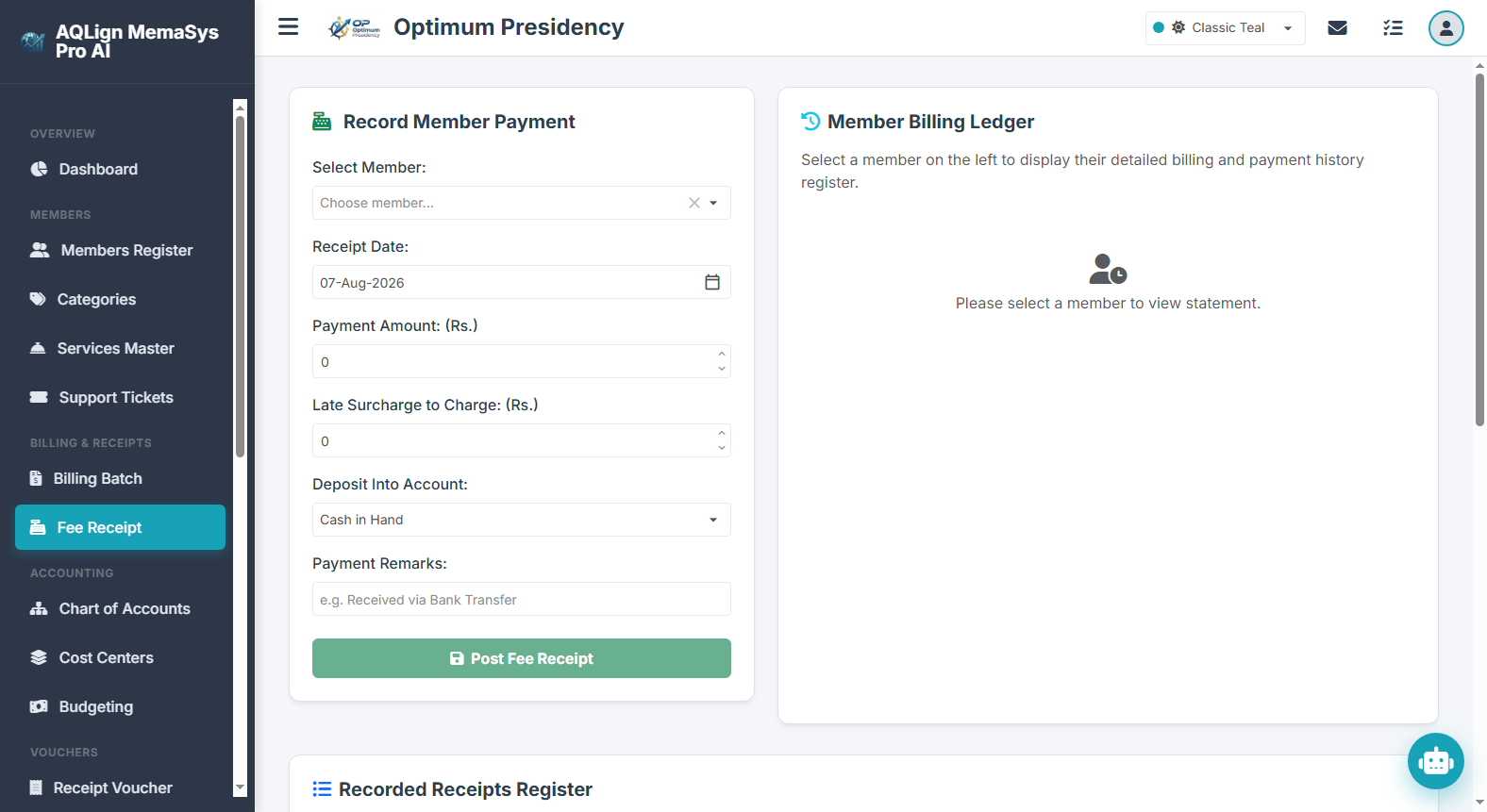
8.1 Operational Overview & Minimalist High-Speed Architecture
At busy customer service counters, cashiers must process payment collections quickly without sacrificing financial accuracy. The Fee Receipt module addresses this requirement through a dual-card split-screen layout:
- Left Entry Card (Receipt Controls): Houses keypress member search, receipt date picker, payment amount field, late surcharge entry, receiving account selector (Cash/Bank), and payment remarks.
- Right Verification Card (Live Billing Ledger): Dynamically loads and displays the selected member's complete billing and payment history register in real time right next to the input form.
- Instant Outstanding Dues Callout: Prominently calculates and displays the member's Total Outstanding Dues in a bold badge as soon as the member profile is selected.
8.2 Keypress-Based Member Selection & Live Account Statement Preview
To eliminate manual navigation delays, the member selection dropdown incorporates intelligent keypress-based filtering:
- Keypress Search Engine: Cashiers can type a few characters of a member's name, membership number, or unit number directly into the selector. The system filters matching profiles instantly without requiring mouse clicks.
- Live Statement Verification: Upon member selection, the system automatically fetches and renders the member's complete subsidiary ledger register. Cashiers view past payment receipts, posted monthly bills, and running balance history, allowing them to cross-verify the exact amount owed with the member before typing the payment entry.
8.3 Flexible Receiving Account Selector & Multi-Bank Routing
Enterprise clients receive payments across various channels (Cash, Bank Transfer, Cheque, or POS Card Swipe). The platform provides complete flexibility in destination account routing:
- Deposit Into Account Selector: Cashiers can route payment credits directly into any active Cash or Bank account configured in the Chart of Accounts (e.g. Account 1010 Office Petty Cash, Account 1020 Main Operations Bank Account, or designated facility deposit accounts).
- Automated Double-Entry Posting: Saving the receipt automatically posts a debit to the selected Cash/Bank account and a corresponding credit to the Members Receivable Control Account 1031, keeping asset ledgers in perfect alignment.
8.4 Post-Due-Date Surcharge Assessment & Trial Balance Integrity
When a member presents payment after an invoice's official Payment Due Date, the system enforces late payment penalties while protecting accounting ledger balance:
The platform guarantees 100% double-entry trial balance equilibrium during post-due payment collection:
- Automated Post-Due Detection: If the receipt transaction date is past the invoice due date, the system prompts the Late Surcharge to Charge field.
- Automated Surcharge Voucher (SRCH) Generation: Inputting a late surcharge automatically generates a dedicated Late Payment Surcharge Voucher (e.g. `SRCH-00001`) before saving the fee receipt. This voucher debits Members Receivable Control Account 1031 and credits Late Payment Surcharge Income Account 4040.
- Complete Member Statement Transparency: Both the surcharge receivable debit entry and the payment receipt credit entry display on the member's ledger statement. This provides the member with a clear breakdown of base charges versus late fees while ensuring the General Ledger Trial Balance maintains Zero Discrepancy (Rs. 0.00 difference guarantee).
8.5 Real-World Enterprise Operational Scenarios
Consider two practical payment collection scenarios at Optimum Presidency:
Context: Member Mr. Tariq Memon (M-101) presents payment of Rs. 8,500 for his June 2026 invoice (Due Date: 10-Jun-2026) on June 5th, 2026.
- Cashier types "Tariq" in the member selector. The system instantly highlights Mr. Tariq Memon (M-101) and displays Total Outstanding Dues: Rs. 8,500 alongside his statement history.
- Cashier verifies the balance, selects Account 1020 Main Bank Account (for online transfer), inputs
8,500in Payment Amount, leaves Surcharge at0, and clicksPost Fee Receipt. - The system generates Fee Receipt
REC-00085, debiting Account 1020 (Rs. 8,500) and crediting Members Receivable Account 1031 (Rs. 8,500). Mr. Memon's statement updates instantly to show Balance: Rs. 0.00.
Context: Member Mr. Tariq Memon (M-101) presents payment on June 15th, 2026 (5 days after the June 10th due date) for his Rs. 8,500 invoice.
- Cashier selects Mr. Tariq Memon (M-101). The receipt date defaults to
15-Jun-2026. The cashier inputs8,500in Payment Amount and enters500in Late Surcharge to Charge (total collected: Rs. 9,000). - Cashier selects Account 1010 Office Cash Account and clicks
Post Fee Receipt. - The system automatically executes a two-step voucher posting:
- Generates Surcharge Voucher
SRCH-00001: Debits Account 1031 (Rs. 500) and credits Account 4040 Late Surcharge Income (Rs. 500). - Generates Fee Receipt
REC-00086: Debits Account 1010 Office Cash (Rs. 9,000) and credits Account 1031 Members Receivable (Rs. 9,000).
- Generates Surcharge Voucher
- Mr. Memon's ledger statement displays both the
SRCH-00001debit (+Rs. 500) andREC-00086credit (-Rs. 9,000), reducing total outstanding balance to Rs. 0.00 while keeping the General Ledger Trial Balance 100% reconciled.
8.6 Step-by-Step Guide for Recording Fee Receipts (On-Time Payment)
- Open Fee Receipt Screen: Navigate to Billing & Receipts → Record Fee Receipt (`/company/billing/receipt-entry`).
- Select Member via Keypress: Click the Select Member dropdown and type the member's name or membership number. Press `Enter` or click to select.
- Verify Live Account Statement: Review the embedded Total Outstanding Dues callout and statement table on the right card to confirm unpaid invoices.
- Input Payment Details: Select the Receipt Date, enter the Payment Amount, select the receiving Cash or Bank account in Deposit Into Account, and type optional payment remarks (e.g. "Cheque #490212").
- Save & Print Receipt: Click
Post Fee Receipt. The system records the transaction, updates the ledger, and allows printing an official receipt statement (A4, Letter, or 80mm Thermal paper sizes) complete with company logo, payment breakdown, and amount in words.
8.7 Step-by-Step Guide for Recording Fee Receipts with Post-Due Surcharges
- Select Overdue Member: Choose the member via keypress search and set the current receipt transaction date.
- Assess Late Surcharge: In the Late Surcharge to Charge field, enter the applicable late penalty amount (e.g. Rs. 500).
- Enter Total Collected Cash/Bank Amount: In Payment Amount, enter the base bill payment amount.
- Post Dual Vouchers: Click
Post Fee Receipt. Verify in the Recorded Receipts Register table that the system successfully generated the receipt voucher and associated `SRCH` surcharge posting. - Audit Member Statement & Print: Review the member's updated billing ledger to confirm that both surcharge debit and receipt credit are posted, leaving a clean zero balance. Print the receipt copy for the member.
9 Accounting — Chart of Accounts Master Tree
The Chart of Accounts (`/company/accounting/accounts`) is the fundamental architectural foundation of AQLign MemaSys Pro AI. It serves as the primary seed from which the entire enterprise accounting ecosystem develops. When structured thoughtfully during initial deployment, this master accounting tree nurtures every subsequent financial workflow—from automated subscription invoicing and fee receipt collection to general journal vouchers, Trial Balance reconciliation, Profit & Loss calculations, and Balance Sheet reporting.
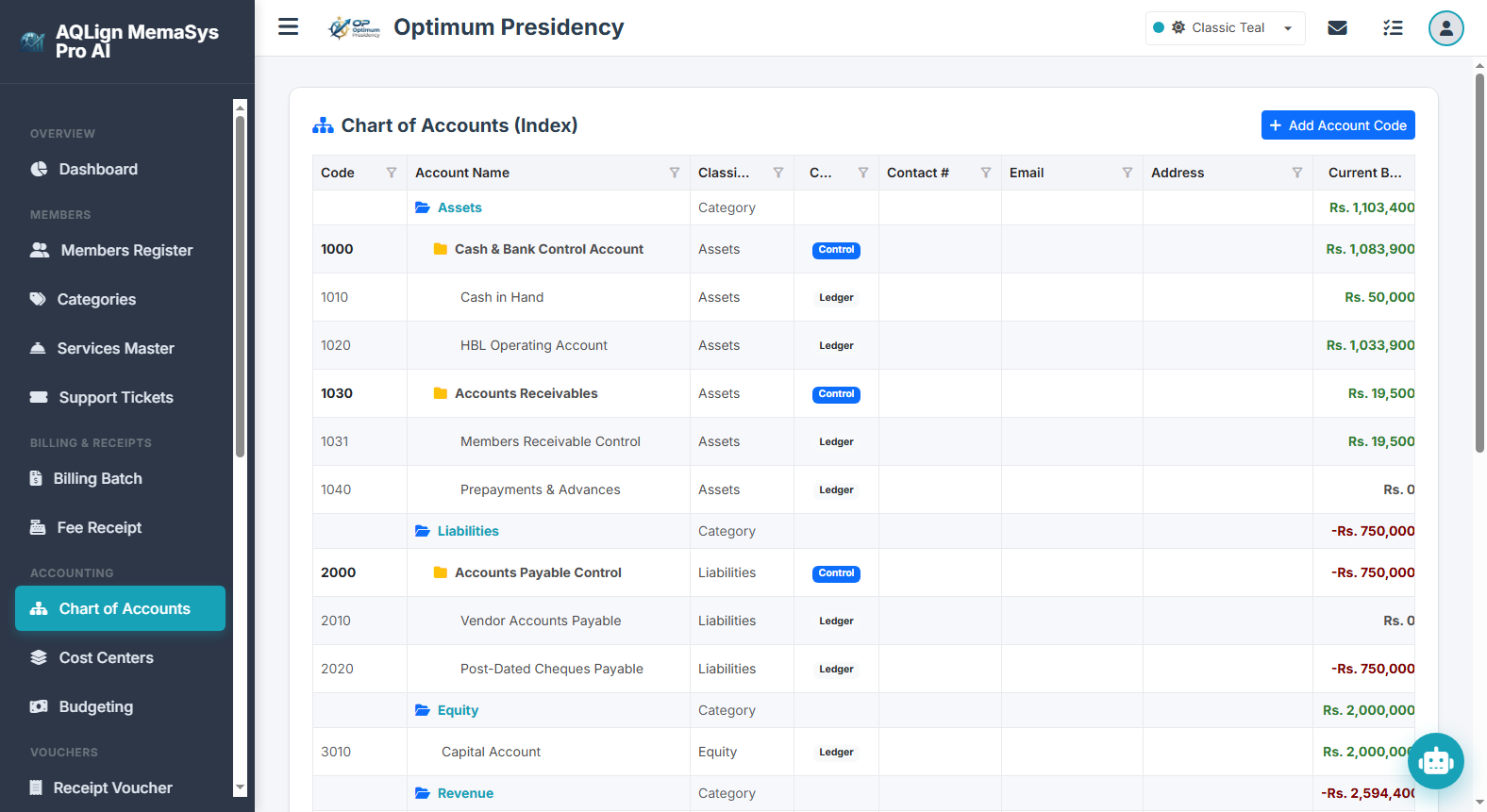
9.1 Operational Overview: The Seed of the Financial Ecosystem
Think of the Chart of Accounts as a seed planted at the inception of a business entity. As transactions occur, this seed sprouts into robust branches (Control Accounts) and leaves (Subsidiary Ledger Accounts), ultimately yielding mature financial fruit (Trial Balance, Profit & Loss Statement, Balance Sheet, Cash Book, and Cash Flow Reports). A clean, well-organized chart of accounts makes every subsequent operational step intuitive, transparent, and auditing-friendly.
The platform combines maximum accounting depth with an exceptionally clean, approachable user interface:
- Intuitive Classification: Simply selecting an Account Type (Asset, Liability, Equity, Revenue, Expense) and defining its Control vs. Subsidiary nature instantly places the account into its proper position in the global accounting hierarchy.
- Automatic Parent Hierarchy Inheritance: Assigning a parent control account automatically aligns the child account's accounting classification, eliminating setup mistakes.
- Minimalist Data Fields: Focuses on essential accounting attributes—Account Code, Account Name, Account Classification, Control Flag, Parent Link, Opening Balance, and optional contact metadata (Phone, Email, Address) for vendor/customer ledgers.
9.2 Account Classification Categories & Real-World Use Cases
The system categorizes every financial account into one of five standard double-entry accounting classes:
| Account Classification | Standard Code Range | Normal Balance | Real-World Examples & Operational Purpose |
|---|---|---|---|
| Assets | 1000 – 1999 | Debit | Cash Accounts (Petty Cash 1011, Front Desk Cash 1012), Bank Accounts (Meezan Bank 1021, HBL Collection 1022), Accounts Receivable (Members Receivable 1031), Fixed Assets (Standby Generator Equipment 1050, Office Premises 1060). Represents economic resources owned by the organization. |
| Liabilities | 2000 – 2999 | Credit | Trade Payable Vendors (Power Utility Co. 2011, Elevator Maintenance Corp. 2012), Short-term Loans (Bank Overdraft 2021), Refundable Deposits (Member Security Deposit 2031), Advances Received (Advance Rent 2041), Long-term Loans (Commercial Mortgage 2050). Represents financial obligations owed to external parties. |
| Equity | 3000 – 3999 | Credit | Capital Share (Owner/Shareholder Capital 3010), Retained Earnings (Accumulated Reserves 3020). Represents net worth and accumulated un-distributed profits belonging to business owners. |
| Revenue (Income) | 4000 – 4999 | Credit | Subscription Income (Membership Fee Income 4010), Utility Tariffs (Power Generator Surcharge 4020, Water Tariff 4025), Amenity Income (Parking Space Rent 4030, Hall Booking 4035), Penalties (Late Payment Surcharge Income 4040). Represents gross earnings generated from operational services. |
| Expenses | 5000 – 5999 | Debit | Operational Expenses (Standby Power Generator Diesel 5011, Electricity Grid Bills 5012), Payroll Expenses (Security Staff Salary 5021, Administrative Salary 5022), Maintenance (Janitorial Supplies 5031, Building Repair 5035). Represents operational costs incurred to generate revenue. |
9.3 The Control vs. Subsidiary (Ledger) Architecture & System Settings Integration
Understanding the distinction between Control Accounts and Subsidiary (Detail) Ledger Accounts is central to mastering the platform's accounting engine:
- Control Accounts (Heading / Parent Containers): Marked with Control Account = Yes. These serve as organizational parent headers (e.g.
1030 Accounts Receivableor5010 Utility Expenses). They group child accounts together for high-level P&L and Balance Sheet summary views. Control accounts cannot take direct manual voucher entries or transactions, and their opening balance field is automatically disabled to protect structural totals. - Subsidiary / Detail Ledger Accounts (Posting Accounts): Marked with Control Account = No. These are individual posting accounts (e.g.
1031-001 Member Tariq Memonor1011 Petty Cash). They accept manual journal debits/credits, automated billing invoices, and fee receipt entries. Opening balances are entered directly on subsidiary accounts during initial system setup.
To enable seamless 1-click automated billing and cash receipting, key operational accounts are linked in System Settings (`/company/settings`):
- Members Receivable Control Account (e.g.
Account 1031): Default debit account for automated billing runs and credit account for fee receipts. - Default Membership Fee Income Account (e.g.
Account 4010): Default credit account for recurring subscription invoices. - Late Payment Surcharge Income Account (e.g.
Account 4040): Default credit account for late payment penalties. - Default Fee Receipt Cash & Bank Accounts (e.g.
Account 1010 Cash/Account 1020 Bank): Default receiving accounts for payment receipts.
As your organization grows, administrators can re-map these default account links in System Settings at any time, instantly redirecting future automated entries without corrupting historical ledger data.
9.4 Seamless Lifecycle Flow: Trial Balance, Profit & Loss & Balance Sheet Integration
Every transaction posted to a subsidiary account flows automatically through the financial statement hierarchy:
- Voucher Posting to Subsidiary Ledgers: Vouchers debit/credit subsidiary accounts (e.g. debiting Cash 1010 and crediting Members Receivable 1031).
- Control Account Aggregation & Trial Balance: The Trial Balance (`/company/reports/trial-balance`) aggregates all subsidiary balances into their parent Control Accounts. Users can toggle between 2-Column View (Debit/Credit closing balances) and 6-Column View (Opening, Motion Debit, Motion Credit, Closing Debit, Closing Credit) with custom filter controls to show or hide zero-balance accounts and headers.
- Profit & Loss Calculation: The Profit & Loss Report (`/company/reports/profit-loss`) sums all Revenue accounts (4000s) and subtracts Expense accounts (5000s) over a selected date range to calculate Net Profit or Net Loss.
- Balance Sheet Closing & Zero Discrepancy Guarantee: The Balance Sheet (`/company/reports/balance-sheet`) lists Assets (1000s) on one side and Liabilities (2000s) + Equity (3000s) on the other. The Net Profit calculated from the Profit & Loss statement automatically feeds into Retained Earnings (Equity 3020). This closes the loop, guaranteeing that Assets = Liabilities + Equity (Zero Discrepancy Guarantee).
9.5 Real-World Enterprise Operational Scenario
Consider a practical chart of accounts setup at Optimum Presidency:
- Assets Header (1000)
1010 Current Assets (Control)1011 Office Petty Cash (Ledger)— Opening Balance: Rs. 25,0001021 Meezan Bank Main Account (Ledger)— Opening Balance: Rs. 1,500,0001030 Trade Debtors / Members Receivable (Control)
- Liabilities Header (2000)
2010 Accounts Payable / Vendors (Control)2011 K-Electric Utility Company (Ledger)2012 Otis Elevator Maintenance Ltd. (Ledger)
2030 Security Deposits Refundable (Ledger)— Tenant refundable deposits.
- Revenue Header (4000)
4010 Monthly Maintenance Fee Income (Ledger)4020 Standby Generator Power Tariff Income (Ledger)4040 Late Payment Surcharge Income (Ledger)
- Expenses Header (5000)
5011 Standby Power Generator Diesel Fuel (Ledger)5021 Security Guard Agency Salaries (Ledger)
9.6 Step-by-Step Guide: Creating a Simple Ledger Account
- Open Chart of Accounts Screen: Navigate to Accounting → Chart of Accounts (`/company/accounting/accounts`).
- Click Add Account Code: Click the
Add Account Codebutton to open the account modal dialog. - Select Account Type & Code: Select the Account Type (e.g. Assets) and enter a unique numeric/alphanumeric Account Code (e.g. `1015`).
- Enter Account Name: Type the descriptive Account Name (e.g. Counter Cash Drawer #2).
- Set Control Flag to No: In Control Account?, select
No(indicating this is a posting subsidiary ledger account). - Select Parent Control Account: In Parent Control Code, select `1010 Current Assets`.
- Enter Opening Balance & Save: Input the starting Opening Balance (e.g. `10,000`) and click
Save Account. The account is created instantly and appears under its parent in the master tree index.
9.7 Step-by-Step Guide: Creating an Advanced Multi-Level Territory Hierarchy
For large organizations managing multi-city operations, the software supports unlimited multi-level hierarchical tree structures. Below is the step-by-step procedure for creating a multi-level territory customer hierarchy in Pakistan:
- Step 1: Create Main Region Control Account
- Click
Add Account Code, set Account Type = Assets, Code = `1030-SND`, Name = Sindh Region Receivables. - Set Control Account? =
Yes, Parent Control Code = `1030 Trade Debtors`. ClickSave Account.
- Click
- Step 2: Create City Territory Control Account
- Click
Add Account Code, set Account Type = Assets, Code = `1030-KHI`, Name = Karachi Territory Receivables. - Set Control Account? =
Yes, Parent Control Code = `1030-SND Sindh Region Receivables`. ClickSave Account.
- Click
- Step 3: Create Area Commercial Zone Control Account
- Click
Add Account Code, set Account Type = Assets, Code = `1030-KHI-CLF`, Name = Clifton Commercial Zone Receivables. - Set Control Account? =
Yes, Parent Control Code = `1030-KHI Karachi Territory Receivables`. ClickSave Account.
- Click
- Step 4: Create Individual Customer Subsidiary Ledger Accounts
- Click
Add Account Code, set Account Type = Assets, Code = `1030-KHI-CLF-001`, Name = Suite 101 - Apex Traders Corporate. - Set Control Account? =
No, Parent Control Code = `1030-KHI-CLF Clifton Commercial Zone Receivables`. Input starting opening balance, contact number, email, and address. ClickSave Account. - Repeat for Suite 102 - Horizon Tech Ltd. (Code = `1030-KHI-CLF-002`).
- Click
- Step 5: Verify Tree Aggregation in Financial Reports
- Open the Trial Balance Report (`/company/reports/trial-balance`). Notice how individual customer balances roll up into Clifton Commercial Zone, which rolls up into Karachi Territory, which rolls up into Sindh Region, and ultimately aggregates into Trade Debtors under Assets.
- This multi-tier tree hierarchy enables filtering reports by specific territory or viewing global consolidated balances with 100% mathematical precision.
10 Accounting — Cost Centers Engine & Segment P&L Analytics
The Cost Centers Engine (`/company/accounting/costcenters`) provides multi-dimensional operational segment accounting in AQLign MemaSys Pro AI. It empowers business decision-makers to track revenue performance, allocate operational expenses, and measure net profitability across distinct business units, departments, facility towers, or project branches without cluttering or polluting the core Chart of Accounts structure.
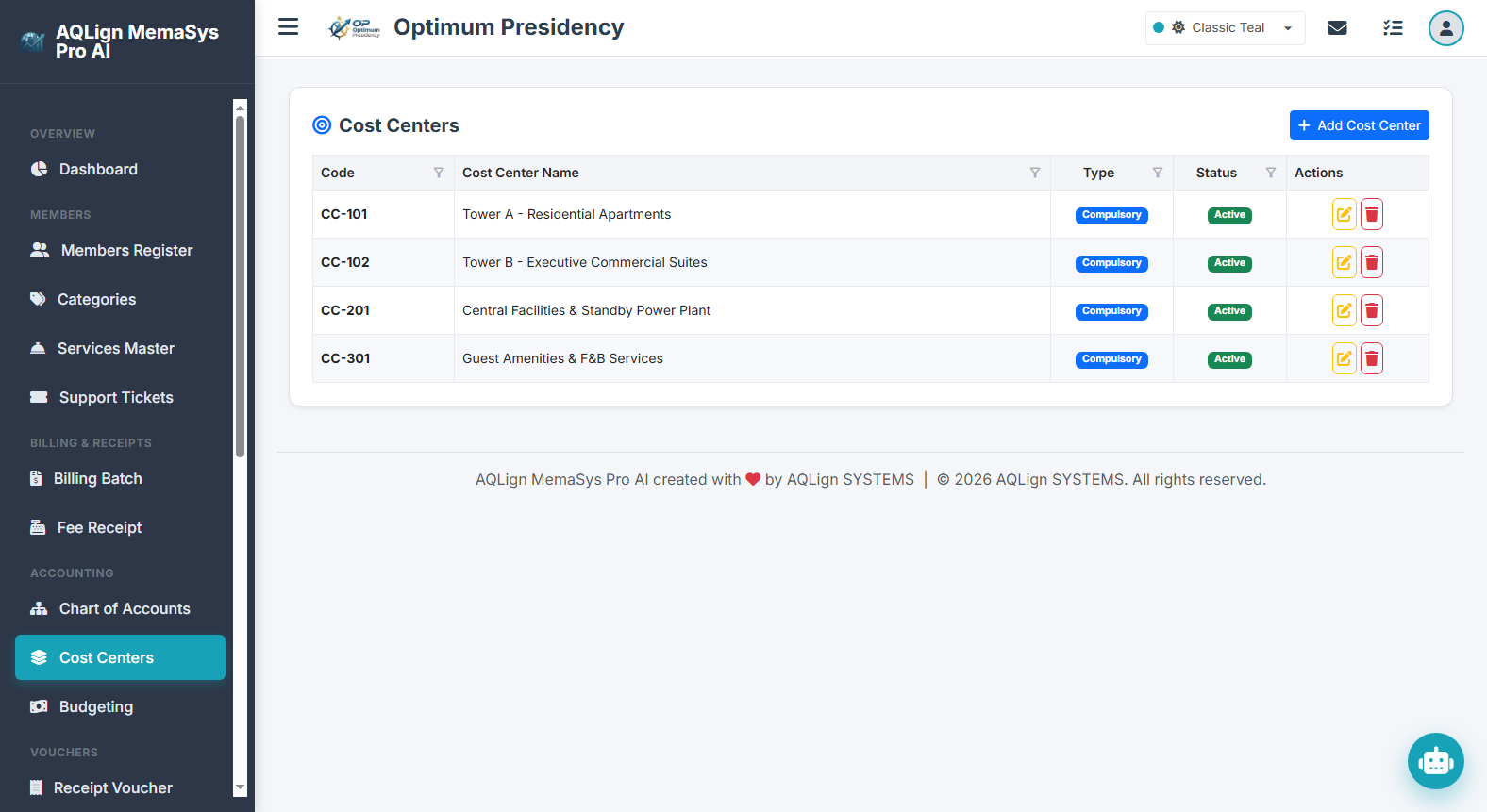
10.1 Operational Overview & Strategic Value of Cost Center Accounting
As enterprises expand, managing financial operations solely through a centralized Chart of Accounts becomes insufficient. Creating separate expense accounts in the Chart of Accounts for every physical building, department, or revenue stream creates unmanageable ledger clutter. The Cost Centers Engine solves this challenge by introducing a clean, orthogonal dimension of segment tracking.
- Zero Chart of Accounts Bloat: Maintain a lean, standardized Chart of Accounts (e.g. a single
Account 5011 Standby Generator Fuel) while tracking fuel consumption across dozens of separate cost centers (e.g. Tower A, Tower B, Shopping Mall). - Granular Segment Profitability: Measures individual net profit or net loss for each operational unit by matching segment revenues against direct segment expenses.
- Strategic Budget Isolation (Compulsory vs. Optional Classification): Classifies cost centers as Compulsory (core operational sectors) or Optional (auxiliary/negligible cost pools). In executive reporting and future budget planning, this distinction isolates non-core expenses (such as contract staff performance bonuses or ad-hoc temporary labor) from core department operational baselines.
- Interactive Line-Level Voucher Splitting: Offers an interactive line-split sub-modal in financial vouchers with real-time red/green sum validation and remaining balance indicators for splitting bulk payments across cost centers.
10.2 Compulsory vs. Optional Cost Center Classification & Analytical Budgeting
In strategic managerial accounting, not all cost sectors carry the same operational weight. The software incorporates a two-tier cost center classification model designed for strategic budget evaluation:
- Compulsory Cost Centers (Core Operational Baselines): Designated for primary operational divisions (e.g.
CC-101 Tower A OperationsorCC-201 Main Campus). These represent core, permanent operational sectors whose fixed and recurring expenses form the benchmark for departmental performance reviews. - Optional Cost Centers (Auxiliary / Negligible Cost Pools): Designated for auxiliary, temporary, or non-core expense pools (e.g.
CC-199 Contract Staff PoolorCC-299 Temporary Event Pavilion). When posting intermittent expenses—such as annual performance bonuses paid to temporary contract staff—allocating the transaction to an Optional Cost Center clearly flags the expense in management reports as auxiliary or negligible relative to core department operations. - Data-Driven Future Budgeting: When financial planners review segment P&L reports to prepare next year's corporate budget, the Optional classification prevents auxiliary/one-off expense spikes from distorting core departmental budget baselines. Decision-makers can evaluate true core operational efficiency and plan future capital allocations with total clarity.
10.3 Line-Level Multi-Cost-Center Voucher Splitting Mechanics & Interactive Sub-Modal
The system's voucher posting engine (Receipt Vouchers, Payment Vouchers, and Journal Vouchers) integrates cost center tracking directly at the individual line-item level through an interactive Split Line Sub-Modal:
Rather than requiring cashiers to manually calculate and enter separate voucher lines upfront, AQLign MemaSys Pro AI provides an interactive, guided line-splitting workflow:
- Target Amount Setting: Cashiers enter the line item debit or credit amount (e.g. Rs. 100,000 for
Account 5011 Standby Generator Fuel) and add the item into the voucher grid. - Launching the Split Sub-Modal: Clicking the
Split Lineaction icon in the grid opens the interactive Split Line Item Modal, displaying the Target Amount to Distribute (Rs. 100,000). - Real-Time Sum & Remaining Balance Indicators:
- When the user changes the first cost center line amount (e.g. setting
CC-101 Tower Ato Rs. 50,000), the system dynamically calculates the current sum. The Sum Indicator flags in Red Text (Rs. 50,000), and a Remaining Balance Indicator displays the exact unallocated balance (Rs. 50,000 to be adjusted). - The cashier clicks
Add Split Line, selectsCC-102 Tower B, and enters Rs. 50,000. - As soon as the allocated total matches the target amount, the Sum Indicator flashes Bold Green (Rs. 100,000) and the Remaining Balance reaches Rs. 0.00, confirming perfect allocation.
- When the user changes the first cost center line amount (e.g. setting
- Applying the Split: Clicking
Apply Splitreplaces the single line with separate cost-center-tagged lines in the voucher grid. The General Ledger receives a single cash credit while cost center sub-ledgers absorb their exact allocated debit portions.
10.4 Billing Engine & System Settings Integration
Cost center tracking is seamlessly integrated into automated customer billing and fee receipt operations:
- Default Invoice Cost Center Mapping: In System Settings (`/company/settings`), administrators define the Default Invoice Cost Center (e.g.
CC-100 General Facility Management). All automated monthly billing runs and manual member invoices automatically inherit this cost center assignment. - Service-Specific Cost Center Overrides: Individual services in the Services Master can be assigned specific cost centers (e.g. linking Standby Power Service directly to
CC-101 Power Generation Unit). Invoicing batches automatically route revenue credits to the service's designated cost center, providing segment-accurate revenue distribution.
10.5 Decision-Maker P&L Analytics & Executive Reporting
Financial data tagged to cost centers powers specialized executive reports and dashboard decision cards:
- Comparative Cost Center P&L Report (`/company/reports/cost-center-pnl`): Displays side-by-side comparative profit & loss columns for all active cost centers over any selected date range. Executives can immediately compare net margins across business units and evaluate core vs. optional expense impacts.
- Cost Center Ledger Report (`/company/reports/cost-center-ledger`): Audits all debit and credit motions assigned to a specific cost center, providing full transaction transparency for department managers.
- Executive Dashboard Integration: Visual cost center cards on the main executive dashboard display top cost-consuming sectors and department revenue metrics in real time.
10.6 Real-World Enterprise Operational Scenarios
Consider two practical cost center deployment scenarios:
Setup: Optimum Presidency configures core operational cost centers (CC-101 Residential Tower A, CC-102 Residential Tower B, CC-103 Commercial Shopping Plaza) as Compulsory, and sets up CC-199 Temporary Contract Staff Pool as an Optional cost center.
Execution: When paying a Rs. 500,000 monthly security guard bill, regular tower security is debited to Tower A (Rs. 150,000), Tower B (Rs. 150,000), and Commercial Plaza (Rs. 120,000). A special performance bonus of Rs. 80,000 paid to temporary contract guards is debited to CC-199 Contract Staff Pool (Optional). In the month-end P&L report, decision-makers see that the Rs. 80,000 bonus was an auxiliary/negligible expense, preventing it from distorting Tower A and B's fixed operational cost baseline for future budget planning.
Setup: An educational academy establishes core cost centers for each campus branch (CC-201 Main Campus, CC-202 City Branch) as Compulsory, and creates CC-299 Visiting Guest Faculty Pool as Optional.
Execution: Regular faculty salaries are debited to respective campus cost centers. Honorariums paid to visiting guest lecturers are debited to the Optional cost center pool. During annual budget planning, management evaluates core campus profitability independently of auxiliary guest faculty costs.
10.7 Step-by-Step Guide for Creating Cost Centers & Executing Split Vouchers
- Access Cost Centers Registry: Navigate to Accounting → Cost Centers (`/company/accounting/costcenters`).
- Add Cost Center Code & Classification: Click
Add Cost Center, enter a unique Code (e.g. `CC-101`), type the Cost Center Name (e.g. Residential Tower A), and select whether the unit is Compulsory (core operational sector) or Optional (auxiliary/negligible cost pool). ClickSave. - Configure Default Settings Mapping: Navigate to Utilities & Settings → System Settings (`/company/settings`), set the Default Invoice Cost Center dropdown to your primary operational cost center, and save settings.
- Execute Line-Item Split Voucher Entry:
- Open Vouchers → Payment Vouchers (`/company/vouchers/payment`).
- Set the voucher date, enter transaction remarks, and select the Cash or Bank account from which payment is being made (e.g. Account 1020 Main Operations Bank Account).
- Add the debit item (e.g. Expense Account 5011 Standby Generator Fuel, Debit
Rs. 100,000), selectCC-101 Residential Tower Ain the line item cost center dropdown, and click Add Line to place it into the voucher grid. - From the voucher grid, click the
Split Lineaction button. In the popup modal, changeCC-101's amount to50,000. The system will instantly highlight the Sum in Red Text (Rs. 50,000) and display the Remaining Amount to be Adjusted (Rs. 50,000). - Click
Add Split Line, selectCC-102 Residential Tower B, and enter amount50,000. The Sum will immediately flag to Bold Green and the remaining balance will become Rs. 0.00, indicating that 100% of the line amount has been split. ClickApply Splitand save the voucher.
- Audit Comparative P&L Report for Budgeting: Navigate to Financial Reports → Cost Center P&L (`/company/reports/cost-center-pnl`) to view side-by-side segment revenues, core expenses, and optional auxiliary cost pools for future budget planning.
11 Accounting — Month-wise Budgeting Engine & Variance Analytics
The Month-wise Budgeting Engine (`/company/accounting/budgeting`) serves as the primary financial planning and fiscal control center in AQLign MemaSys Pro AI. It allows business leaders and financial controllers to establish monthly revenue and expense targets across any fiscal year. Deeply integrated with the Cost Centers Engine, the budgeting module supports both global corporate targets and segment-specific cost center budgets, enforcing real-time budget overrun warnings during voucher posting and powering executive variance reports.
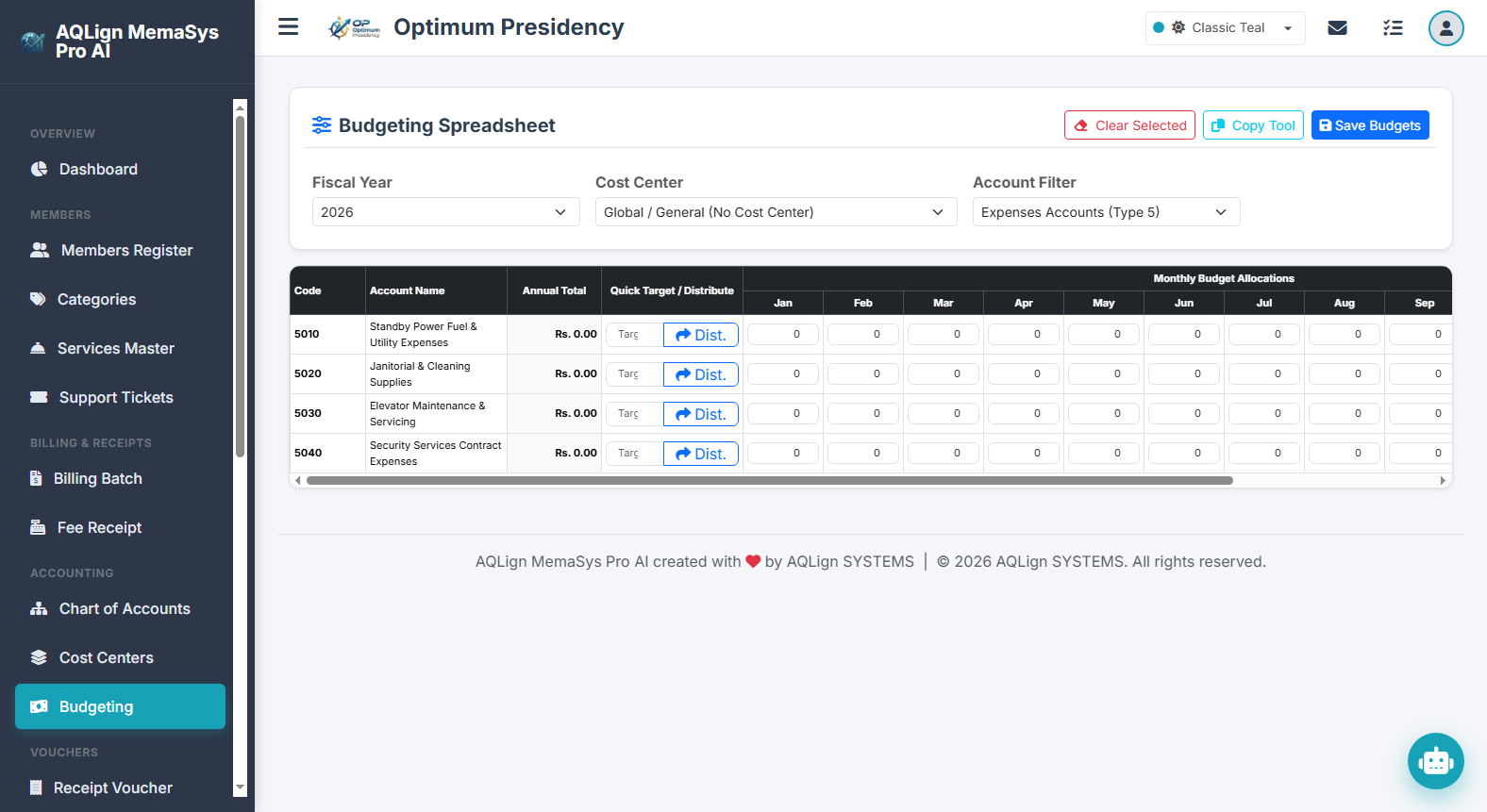
11.1 Operational Overview & Strategic Integration with Cost Centers
Financial control requires comparing actual operational performance against structured forward-looking benchmarks. The Month-wise Budgeting Engine provides an intuitive, spreadsheet-style grid where organizations define monthly targets for both top-line Revenue Accounts (Type 4) and bottom-line Expense Accounts (Type 5).
- Global vs. Cost Center Specific Budgets: Budgets can be configured at a
Global / General (No Cost Center)corporate level or assigned directly to specific operational cost centers (e.g.CC-101 Residential Tower A), matching budget accountability directly to segment managers. - Fiscal Year Alignment: Every budget matrix is tied to a specific Fiscal Year configured in System Settings, ensuring clean annual boundary management.
- Bi-Directional Budgeting: Supports setting revenue targets (e.g. projected monthly subscription income) alongside expense ceilings (e.g. monthly generator fuel limits).
11.2 The Budgeting Spreadsheet Grid & Quick Distribution Tool
Entering monthly targets across 12 months for dozens of accounts can be time-consuming. The software provides an ergonomics-focused spreadsheet grid with an automated Quick Distribution Tool (`Dist.`):
Instead of manually typing figures into 12 separate monthly input boxes for an account:
- Input Annual Target: Type the total desired annual budget target into the Quick Target field (e.g. entering
Rs. 120,000). - One-Click Equal Division: Click the
Dist.button next to the field. - Automated Monthly Allocation: The engine instantly divides the target by 12 and populates
Rs. 10,000into every single monthly column (Month 1 through Month 12) automatically updating the Annual Total column in real time.
11.3 Advanced Budget Copy & Seed Clone Tool (Copy Wizard)
To eliminate manual budget creation from scratch every fiscal year, the Budget Copy Tool (`Copy Tool`) offers two intelligent automated cloning modes:
- Mode 1: Copy from another Year's Budget: Clones monthly target figures directly from a prior fiscal year's budget (and selected source cost center) into the active fiscal year spreadsheet, allowing quick annual budget rollover.
- Mode 2: Seed from Actual Ledger Net Movements: Analyzes historical actual net movements from General Ledger transactions in a base year and seeds them as the baseline monthly budget targets for the new fiscal year. This data-driven seeding method builds realistic future budgets grounded in actual historical financial performance.
11.4 Voucher Posting Integration & Real-Time Budget Overrun Warnings
Unlike passive spreadsheet models, the Month-wise Budgeting Engine is actively connected to daily financial operations:
When accountants or cashiers enter debit lines in Payment Vouchers or Journal Vouchers (`/company/vouchers/payment`):
- Live Remaining Budget Query: Adding a line item automatically queries the remaining monthly budget allocated for that specific account and cost center.
- Automated Overrun Detection: If the transaction amount exceeds the remaining budgeted ceiling for the active month (where remaining balance becomes negative), the system instantly triggers an interactive Budget Overrun Warning Alert notification banner (e.g. "Budget Overrun Warning: Account '5011 Standby Generator Fuel' for Cost Center 'CC-101' has exceeded its monthly allocated budget of Rs. 50,000 by Rs. 15,000").
- Proactive Financial Protection: Alerts staff during data entry before voucher posting, preventing accidental overspending before funds are disbursed.
11.5 Decision-Maker Variance Analytics, Reports & Executive Dashboard Integration
Budget allocations power specialized managerial decision tools across the platform:
- Budget Variance Report (`/company/reports/budget-variance`): Renders a comprehensive side-by-side performance matrix showing Budgeted Target Amount, Actual Net Movement Amount, Variance Amount, and Variance Percentage (%) with visual progress bars.
- Executive Dashboard Progress Cards: Real-time visual progress bars on the main executive dashboard display monthly budget utilization percentages for high-cost operational sectors, alerting managers when actual spending approaches budget limits.
11.6 Real-World Enterprise Operational Scenario
Consider a practical budgeting deployment at Optimum Presidency for Fiscal Year 2026-2027:
Setup & Seeding: The CFO opens the Budgeting Spreadsheet (`/company/accounting/budgeting`), selects FY 2026-2027, and chooses CC-101 Residential Tower A.
- Seeding Expense Budget from Actuals: Launches the Copy Tool, selects Source Mode = Seed from actual ledger net movements, and selects base year FY 2025-2026. The system calculates FY 2025 actual generator fuel spending (Rs. 600,000 total) and seeds Rs. 50,000/month into
Account 5011 Standby Generator Fuelfor FY 2026-2027. - Quick Distribute Revenue Target: For
Account 4030 Parking Rent Income, the CFO entersRs. 120,000in Quick Target and clicksDist.. The engine populates Rs. 10,000/month across all 12 monthly columns. - Mid-Year Voucher Overrun Alert: In July 2026, an accountant enters a bulk diesel payment voucher of Rs. 65,000 for Tower A. The system detects a Rs. 15,000 budget overrun against the Rs. 50,000 monthly limit and displays an interactive warning alert banner, allowing management to review the fuel price spike before approval.
11.7 Step-by-Step Guides for Budget Allocation & Copy Tool Wizard
Guide A: Manual Budget Allocation & Quick Distribution (`Dist.`)
- Open Budgeting Spreadsheet: Navigate to Accounting → Month-wise Budgeting (`/company/accounting/budgeting`).
- Select Filters: Select the target Fiscal Year, choose a specific Cost Center (or Global / General), and select the Account Filter (Expenses Type 5 or Revenue Type 4).
- Use Quick Distribution Tool: In the target account row (e.g.
Account 5011), enter the annual amount in Quick Target (e.g. `120000`) and clickDist.. Verify that `10,000` populates across all 12 monthly columns. - Adjust Individual Months: Manually adjust specific month columns if seasonal spikes are expected (e.g. increasing summer generator fuel months to Rs. 15,000 and reducing winter months).
- Save Budgets: Click
Save Budgets. The system records the monthly target matrix.
Guide B: Seeding Budgets via Copy Tool Wizard (From Actuals & Previous Budgets)
- Launch Copy Wizard: On the Budgeting Spreadsheet screen, click the
Copy Toolbutton. - Select Source Mode:
- To clone from a past budget, select Copy from another Year's Budget, choose the Source Fiscal Year, and select the Source Cost Center.
- To seed from actual ledger transactions, select Seed from actual ledger net movements and choose the Base Year for Actuals.
- Execute Clone: Click
Apply. The system processes historical ledger movements or past budgets and populates the monthly grid automatically. - Review & Save: Inspect the cloned monthly target figures, make any necessary adjustments, and click
Save Budgets.
12 Vouchers — Receipt Vouchers (RV) & PDC Clearance Engine
The Receipt Vouchers Engine (`/company/vouchers/receipt`) handles non-member financial inflows directly into the General Ledger in AQLign MemaSys Pro AI. It provides an intuitive, high-speed cashier workflow for recording miscellaneous corporate receipts, vendor refunds, staff loan repayments, and matured Post-Dated Cheque (PDC) clearances through an interactive PDC Helper workflow, with seamless print template customization in System Settings.
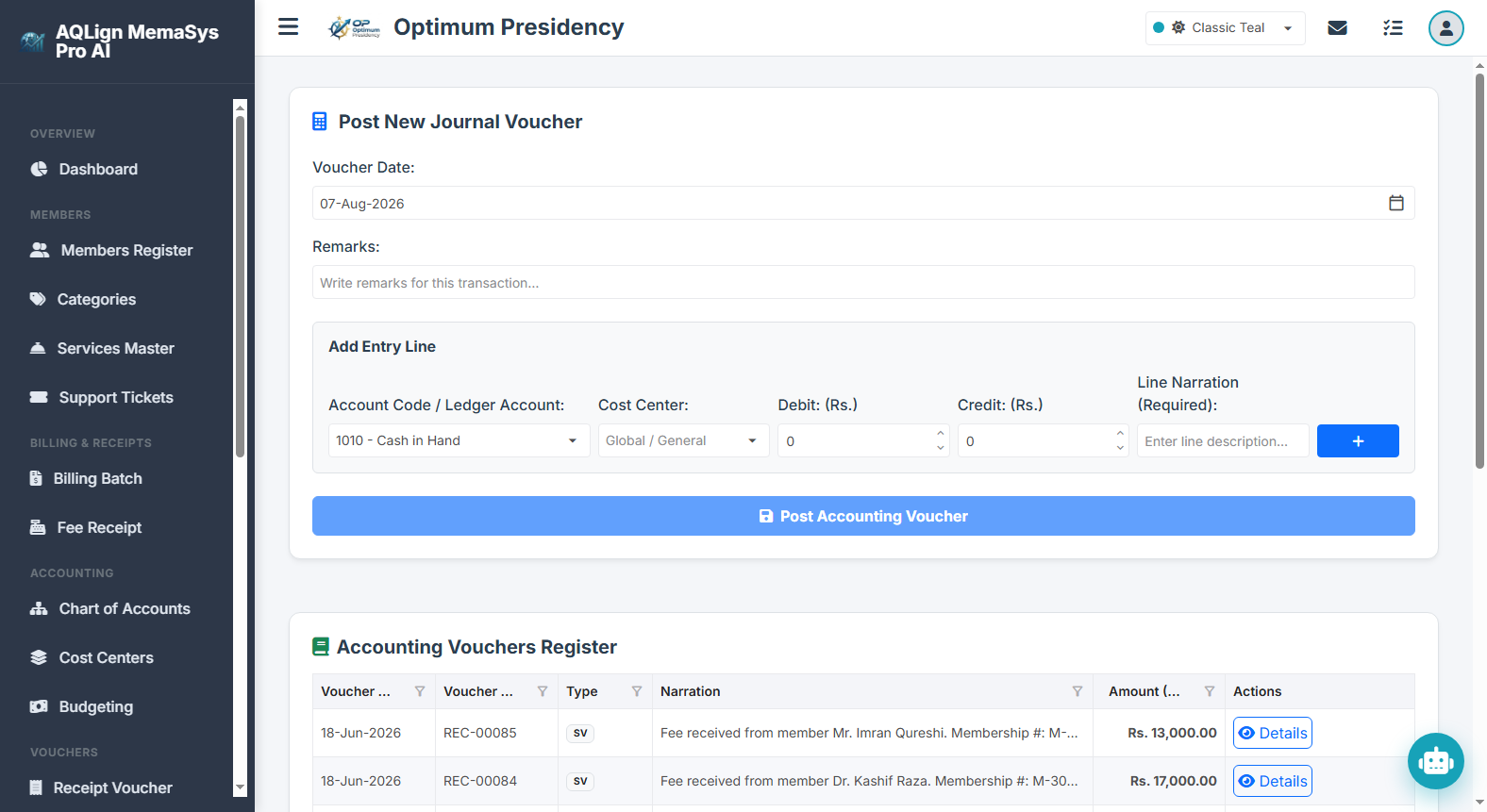
12.1 Operational Overview & Validation Rules
While member subscription fee receipts are handled via the specialized Fee Receipts module, all other enterprise cash and bank inflows are processed through Receipt Vouchers (RV). A Receipt Voucher establishes a single receiving offset account (Cash or Bank) and credits one or more subsidiary ledger accounts.
- Single Receiving Account Architecture: Cashiers select one receiving account—such as
Account 1010 Main Cash BoxorAccount 1020 Commercial Bank Account—which automatically absorbs the total debit sum. - Multi-Line Credit Distribution: Multiple credit lines can be entered in a single voucher (e.g. splitting a bulk receipt across expense refund accounts and loan recovery accounts).
- Strict System Validation Rules:
- Fiscal Year Date Enforcement: Transaction dates must fall within an open Fiscal Year configured in System Settings.
- Mandatory Line Narration: Every credit entry requires a clear line-level description explaining the origin of the funds.
- Non-Zero Amount Validation: Receipt lines must have a positive, non-zero amount.
- Balanced GL Ledger Posting: The General Ledger automatically balances the total offset debit to Cash/Bank against the line credit entries upon posting.
12.2 Real-World Enterprise Operational Use Cases
Receipt Vouchers accommodate diverse financial inflow scenarios encountered in daily business operations:
- Expense Refunds & Overpayment Reimbursements: Receiving cash or bank refunds from utility companies, suppliers, or vendors for bill overpayments or returned goods (crediting the original expense account to reduce net operational cost).
- Staff Loan & Salary Advance Recovery: Receiving loan principal repayments or cash refunds for unused travel advances from employees (crediting
Account 1050 Staff Advances & Loans). - Miscellaneous Corporate Income: Recording non-member revenue streams, such as scrap metal sales, facility space rental fees, dividend income, or bank interest credits.
- Matured Post-Dated Cheque (PDC) Clearance: Depositing a matured customer or vendor Post-Dated Cheque into the bank and clearing the cheque from the PDC Receivable register.
12.3 Interactive PDC Helper & Cheque Maturity Clearance Workflow
When payees transact using Post-Dated Cheques (PDCs), funds are initially recorded into a PDC Receivable control account. Upon cheque maturity, cashiers use the interactive PDC Helper Workflow inside the Receipt Voucher entry form to execute seamless cheque clearance:
- Account Selection: The cashier selects the PDC Control Account (e.g.
Account 1040 Post-Dated Cheques Receivable) in the line item account dropdown. - Launching PDC Help Modal: Clicking the
Helplightbulb icon next to the Cheque # field inspects the PDC database register for all pending cheques associated with that account maturing on or before the voucher date. - Selecting Matched Cheque: An interactive popup modal renders pending cheques with Cheque #, Cheque Bank, Maturity Date, and Amount. The cashier clicks the target cheque row.
- Automated Data Population: The system automatically populates the Cheque #, Cheque Bank, Cheque Date, Amount, and Line Narration directly into the entry form.
- GL & PDC Register Synchronization: Saving the Receipt Voucher credits the PDC Receivable account, debits the receiving Bank account, marks the cheque status as Cleared in the PDC Register, and logs an audit trail entry simultaneously.
12.4 Reporting Suite, Register Auditing & Print Engine Customization
Receipt Vouchers are fully integrated into financial reporting, audit tracking, and multi-format document printing:
- Accounting Vouchers Register (`/company/reports/vouchers-register`): Formats all posted Receipt Vouchers into a filterable grid with date range, voucher number, narration, and total amount filters. Cashiers can view complete line details or trigger reprints.
- Dual Print Pathways: Vouchers can be printed directly from the input form list view upon posting OR from the central Vouchers Register.
- Voucher Template Customization in Settings (`/company/settings`):
- Standard System Template: Generates clean, professional voucher copies supporting A4, Letter, or 80mm Thermal POS paper sizes with tenant logo, brand header, and signature blocks.
- Custom HTML Template Engine: Enabling
Enable Custom Voucher Templatein System Settings allows administrators to design custom HTML voucher layouts using dynamic system merge tokens.
- Audit Logs History: Clicking
Audit Historyon any voucher row opens a complete audit trail log detailing creation date, user ID, and any subsequent edits.
12.5 Real-World Enterprise Operational Scenario
Consider two daily operational receipts processed at Optimum Presidency:
Transaction 1: Overpaid Electricity Refund (Cash Receipt)
On July 10, 2026, the electric utility company refunds Rs. 25,000 cash for an overbilled electricity charge in June. The cashier opens Receipt Vouchers (`/company/vouchers/receipt`), selects Account 1010 Main Cash Box as the receiving account, adds a credit line for Account 5012 Electricity Utilities Expense for Rs. 25,000, enters narration "Cash refund received for June overbilled electricity invoice", posts the voucher, and hands a printed copy to the auditor.
Transaction 2: Clearing a Matched Vendor PDC (PDC Receipt)
On July 15, 2026, a Rs. 150,000 post-dated cheque from a commercial tenant matures. The cashier selects Account 1020 Commercial Bank Account as the receiving account, selects Account 1040 Post-Dated Cheques Receivable in the line entry dropdown, and clicks Help. The PDC Helper modal displays Cheque #884102. The cashier selects the row, verifying that Cheque #, Bank Name, Date, and Rs. 150,000 amount populate automatically. Upon posting, the bank balance increases by Rs. 150,000 and the PDC is flagged as Cleared in the PDC Register.
12.6 Step-by-Step Guides for Receipt Voucher Entry & PDC Clearance
Guide A: Recording a Simple Cash or Bank Receipt Voucher
- Open Receipt Vouchers Entry Form: Navigate to Vouchers → Receipt Vouchers (`/company/vouchers/receipt`).
- Set Date & Receiving Account: Select the transaction date, and choose the Deposit Into (Cash/Bank Account) dropdown (e.g.
1010 - Main Cash Box). - Enter General Remarks: Type transaction remarks in the Remarks field (e.g. "Staff loan repayment received in cash").
- Add Entry Line:
- Select the credit Account Code / Ledger Account (e.g.
1050 - Staff Advances & Loans). - If Advance Accounting is active, select a Cost Center if applicable.
- Enter the receipt Amount (e.g. `15000`).
- Type the mandatory Line Narration (e.g. "Monthly loan installment repayment - Tariq Memon").
- Click Add Line (plus button) to place the row into the voucher grid.
- Select the credit Account Code / Ledger Account (e.g.
- Post & Print Voucher: Review line totals, click
Post Accounting Voucher, and clickPrintto generate a physical voucher copy.
Guide B: Posting & Clearing a Matched Post-Dated Cheque (PDC) via Help Button
- Open Receipt Vouchers Form: Navigate to Vouchers → Receipt Vouchers (`/company/vouchers/receipt`).
- Select Bank Account: Choose the receiving bank account in Deposit Into (e.g.
1020 - Commercial Bank Account). - Select PDC Control Account: In the Add Entry Line section, select the credit account
1040 - Post-Dated Cheques Receivable. - Launch PDC Helper Modal: Click the
Helplightbulb icon located next to the Cheque # input field. - Select Matched Pending Cheque: In the PDC Helper popup modal, review the pending cheques list, locate the matured cheque row (e.g. Cheque #884102, Rs. 150,000), and click to select it.
- Verify Auto-Filled Details: Confirm that Cheque #, Cheque Bank, Cheque Date, Amount, and Narration populate automatically into the input fields.
- Add Line & Post Voucher: Click Add Line to move the row into the grid, then click
Post Accounting Voucher. Verify that funds deposit into the bank and the PDC status updates to Cleared in the PDC Register.
13 Vouchers — Payment Vouchers (PV) & Disbursement Control Engine
The Payment Vouchers Engine (`/company/vouchers/payment`) handles non-member financial disbursements directly from General Ledger cash and bank accounts in AQLign MemaSys Pro AI. It provides an intuitive, high-speed cashier workflow for executing utility bill payments, vendor settlements, staff loan disbursements, security deposit outflows, and returned cheque adjustments, backed by real-time budget overrun warnings, multi-cost-center line splitting, and custom print template engines.
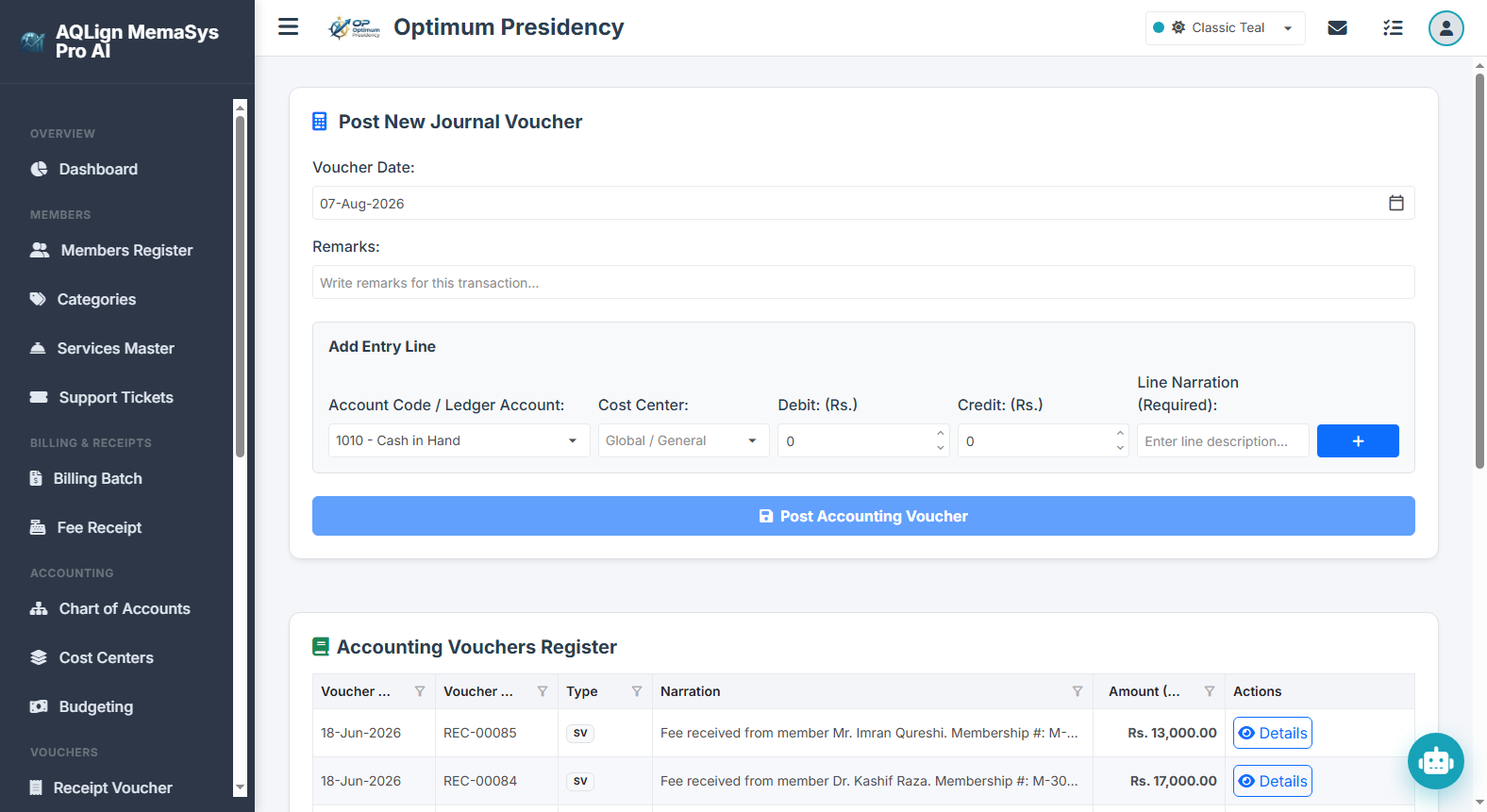
13.1 Operational Overview & Validation Rules
All enterprise cash outflows, vendor disbursements, and bank payments are processed through Payment Vouchers (PV). A Payment Voucher establishes a single paying offset account (Cash or Bank) and debits one or more subsidiary ledger accounts.
- Single Paying Account Architecture: Cashiers select one paying account—such as
Account 1010 Main Cash BoxorAccount 1020 Commercial Bank Account—which automatically absorbs the total credit sum. - Multi-Line Debit Distribution: Multiple debit lines can be entered in a single voucher (e.g. splitting a bulk payment across utility expenses, vendor accounts, and staff loan accounts).
- Strict System Validation Rules:
- Fiscal Year Date Enforcement: Transaction dates must fall within an open Fiscal Year configured in System Settings.
- Mandatory Line Narration: Every debit entry requires a clear line-level description explaining the reason for payment.
- Non-Zero Amount Validation: Payment lines must have a positive, non-zero amount.
- Live Budget Overrun Query: Adding a debit line automatically queries remaining monthly budget ceilings. If the payment exceeds the allocated budget, an interactive Budget Overrun Warning Alert notification banner alerts staff during entry.
- Balanced GL Ledger Posting: The General Ledger automatically balances the total offset credit to Cash/Bank against line debit entries upon posting.
13.2 Real-World Enterprise Operational Use Cases
Payment Vouchers accommodate diverse corporate disbursement scenarios encountered in daily business management:
- Utility Bills & Operational Expenses: Settling monthly electricity, water, generator fuel, internet, and office maintenance bills.
- Vendor & Supplier Settlements: Disbursing payments to trade creditors, equipment suppliers, or service contractors against outstanding invoices.
- Staff Loans & Emergency Advances: Issuing short-term salary advances or emergency loans to employees (debiting
Account 1050 Staff Advances & Loans). - Security Deposits & Short-Term Outflows: Paying security deposits to utility providers, leasing agencies, or municipal authorities (debiting asset deposit accounts).
- Returned Deposited Cheques & Bounce Adjustments: Reversing previously deposited customer or vendor cheques that were returned unpaid by the bank.
13.3 Budget Overrun Warnings & Multi-Cost-Center Splitting Mechanics
Payment Vouchers are actively connected to the Month-wise Budgeting and Cost Centers engines to prevent fiscal overspending:
- Real-Time Budget Overrun Warnings: When a cashier enters an expense line (e.g.
Account 5011 Standby Generator Fuel), the system queries the remaining monthly budget for that account and cost center. If the payment causes a budget overrun, an interactive warning banner alerts staff immediately (e.g. "Budget Overrun Warning: Account '5011' for Cost Center 'CC-101' has exceeded its monthly budget of Rs. 50,000 by Rs. 15,000"). - Line-Item Multi-Cost-Center Splitting: For bulk payments (e.g. a Rs. 300,000 bulk fuel invoice), cashiers click the
Split Lineaction button in the voucher grid. In the interactive sub-modal, they allocate Rs. 120,000 toCC-101 Tower A, Rs. 100,000 toCC-102 Tower B, and Rs. 80,000 toCC-103 Commercial Plaza. The Sum Indicator turns Bold Green and remaining balance reaches Rs. 0.00 when 100% allocated.
13.4 Reporting Suite, Register Auditing & Print Engine Customization
Payment Vouchers are fully integrated into financial reporting, audit tracking, and multi-format document printing:
- Accounting Vouchers Register (`/company/reports/vouchers-register`): Formats all posted Payment Vouchers into a filterable grid with date range, voucher number, narration, and total amount filters. Cashiers can view complete line details or trigger reprints.
- Dual Print Pathways: Vouchers can be printed directly from the input form list view upon posting OR from the central Vouchers Register.
- Voucher Template Customization in Settings (`/company/settings`):
- Standard System Template: Generates clean, professional voucher copies supporting A4, Letter, or 80mm Thermal POS paper sizes with tenant logo, brand header, payee details, and signature blocks.
- Custom HTML Template Engine: Enabling
Enable Custom Voucher Templatein System Settings allows administrators to design custom HTML voucher layouts using dynamic system merge tokens.
- Audit Logs History: Clicking
Audit Historyon any voucher row opens a complete audit trail log detailing creation date, user ID, and any subsequent edits.
13.5 Real-World Enterprise Operational Scenario
Consider two daily operational disbursements executed at Optimum Presidency:
Transaction 1: Bulk Diesel Procurement with Cost Center Splitting (Bank Payment)
On July 12, 2026, Optimum Presidency pays Rs. 150,000 via cheque from Account 1020 Commercial Bank Account for bulk diesel fuel. The accountant enters Account 5011 Standby Generator Fuel for Rs. 150,000, adds the row, and clicks Split Line. In the popup modal, the accountant allocates Rs. 60,000 to CC-101 Tower A, Rs. 50,000 to CC-102 Tower B, and Rs. 40,000 to CC-103 Commercial Plaza. The sum indicator turns green, the split is applied, and the payment voucher is posted and printed.
Transaction 2: Emergency Staff Loan Disbursement (Cash Payment)
On July 18, 2026, staff member Tariq Memon receives an emergency cash loan of Rs. 30,000. The cashier opens Payment Vouchers (`/company/vouchers/payment`), selects Account 1010 Main Cash Box as the paying account, adds a debit line for Account 1050 Staff Advances & Loans for Rs. 30,000, enters narration "Emergency medical staff loan issued in cash - Tariq Memon", posts the voucher, and prints the payment receipt for staff signature.
13.6 Step-by-Step Guide for Executing Payment Vouchers
- Open Payment Vouchers Entry Form: Navigate to Vouchers → Payment Vouchers (`/company/vouchers/payment`).
- Set Date & Paying Account: Select the transaction date, and choose the Pay From (Cash/Bank Account) dropdown (e.g.
1020 - Commercial Bank Account). - Enter General Remarks: Type transaction remarks in the Remarks field (e.g. "Vendor settlement and utility bill payments").
- Add Entry Line & Cheque Details:
- Select the debit Account Code / Ledger Account (e.g.
5011 - Standby Generator Fuel). - If Advance Accounting is active, select a Cost Center or leave as Global.
- Enter the payment Amount (e.g. `150000`).
- Type the mandatory Line Narration (e.g. "Bulk generator fuel delivery invoice #4412").
- If paying via cheque, enter Cheque #, Cheque Bank, and Cheque Date.
- Click Add Line (plus button) to place the row into the voucher grid.
- Select the debit Account Code / Ledger Account (e.g.
- Handle Cost Center Splitting (Optional): If the payment covers multiple cost centers, click
Split Linein the grid row, adjust split amounts until the sum turns Bold Green (Remaining Rs. 0.00), and clickApply Split. - Review Budget Overrun Warnings: If a budget overrun warning notification banner appears, review the spending ceiling with management before proceeding.
- Post & Print Voucher: Click
Post Accounting Voucherto commit the General Ledger transaction, then clickPrintto generate the physical payment voucher document.
14 Vouchers — Journal Vouchers (JV) & Non-Cash Adjustments Engine
The Journal Vouchers Engine (`/company/vouchers/journal`) serves as the primary general adjustment and non-cash financial transaction center in AQLign MemaSys Pro AI. Known as the most flexible and versatile voucher type in corporate accounting, Journal Vouchers allow financial controllers to post complex debit and credit adjustments—such as bad debt write-offs, vendor-to-vendor contra settlements, pre-paid expense allocations, and month-end accruals—without involving direct cash or bank accounts.
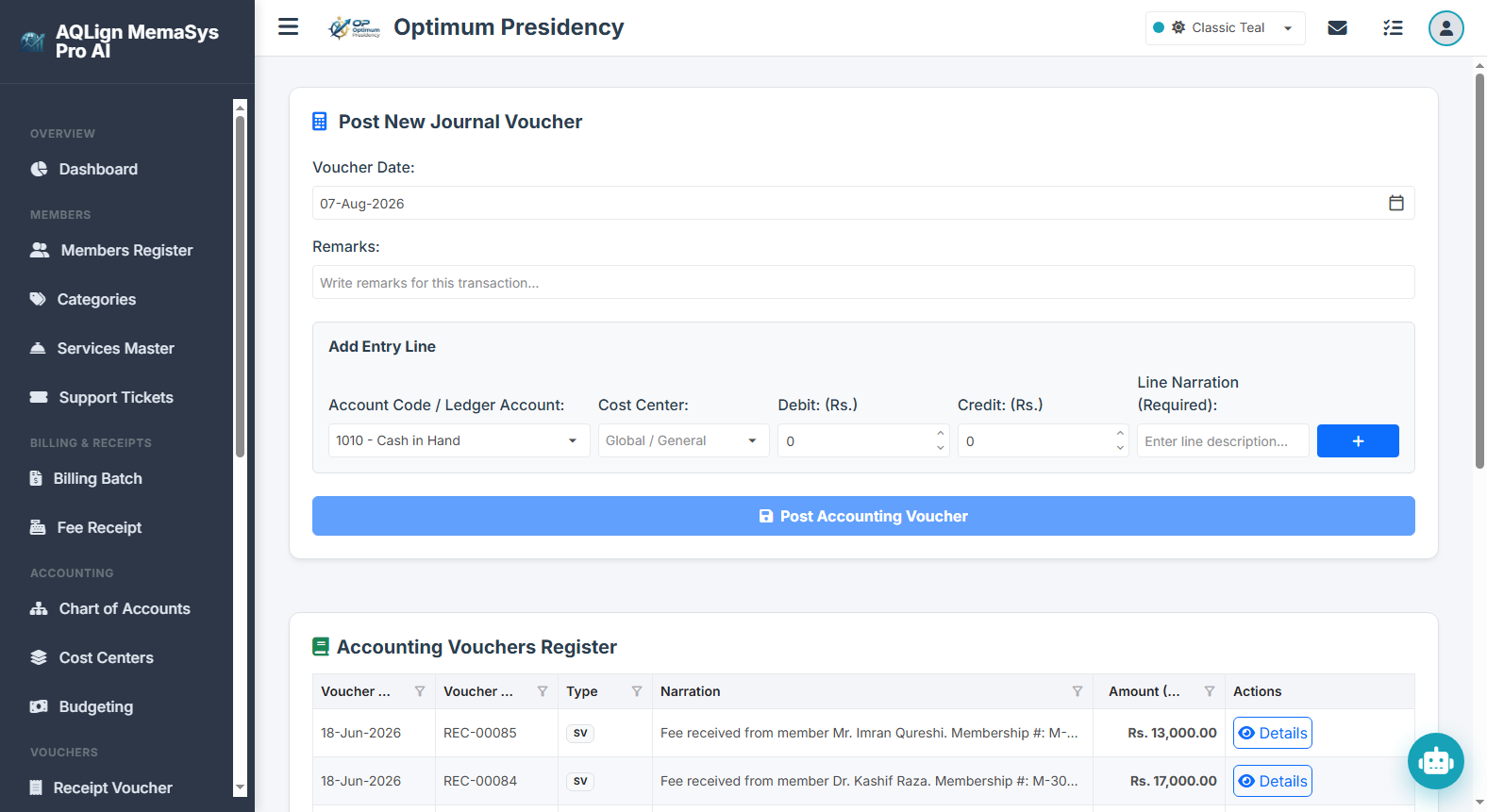
14.1 Operational Overview & Versatile Accounting Role
Unlike Receipt Vouchers (RV) or Payment Vouchers (PV) which automatically offset against a single Cash or Bank account, Journal Vouchers (JV) provide total multi-account freedom. A single Journal Voucher can contain multiple debit line entries and multiple credit line entries across any ledger accounts in the Chart of Accounts.
- Non-Cash / Non-Bank Transaction Engine: Specifically designed for transactions where no physical money or bank transfer occurs, but financial ledgers must reflect asset, liability, expense, or equity adjustments.
- Simplicity with Architectural Depth: While presenting a clean, user-friendly data entry form, Journal Vouchers execute the most sophisticated financial adjustments in the corporate database lifecycle.
- Bi-Directional Line Flexibility: Cashiers specify whether each line entry represents a Debit or Credit amount, enabling complex multi-party settlements in a single voucher.
14.2 Real-World Enterprise Operational Use Cases
Journal Vouchers facilitate crucial corporate adjustments across various operational scenarios:
- Bad Debt Write-Offs & Unrecoverable Advances: Writing off uncollectible customer balances or dead staff advances (debiting
Account 5090 Bad Debts Expenseand crediting the target receivable or loan account). - Direct Vendor-to-Vendor Contra Settlements: Offsetting mutual liabilities between two trading partners on the enterprise's behalf (e.g. Vendor A paying Vendor B directly, debiting
Account 2010 Vendor B Payableand creditingAccount 2010 Vendor A Payable). - Pre-Paid Expense Amortization & Accruals: Reclassifying advance payments into operational monthly expenses (e.g. allocating 1 month of pre-paid insurance, debiting
Account 5040 Insurance Expenseand creditingAccount 1060 Pre-Paid Expenses). - Non-Cash Vendor Invoicing & Provisioning: Booking month-end utility accruals or contractor progress invoices prior to cash disbursement.
14.3 Strict System Validation Rules & Real-Time Balance Safeguards
Because Journal Vouchers alter General Ledger balances without cash offsets, the system enforces strict embedded integrity controls during data entry:
- Strict Debit & Credit Balance Guarantee (`Debits = Credits`): The system continuously calculates the total sum of debits versus credits in real time. If total debits do not equal total credits, an interactive warning alert banner displays the exact discrepancy (e.g. "Debits and Credits must balance to post this voucher (Difference: Rs. 5,000.00)") and automatically disables the Post Accounting Voucher button.
- Fiscal Year Date Enforcement: Transaction dates must fall within an active open Fiscal Year configured in System Settings.
- Mandatory Line Narration: Every entry line requires a clear, mandatory line description explaining the specific audit reason for the adjustment.
- Non-Zero Amount Enforcement: Line debit or credit entries must be positive, non-zero values.
- Line-Level Cost Center Tagging & Splitting: Debit and credit lines can be tagged to specific Cost Centers or split across multiple cost centers via the
Split Linesub-modal.
14.4 Reporting Suite, Register Auditing & Print Engine Customization
Journal Vouchers are fully integrated into financial reporting, audit tracking, and multi-format document printing:
- Accounting Vouchers Register (`/company/reports/vouchers-register`): Formats all posted Journal Vouchers into a filterable grid with date range, voucher number, narration, debit/credit totals, and status filters. Cashiers can view complete line details or trigger reprints.
- Dual Print Pathways: Vouchers can be printed directly from the input form list view upon posting OR from the central Vouchers Register.
- Voucher Template Customization in Settings (`/company/settings`):
- Standard System Template: Generates clean, professional voucher copies supporting A4, Letter, or 80mm Thermal POS paper sizes with tenant logo, brand header, debit/credit tables, and authorization signature blocks.
- Custom HTML Template Engine: Enabling
Enable Custom Voucher Templatein System Settings allows administrators to design custom HTML voucher layouts using dynamic system merge tokens.
- Audit Logs History: Clicking
Audit Historyon any voucher row opens a complete audit trail log detailing creation date, user ID, and any subsequent edits.
14.5 Real-World Enterprise Operational Scenario
Consider two practical non-cash adjustment scenarios executed at Optimum Presidency:
Transaction 1: Writing Off an Uncollectible Staff Advance
On July 20, 2026, Optimum Presidency approves writing off an uncollectible Rs. 12,000 emergency advance for a departed employee. The accountant opens Journal Vouchers (`/company/vouchers/journal`), sets the date, types general remarks "Year-end adjustment for uncollectible staff advance", enters a debit line for Account 5090 Bad Debts Expense for Rs. 12,000, and enters a credit line for Account 1050 Staff Advances & Loans for Rs. 12,000. Seeing the Voucher Totals balance perfectly at Rs. 12,000, the accountant posts the voucher and prints the adjustment voucher for approval.
Transaction 2: Direct Vendor-to-Vendor Contra Settlement
On July 25, 2026, Vendor A (who owes Optimum Presidency Rs. 45,000) directly settles a Rs. 45,000 bill owed to Vendor B. The accountant opens Journal Vouchers, enters a debit line for Account 2010 Vendor B Payable for Rs. 45,000 (reducing liability to Vendor B), and enters a credit line for Account 2010 Vendor A Payable for Rs. 45,000 (clearing receivable from Vendor A). No cash or bank funds are touched, and both vendor ledgers reflect the exact contra settlement.
14.6 Step-by-Step Guide for Executing Journal Vouchers
- Open Journal Vouchers Entry Form: Navigate to Vouchers → Journal Vouchers (`/company/vouchers/journal`).
- Set Date & General Remarks: Select the transaction date and enter general remarks in the Remarks field (e.g. "Month-end pre-paid expense amortization").
- Add Debit Entry Lines:
- Select the debit Account Code / Ledger Account (e.g.
5040 - Insurance Expense). - Select a Cost Center if applicable.
- Enter the Debit amount (e.g. `15000`) and leave Credit as 0.
- Type the mandatory Line Narration (e.g. "Monthly insurance expense amortization for July 2026").
- Click Add Line (plus button) to place the debit row into the grid.
- Select the debit Account Code / Ledger Account (e.g.
- Add Credit Entry Lines:
- Select the credit Account Code / Ledger Account (e.g.
1060 - Pre-Paid Expenses). - Select a Cost Center if applicable.
- Enter the Credit amount (e.g. `15000`) and leave Debit as 0.
- Type the mandatory Line Narration (e.g. "Offsetting pre-paid insurance asset balance").
- Click Add Line to place the credit row into the grid.
- Select the credit Account Code / Ledger Account (e.g.
- Verify Real-Time Balance Status: Review the Voucher Totals row at the bottom of the grid. Confirm that total Debits equal total Credits and no yellow warning alert banner is displayed.
- Post & Print Voucher: Click
Post Accounting Voucherto commit the General Ledger transaction, then clickPrintto generate the physical journal voucher document.
15 Vouchers — PDC Receipts Register & Cheque Lifecycle Engine
The PDC Receipts Management Engine (`/company/accounting/pdc-receipts`) provides specialized custody management for Post-Dated Cheques (PDCs) in AQLign MemaSys Pro AI. Designed with a minimalist data entry approach for front-desk reception staff, it allows organizations to record, track, and manage incoming post-dated cheques from commercial tenants or corporate clients. The engine seamlessly integrates with Receipt Vouchers for automated cheque maturity clearances and Payment Vouchers for bounce/return adjustments, offering instant movement history dialogs and custom print template support.
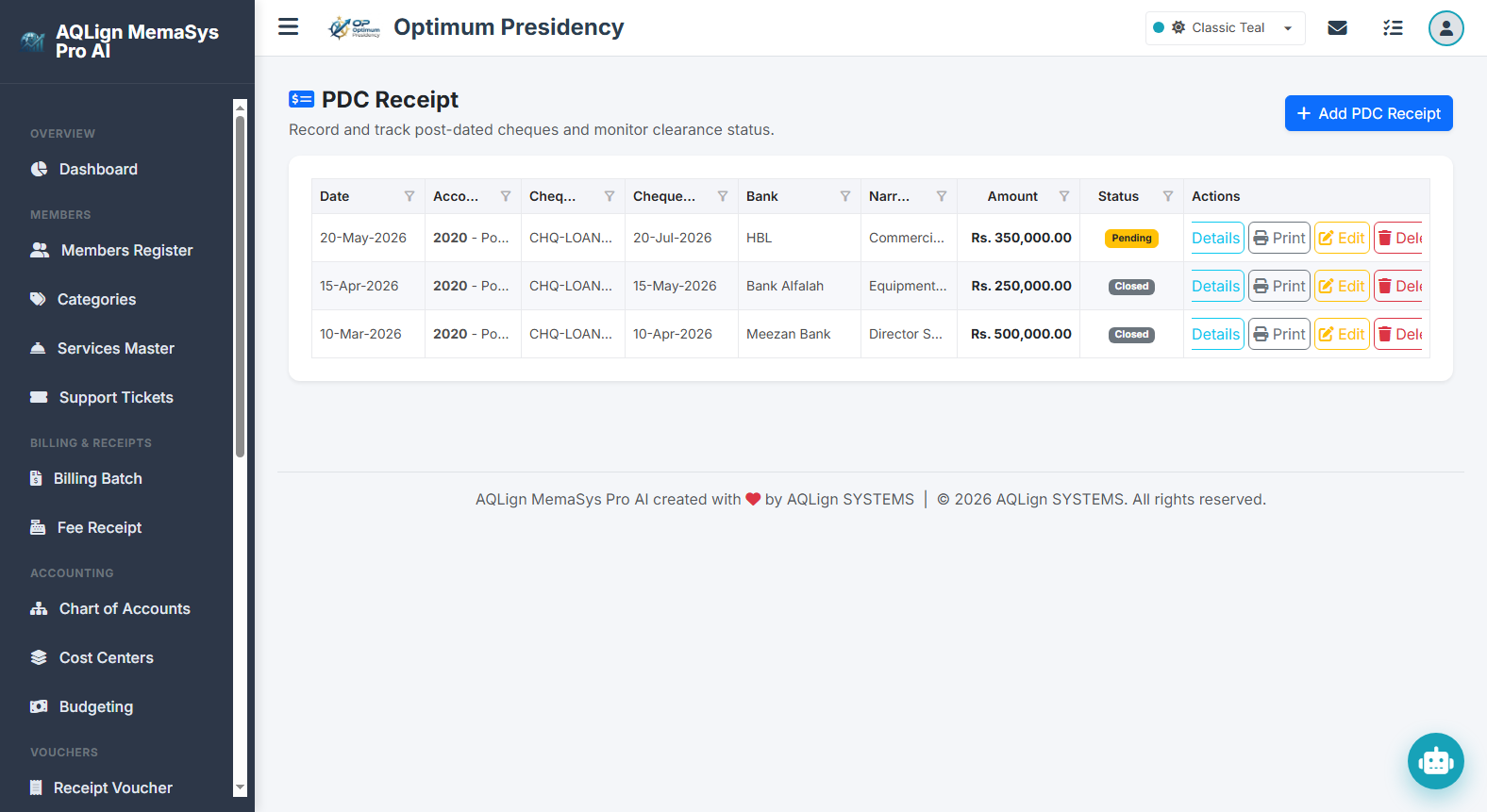
15.1 Operational Overview & Minimalist Data Entry Architecture
Post-dated cheques represent future monetary claims that cannot be deposited into active bank accounts until their maturity date. Recording PDCs through standard General Ledger vouchers would prematurely inflate bank balances or distort liquid cash figures. The PDC Receipts Engine solves this by maintaining an independent PDC Custody Register.
- High-Speed Reception Entry Workflow: Receptionists enter basic cheque details—Receipt Date, Customer/Ledger Account, Cheque #, Cheque Maturity Date, Bank Name, Amount, and Detail—in under 15 seconds without navigating complex accounting menus.
- Strict Validation Rules:
- Maturity Date Enforcement: Cheque Date must be a valid current or future date relative to the receipt date.
- Unique Cheque Number Validation: Prevents duplicate cheque entries for the same bank.
- Positive Amount Requirement: Cheque amount must be greater than zero.
- Fiscal Year Date Check: Transaction dates must fall within an open Fiscal Year.
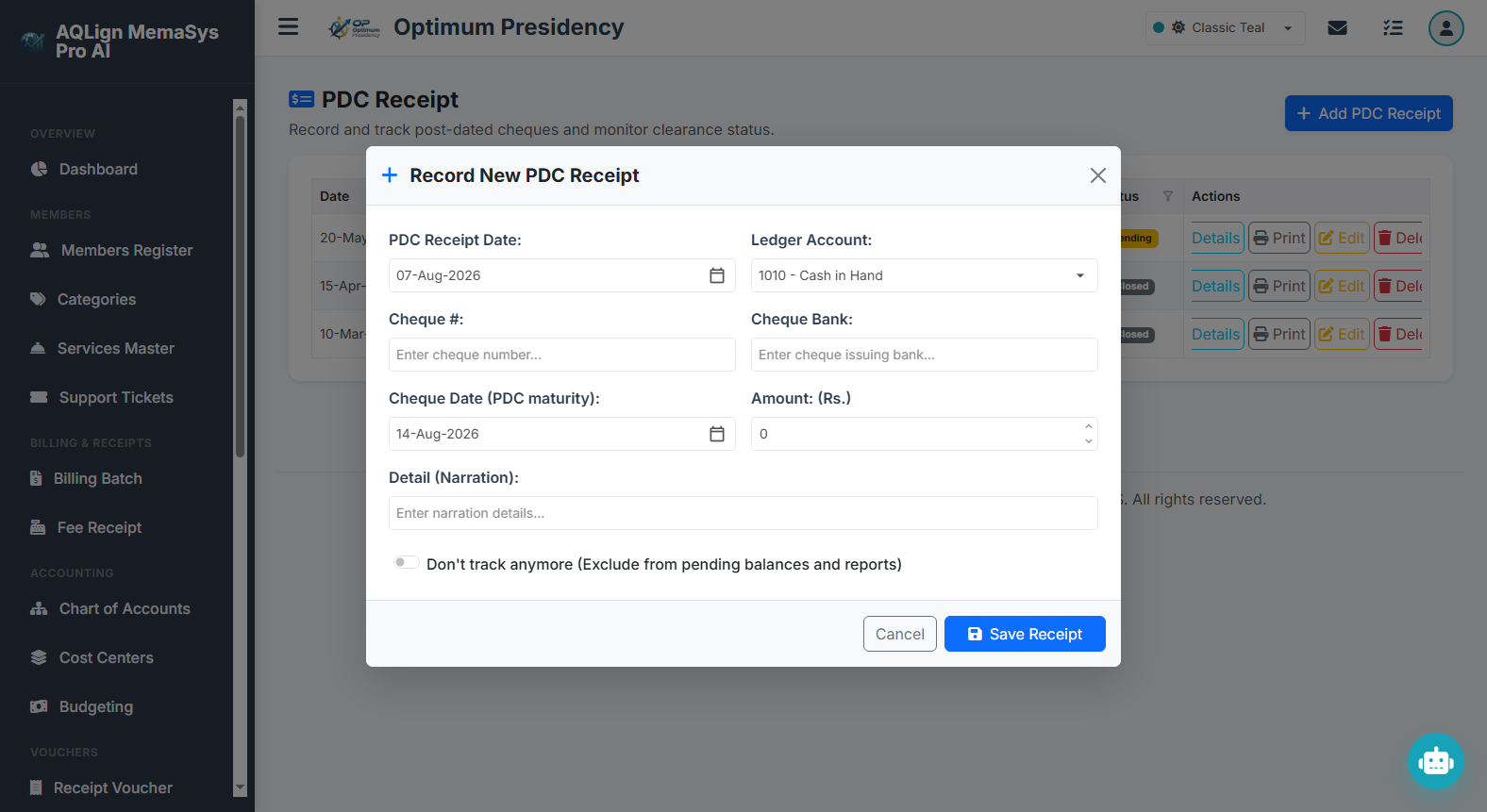
15.2 Cross-Module Integrations (Receipt Vouchers & Payment Vouchers)
The PDC Receipts Engine is directly linked to the core accounting voucher suite, bridging custody tracking with General Ledger execution:
- Integration with Receipt Vouchers (`RV`) & PDC Helper: As detailed in Chapter 12, when a post-dated cheque reaches maturity, cashiers open Receipt Vouchers (`/company/vouchers/receipt`), select the PDC Control Account (e.g.
Account 1040 Post-Dated Cheques Receivable), and click theHelplightbulb icon. The system displays all maturing PDCs, populates cheque details automatically upon selection, deposits funds into the bank account, and shifts the PDC status in the register fromPendingtoDeposited / Cleared. - Integration with Payment Vouchers (`PV`) & Bounce Adjustments: If a deposited cheque is returned unpaid by the bank, cashiers execute a Payment Voucher (`/company/vouchers/payment`) or PDC status reversal, debiting the customer's account to restore the receivable balance, crediting the bank account, and flagging the cheque status as
Returned / Bouncedin the PDC Register.
15.3 Status Lifecycle Tracking, Executive Dashboard Cards & Details History Modal
Every post-dated cheque progresses through a structured lifecycle tracked via visual indicators and audit dialogs:
- Lifecycle Status Badges:
- Pending: Cheque is held in custody awaiting maturity.
- Deposited / Cleared: Cheque has matured and been cleared into the bank via Receipt Voucher.
- Closed / Returned: Cheque was returned, bounced, or closed without bank deposit.
- Interactive Details Button (`View Clearances`): Clicking the
Detailsbutton on any cheque row opens an instant popup modal displaying the complete historical movement of the cheque—showing issuance date, maturity date, bank details, linked clearing voucher numbers, cleared amounts, and remaining un-cleared balance at a glance. - Executive Dashboard Portfolio KPIs: Integrated dashboard cards render real-time metrics for Total PDC Portfolio Value, Cheques Maturing Today, and Monthly Clearance Totals.
15.4 PDC Register Reports & System Settings Print Engine Customization
PDC tracking includes robust managerial reporting and flexible document output capabilities:
- PDC Register Report (`/company/reports/pdc-register`): Generates comprehensive reports filterable by status (Pending, Cleared, Bounced), bank name, and maturity date ranges.
- PDC Maturity Schedule (`/company/reports/pdc-maturity`): An operational forecast report listing all PDCs maturing in upcoming weeks, assisting treasury staff in cash flow planning.
- PDC Receipt Printout Engine: Cashiers can print official PDC physical receipt slips directly from the register grid by clicking the `Print` button.
- System Settings Template Integration (`/company/settings`): Supports standard system print layouts (A4, Letter, 80mm Thermal) OR custom HTML templates (`Enable Custom Voucher Template`) configured with dynamic system merge tokens for custom PDC acknowledgment slips.
15.5 Real-World Enterprise Operational Scenario
Consider a complete post-dated cheque lifecycle at Optimum Presidency:
Step 1: Reception Custody Entry (June 15, 2026)
Commercial tenant Metropolitan Logistics submits a Rs. 150,000 rent cheque (Cheque #884102 from Commercial Bank) dated July 15, 2026. The receptionist opens PDC Receipts (`/company/accounting/pdc-receipts`), inputs receipt date June 15, selects Account 1040 Post-Dated Cheques Receivable, enters Cheque #884102, maturity date July 15, 2026, and amount Rs. 150,000, and prints an official PDC acknowledgment slip. The cheque status displays as Pending.
Step 2: Maturity Clearance via Receipt Voucher (July 15, 2026)
On July 15, 2026, the cheque matures. The cashier opens Receipt Vouchers (`/company/vouchers/receipt`), selects Account 1020 Commercial Bank Account as deposit account, selects Account 1040 in the line entry, and clicks Help. The PDC Helper modal displays Cheque #884102. The cashier selects it, auto-populating all details, and posts the Receipt Voucher. The bank balance increases by Rs. 150,000.
Step 3: Verification in PDC Register
The accountant opens PDC Receipts (`/company/accounting/pdc-receipts`). Cheque #884102 now displays status Deposited. Clicking the Details button opens the movement history modal, confirming that Rs. 150,000 was cleared via Receipt Voucher #RV-00104 with Rs. 0.00 remaining un-cleared balance.
15.6 Step-by-Step Guide for PDC Entry, Clearance & Tracking
- Record New PDC Receipt:
- Navigate to Accounting → PDC Receipts (`/company/accounting/pdc-receipts`).
- Click
Add PDC Receiptto open the entry modal. - Select the PDC Receipt Date, select the customer/payee Ledger Account (e.g.
1040 - Post-Dated Cheques Receivable), enter Cheque #, select Cheque Date (maturity date), enter Cheque Bank, input Amount (e.g. `150000`), and type narration. - Click
Save. The cheque appears in the PDC Register grid as Pending.
- Print PDC Acknowledgment Slip: On the saved cheque row in the register grid, click `Print` to issue a printed PDC physical receipt.
- Inspect Movement History via Details Button: Click
Detailson any cheque row to open the *PDC Clearances & Movement History Modal*, reviewing voucher clearance audit trails and un-cleared balance breakdowns. - Execute Maturity Clearance via Receipt Voucher (PDC Helper):
- On the cheque maturity date, navigate to Vouchers → Receipt Vouchers (`/company/vouchers/receipt`).
- Select the target receiving bank account in Deposit Into (e.g.
1020 - Commercial Bank Account). - Select the PDC Control Account in the line item (e.g.
1040) and click theHelplightbulb icon. - Select the matured cheque row from the PDC Helper popup modal.
- Click Add Line and click
Post Accounting Voucher. - Re-visit PDC Receipts to verify that the cheque status has updated to Deposited.
16 Financial Reports Suite (Exhaustive Guide for All 20 Platform Reports)
The Financial Reports Suite in AQLign MemaSys Pro AI provides real-time business intelligence, executive audit visibility, and decision-support analytics across all enterprise operations. Grounded in the underlying transaction modules documented in Chapters 4 through 15, the 20 platform reports empower executive management, CFOs, financial controllers, and internal/external auditors to evaluate financial health, monitor cash flow velocity, enforce internal controls, and execute strategic corporate planning.
Category A: Membership & Invoicing Reports
1. Members Register Directory (`/company/reports/members`)
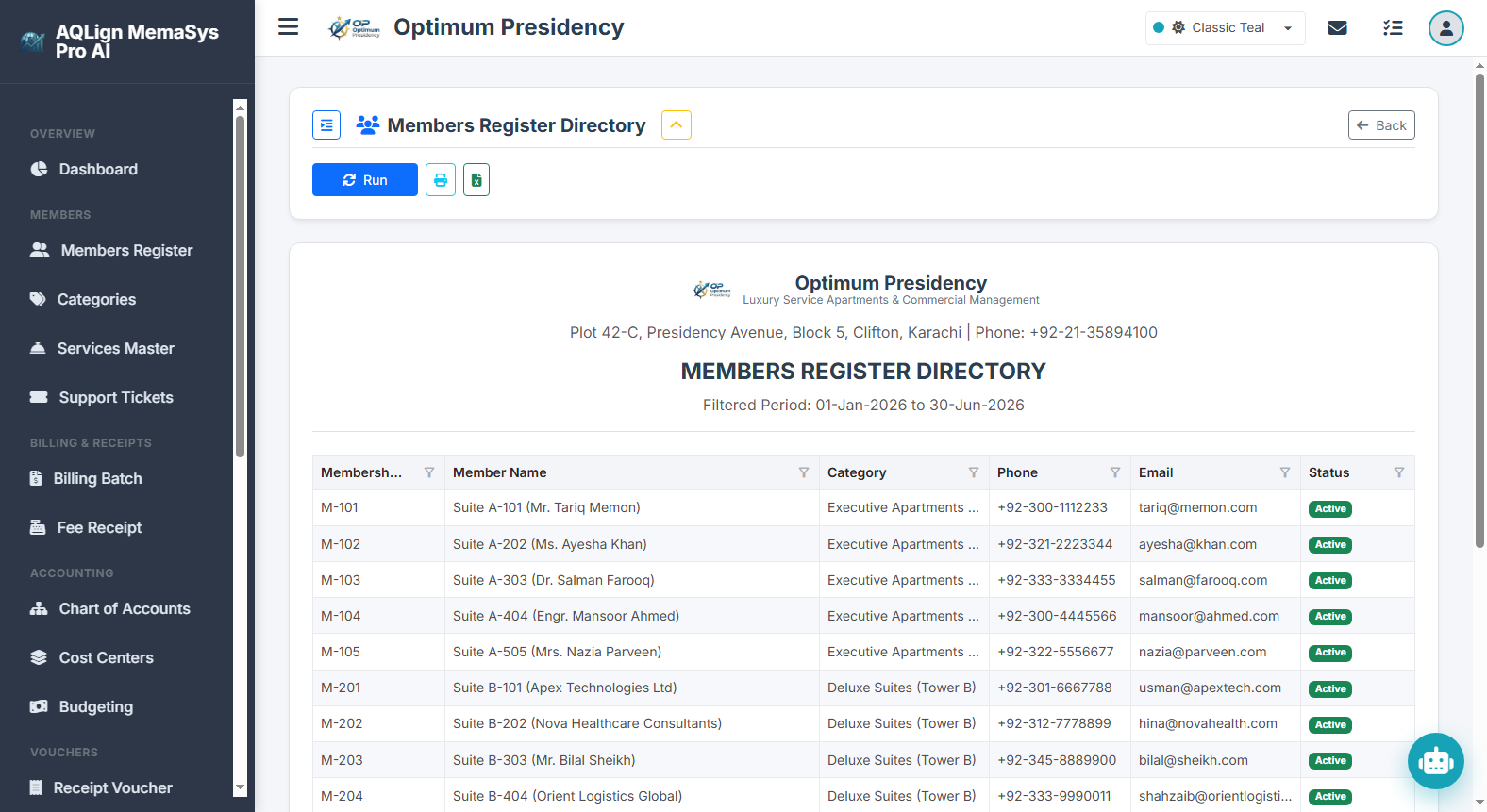
Corporate Value & Business Decision Impact: Serves as the master operational census for enterprise customer demographics. Management utilizes this report to track membership growth velocity, monitor active versus inactive account ratios, and evaluate customer category distributions to plan amenity expansions or service capacity.
Filter Options & Output Columns: Includes Category filters, Status filters (Active / Inactive / Suspended), and Search keyword filters. Output rendered: Member Code, Full Name, CNIC / Passport #, Contact Phone, Joining Date, Category Title, and Active Status Badge.
Source Module Connection: Synthesizes data directly from Chapter 4 (Member Profiles Registry) and Chapter 5 (Member Categories & Service Opting).
Real-World Scenario (Optimum Presidency): Executive management reviews the Members Register Directory at quarter-end to verify active residential vs. commercial tenant counts (e.g. 450 active residential members vs. 50 commercial tenants) before finalizing multi-story security staffing contracts.
2. Member Billing Register (`/company/reports/billing`)
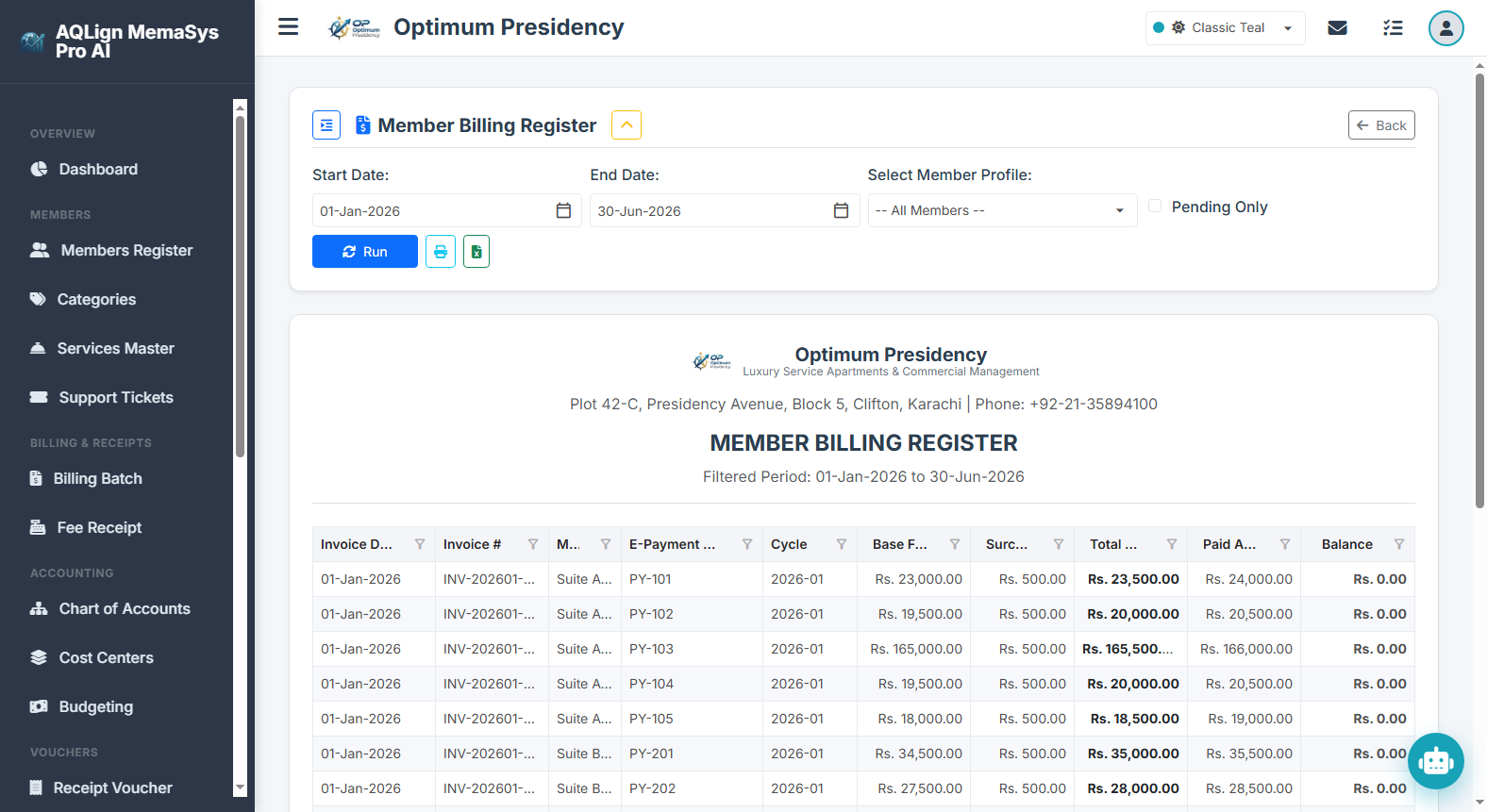
Corporate Value & Business Decision Impact: Audits the total monthly recurring revenue generated by automated billing batches. It enables controllers to verify tariff application, inspect surcharge calculations, and ensure that gross monthly billing targets align with enterprise revenue expectations.
Filter Options & Output Columns: Includes Month & Year selectors, Category filters, and Cost Center dropdowns. Output rendered: Invoice Number, Member Code, Member Name, Billing Period, Maintenance Fee, Utility Charges, Overdue Surcharge Amount, and Total Invoice Billed Amount.
Source Module Connection: Powered directly by the Automated Billing Batch Engine documented in Chapter 7.
Real-World Scenario (Optimum Presidency): Following the June 2026 automated billing run, the CFO reviews the Member Billing Register to verify that all 500 active members were billed correctly, confirming a total monthly revenue posting of Rs. 2,450,000 to General Ledger receivables.
3. Member Receipts Register (`/company/reports/receipts`)
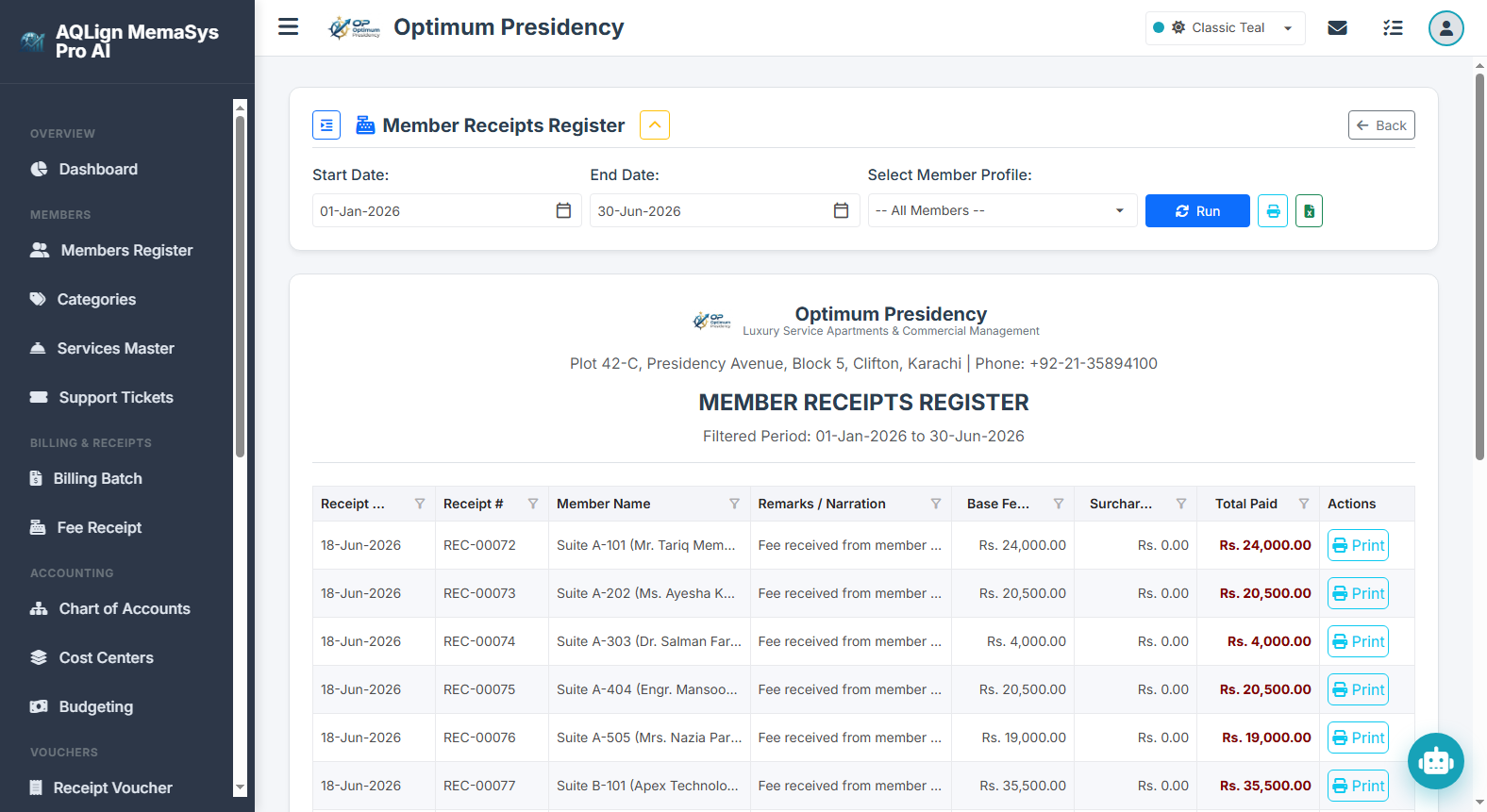
Corporate Value & Business Decision Impact: Provides real-time visibility into daily fee collection velocity across cash counters and bank accounts. Treasury controllers use this report for daily cashier drawer reconciliations, monitoring collection efficiency, and auditing cash-to-bank deposit timeliness.
Filter Options & Output Columns: Includes Date Range selectors, Payment Mode filters (Cash / Bank / Online), and Cashier User filters. Output rendered: Receipt Number, Fee Receipt Date, Member Code, Member Name, Payment Mode, Receiving Bank Account, Fee Amount Collected, Surcharge Collected, and Total Net Receipt Amount.
Source Module Connection: Extracted directly from Chapter 8 (Member Fee Receipt Entry Engine).
Real-World Scenario (Optimum Presidency): At the end of each business day, the Chief Cashier audits the Member Receipts Register to reconcile Rs. 380,000 in counter collections against bank deposit slips before closing cash drawers.
4. 12-Month Renewal Income Matrix (`/company/reports/matrix`)
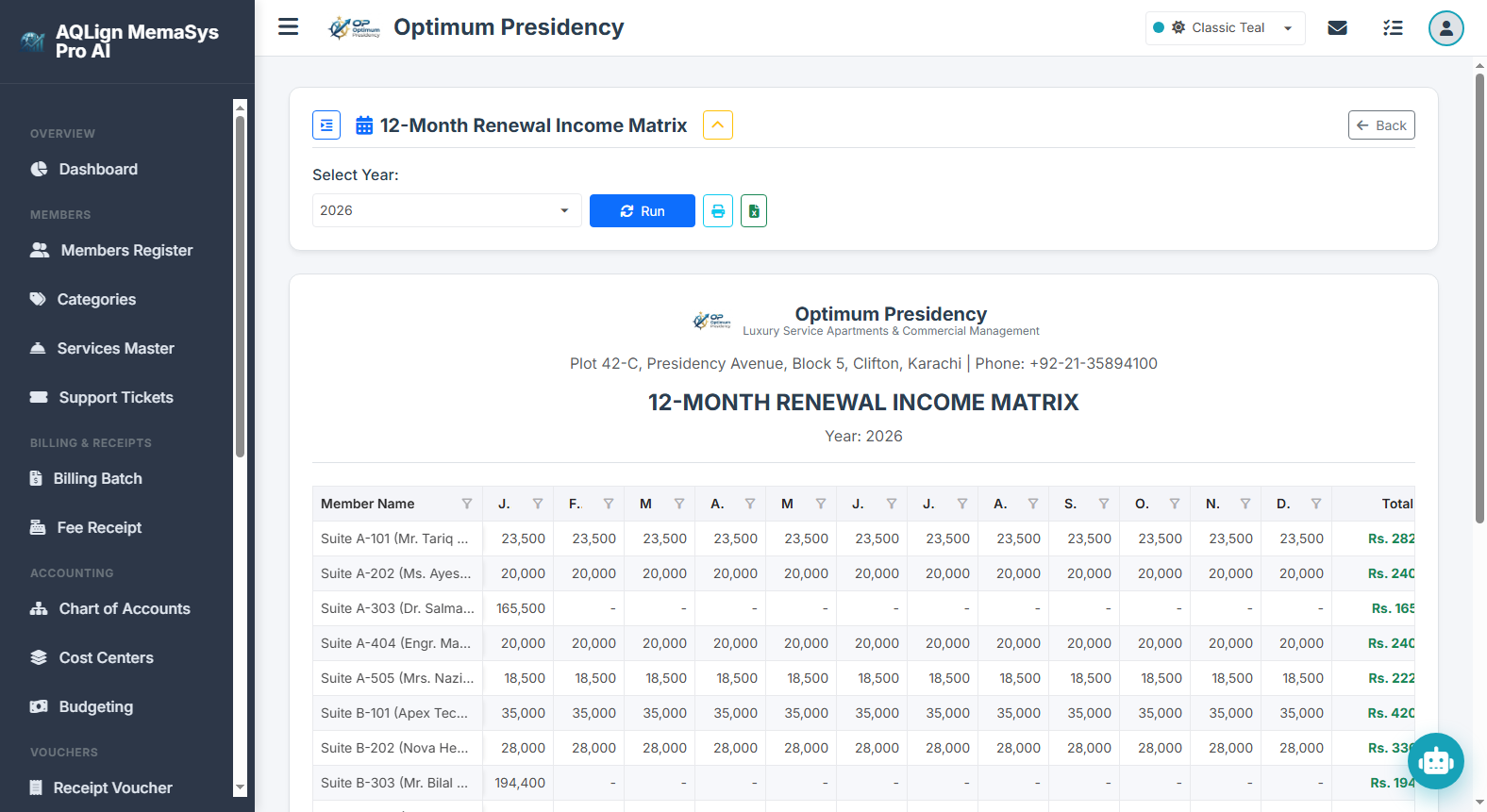
Corporate Value & Business Decision Impact: Serves as an advanced annual liquidity forecasting tool. By mapping yearly members into their designated renewal months across the 12-month calendar, financial planners can anticipate cash flow surges and schedule capital expenditures during high-renewal months.
Filter Options & Output Columns: Includes Fiscal Year selectors and Member Category filters. Output rendered: Member Code, Member Name, Category Title, and 12 monthly grid columns (Jan → Dec) highlighting scheduled annual fee renewal amounts and expected renewal months.
Source Module Connection: Synthesizes Member Category renewal terms (Chapter 5) and the Dual Inclusions Rule in Billing (Chapter 7).
Real-World Scenario (Optimum Presidency): Financial controllers analyze the 12-Month Renewal Matrix to identify a major Rs. 1,200,000 renewal income surge scheduled for September, allowing management to schedule major elevator overhauls during that peak liquidity period.
5. Member Account Statement (`/company/reports/memberstatement`)
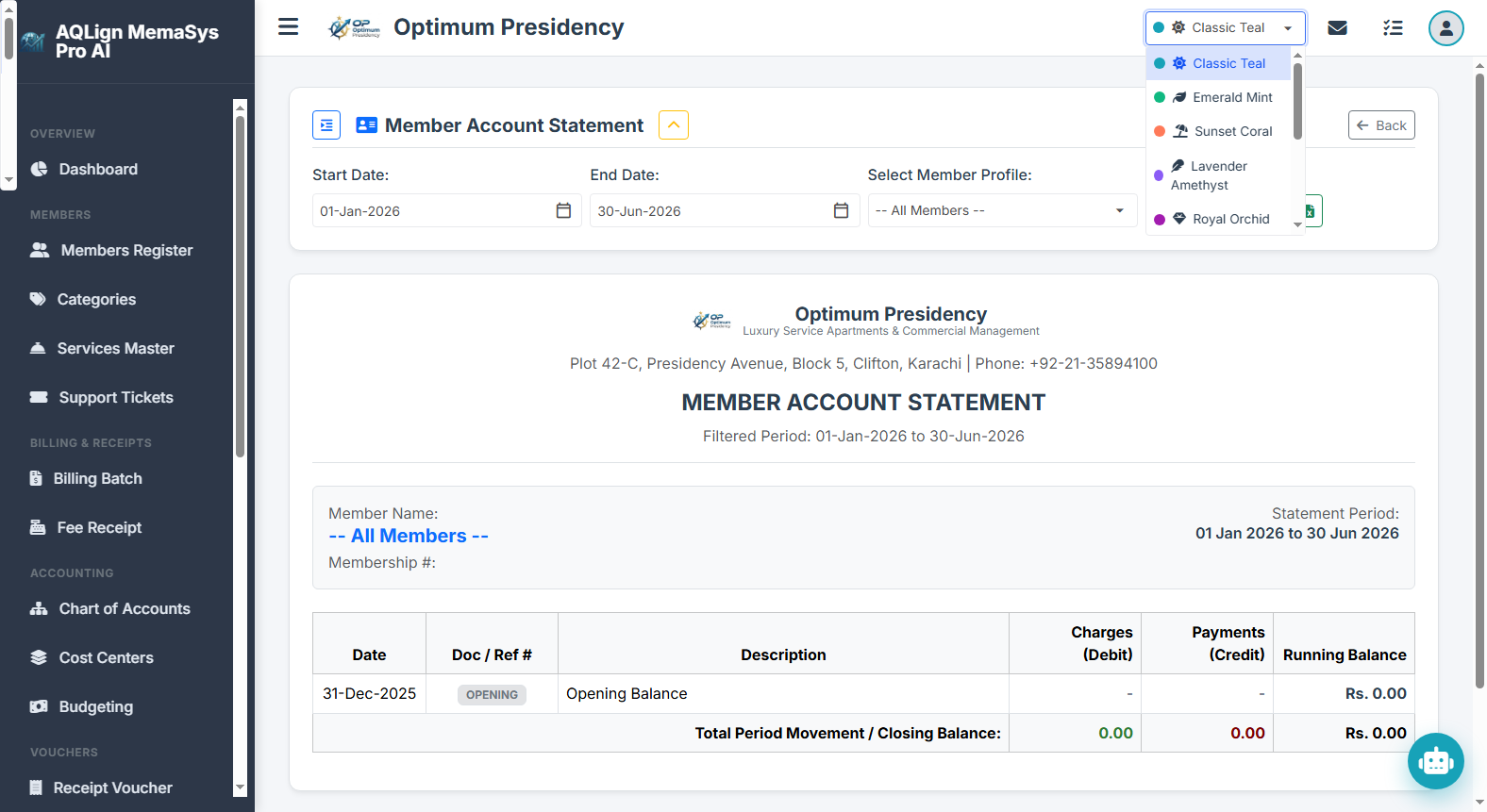
Corporate Value & Business Decision Impact: Serves as the authoritative customer ledger document for resolving billing inquiries, issuing recovery notices, and verifying member balances. Offers 100% audit transparency for individual member financial histories.
Filter Options & Output Columns: Includes Member Selection dropdown (with keypress search) and Date Range selectors. Output rendered: Transaction Date, Reference # (Invoice / Receipt), Description / Narration, Billed Amount (Debit), Received Amount (Credit), and Running Outstanding Balance, topped by a prominent Total Outstanding Dues callout badge.
Source Module Connection: Integrates Member Profiles (Chapter 4), Invoicing (Chapter 7), and Fee Receipts (Chapter 8).
Real-World Scenario (Optimum Presidency): Member Mr. Tariq Memon requests a ledger review regarding an overdue balance. The cashier prints the Member Account Statement, demonstrating how a missed May invoice plus a Tier-2 surcharge resulted in the net outstanding balance of Rs. 15,500.
Category B: Ledgers & Audits Reports
6. General Account Ledger (`/company/reports/ledger`)
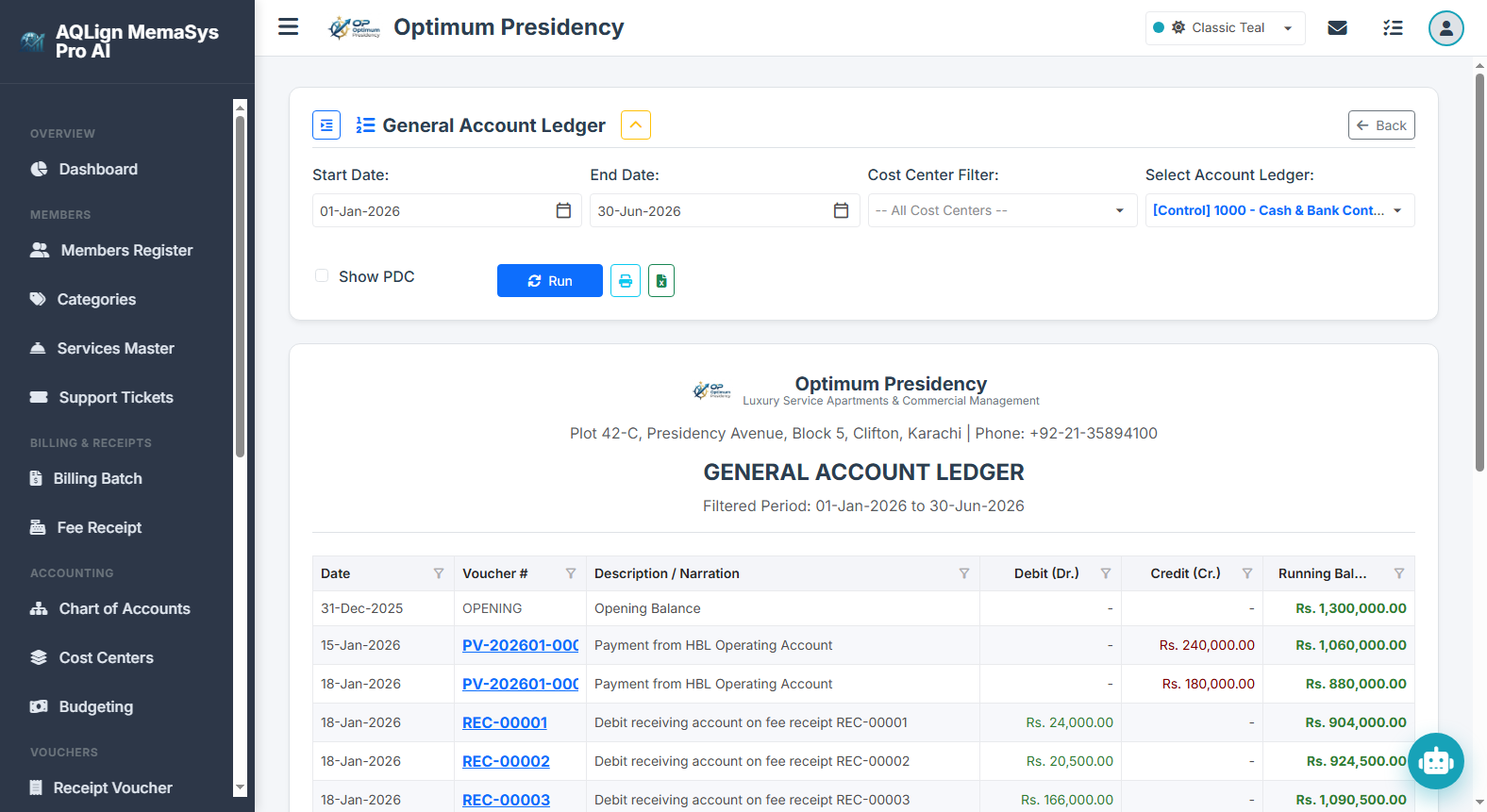
Corporate Value & Business Decision Impact: Provides complete debit and credit transaction auditing for any single ledger account in the enterprise. Essential for internal auditing, bank statement reconciliations, vendor ledger verifications, and expense tracking.
Filter Options & Output Columns: Includes Account Code dropdown, Date Range selectors, and Cost Center filters. Output rendered: Voucher Date, Voucher #, Voucher Type (RV/PV/JV), Line Narration, Cost Center Tag, Debit Amount, Credit Amount, and Cumulative Running Balance.
Source Module Connection: Draws data from the Chart of Accounts (Chapter 9) and all transaction vouchers (Chapters 12-15).
Real-World Scenario (Optimum Presidency): Auditors inspect the General Account Ledger for Account 5011 Standby Generator Fuel across Q2, auditing every fuel payment voucher line item to verify fuel consumption patterns against generator operational logs.
7. Cash Book (Double-sided) (`/company/reports/cashbook`)
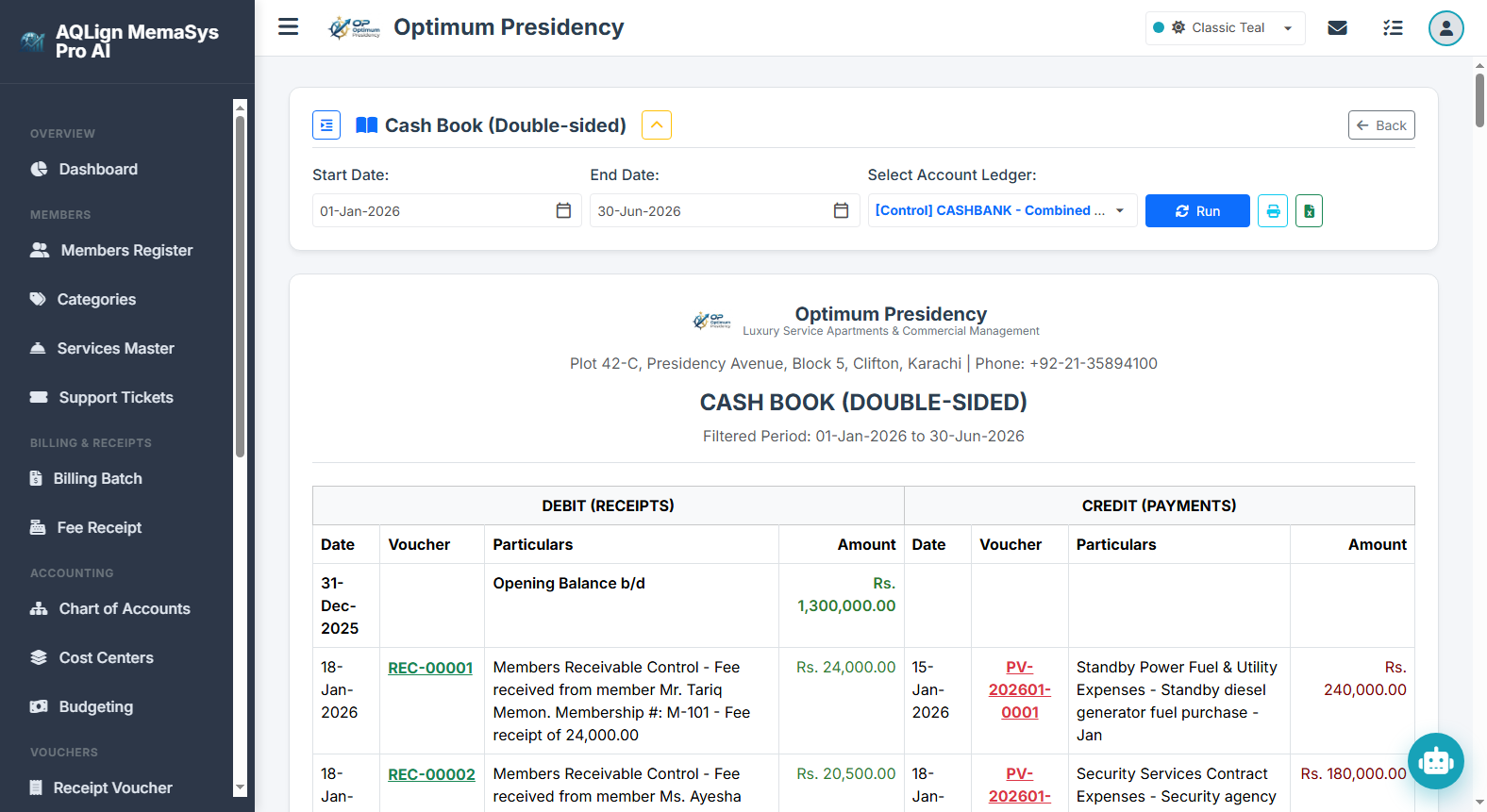
Corporate Value & Business Decision Impact: Formats cash transactions into traditional double-sided bookkeeping format (Receipts on Left, Payments on Right). Essential for physical cash box audits, petty cash verification, and ensuring daily cash balance integrity.
Filter Options & Output Columns: Includes Cash Account selector and Date Range filters. Output rendered: Left Side Receipts (Date, Voucher #, Particulars Account, Amount); Right Side Payments (Date, Voucher #, Particulars Account, Amount); Summary Footer: Opening Cash Balance, Total Cash Receipts, Total Cash Payments, and Closing Cash Balance.
Source Module Connection: Consolidates cash receipts from Member Receipts (Chapter 8), Receipt Vouchers (Chapter 12), and Payment Vouchers (Chapter 13).
Real-World Scenario (Optimum Presidency): The Senior Accountant conducts an unannounced cash drawer count at 5:00 PM, comparing physical cash on hand against the closing balance in the Double-sided Cash Book report.
8. Member Receivable GL Control Reconciliation (`/company/reports/recon`)
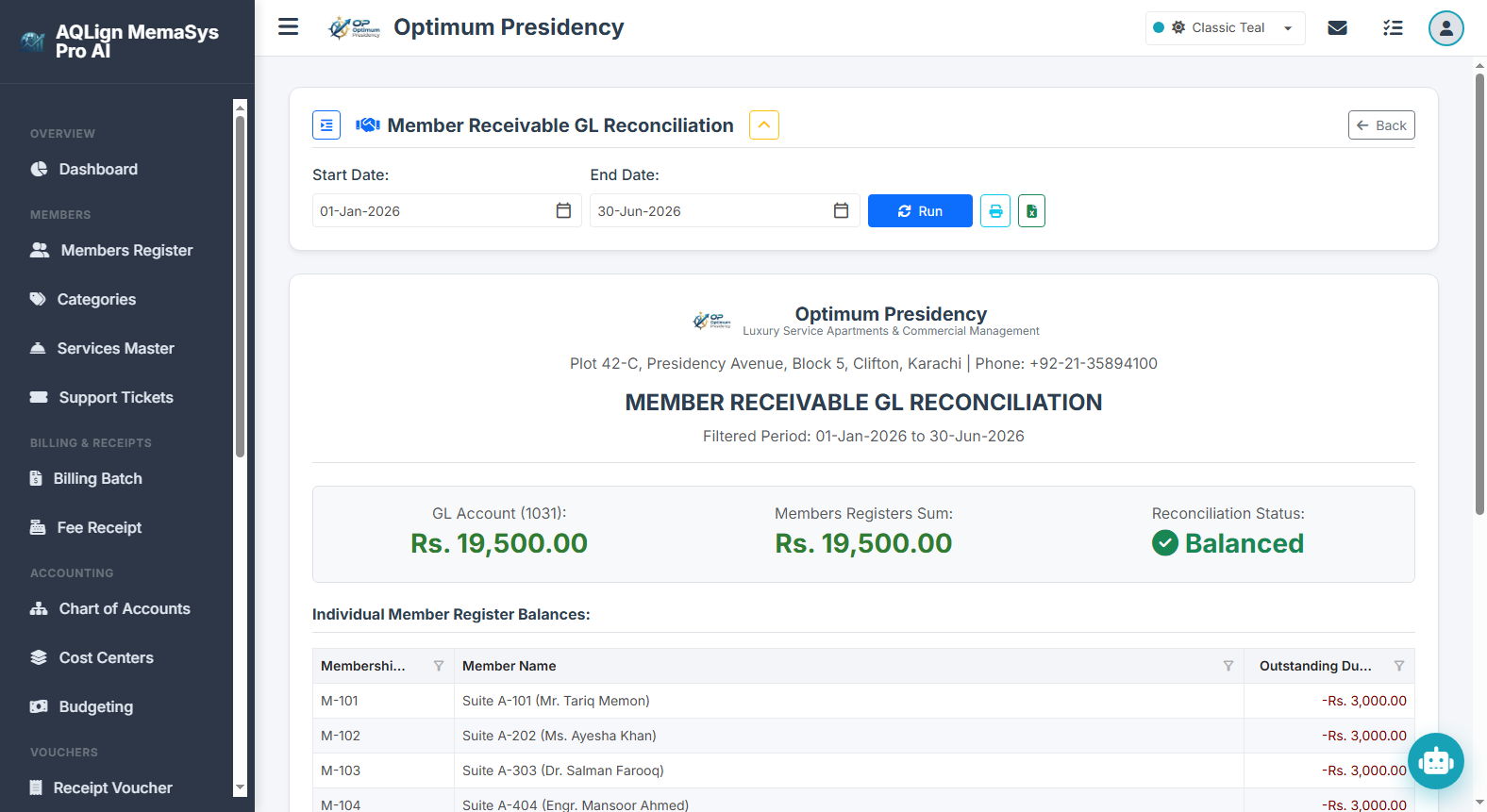
Corporate Value & Business Decision Impact: Provides automated double-entry integrity verification by reconciling total individual member balances against the General Ledger control account. Guarantees zero discrepancy between sub-ledgers and financial statements.
Filter Options & Output Columns: Includes As-of Date selectors. Output rendered: Sum of Individual Member Subsidiary Balances, General Ledger Control Account Balance (Account 1031), and Net Discrepancy Amount (featuring a prominent Rs. 0.00 Discrepancy Guarantee callout badge).
Source Module Connection: Bridges Member Sub-ledgers (Chapters 7-8) with Chart of Accounts Control Accounts (Chapter 9).
Real-World Scenario (Optimum Presidency): External statutory auditors run the Member Receivable Reconciliation report, confirming that the Rs. 1,850,000 total member sub-ledger balances tie out 100% to General Ledger Account 1031 with zero discrepancy.
9. PDC Register (`/company/reports/pdcregister`)
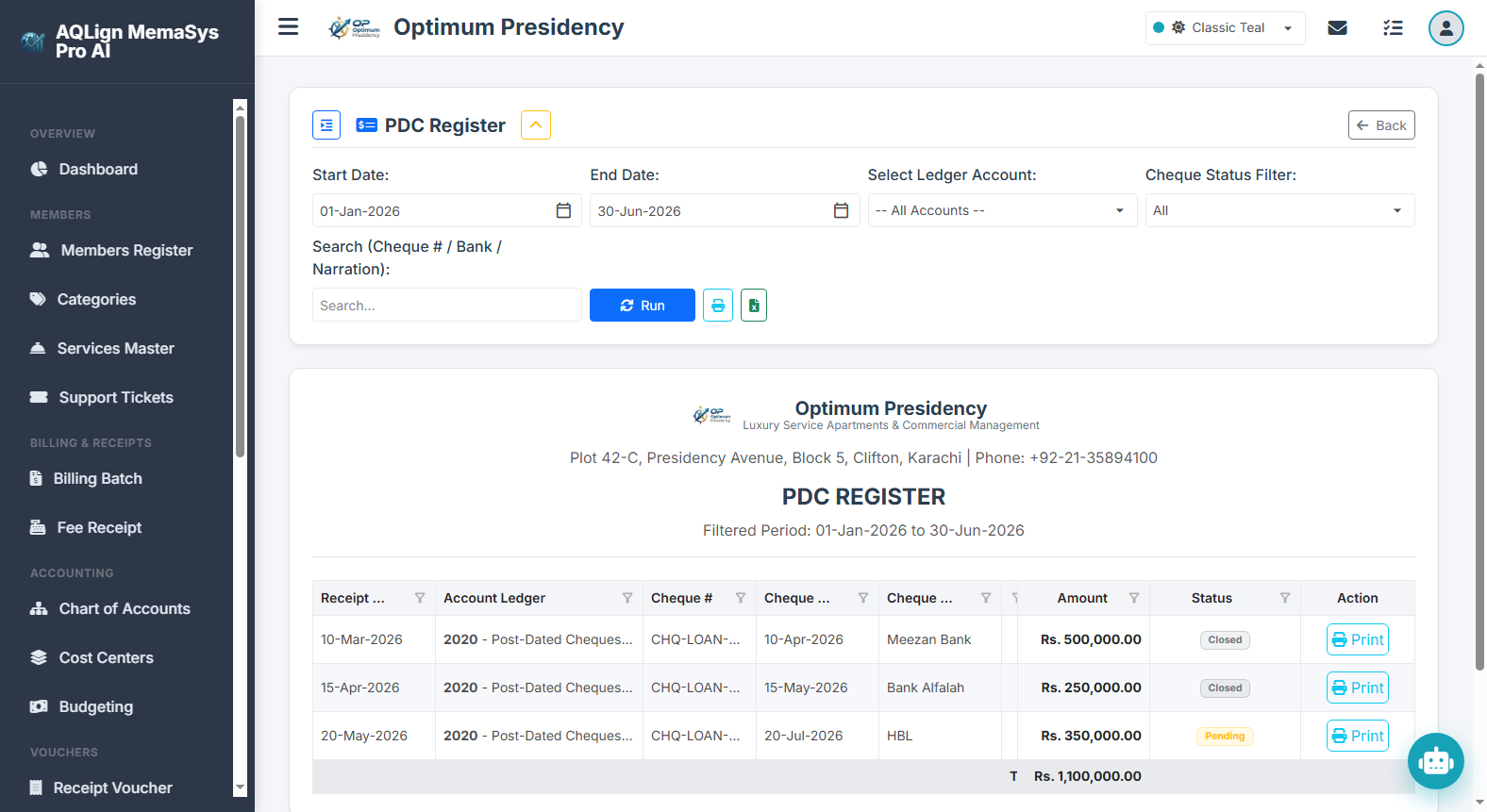
Corporate Value & Business Decision Impact: Delivers comprehensive treasury management for Post-Dated Cheques held in physical custody. Enables financial controllers to monitor held cheque portfolio values, schedule upcoming bank deposits, and track cheque status transitions.
Filter Options & Output Columns: Includes Status filters (Pending / Deposited / Returned), Date Range selectors, and Bank filters. Output rendered: PDC Receipt Date, Account Code & Title, Cheque #, Cheque Maturity Date, Cheque Bank, Amount, Status Badge, and Linked Voucher #.
Source Module Connection: Powered directly by Chapter 15 (PDC Receipts Management Engine) and Chapter 12 (PDC Clearance via RV).
Real-World Scenario (Optimum Presidency): Every Monday morning, the Treasurer runs the PDC Register report filtered for `Pending` PDCs maturing in the current week, organizing Rs. 450,000 in cheques for timely bank deposit.
10. Vouchers Register (`/company/reports/vouchers`)
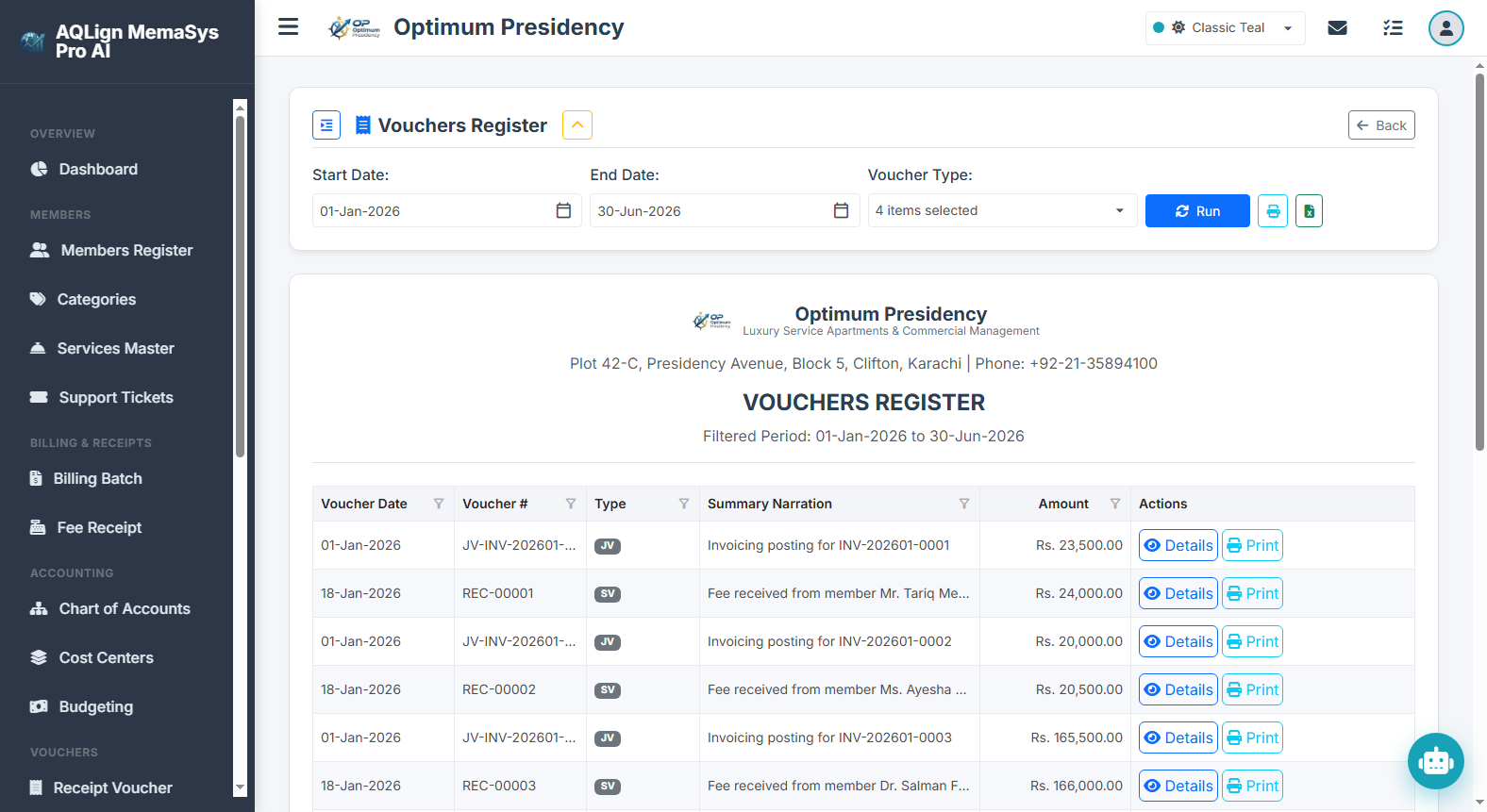
Corporate Value & Business Decision Impact: Serves as the central repository for auditing and reprinting all accounting vouchers posted across the platform. Supervisors use this register to monitor transaction volume, review cashier activity, and trigger official voucher prints.
Filter Options & Output Columns: Includes Date Range selectors, Voucher Type filters (RV / PV / JV), and Status filters. Output rendered: Voucher Date, Voucher Number, Voucher Type Badge, General Narration, Total Transaction Amount, Posted By User, and Action Buttons (Details / Print).
Source Module Connection: Consolidates all transaction vouchers created in Chapters 12 through 15.
Real-World Scenario (Optimum Presidency): An accounting supervisor opens the Vouchers Register to filter all Payment Vouchers posted on July 12, reviewing vendor fuel payments and reprinting voucher copies for physical office binder archives.
11. Vouchers Audit (`/company/reports/voucheraudit`)
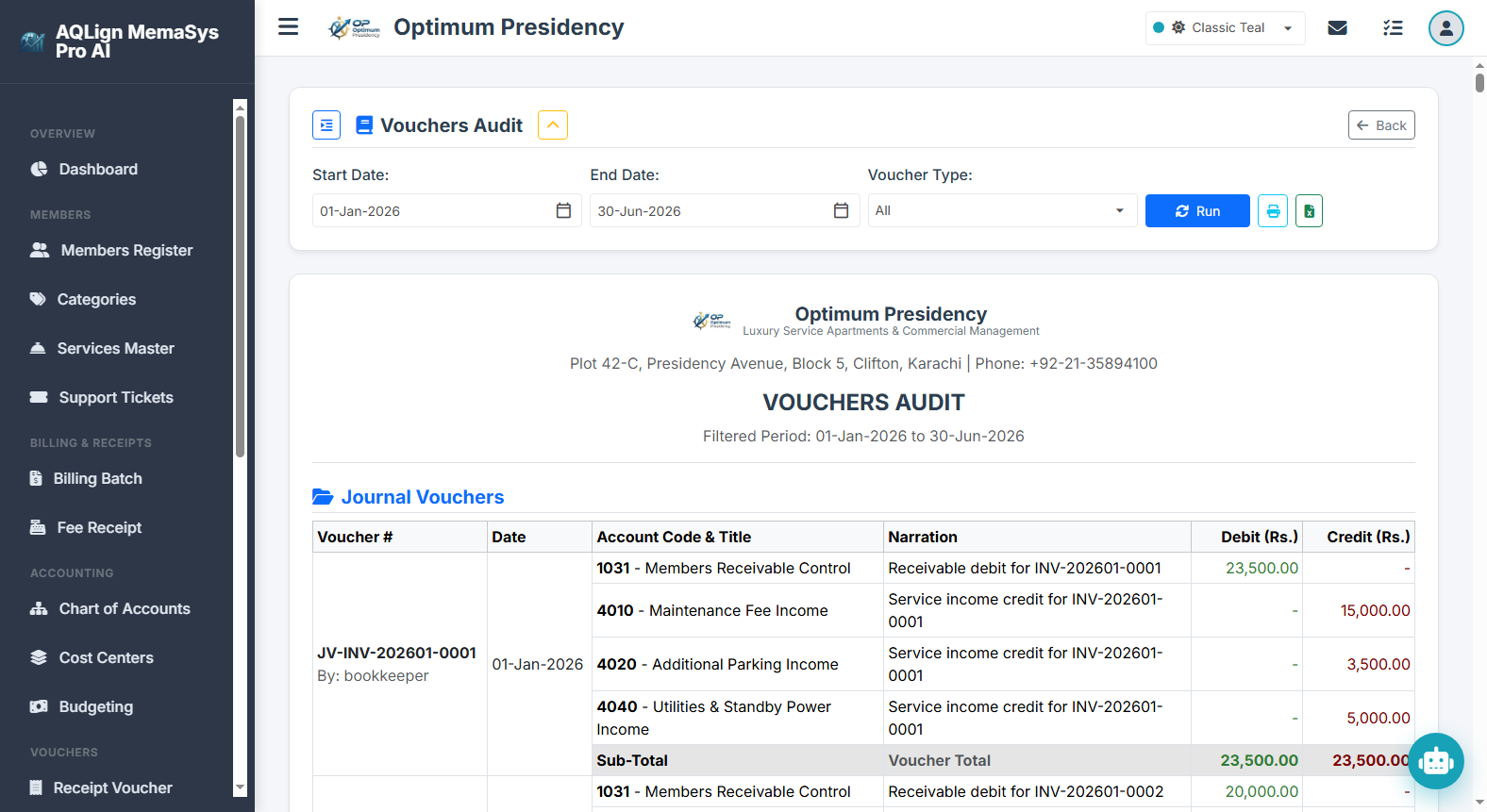
Corporate Value & Business Decision Impact: Enforces strict internal control transparency by maintaining an immutable forensic audit log of all voucher creation, modification, and deletion events. Essential for preventing unauthorized back-dated edits or fraudulent alterations.
Filter Options & Output Columns: Includes Date Range selectors, User filters, and Action Type filters (Create / Update / Delete). Output rendered: Audit Timestamp, Entity Name, Voucher # / Entity ID, Action Type, Performed By User, Client IP Address, and Before / After Change JSON Details.
Source Module Connection: Connects to the system Audit Logging Engine across all voucher operations (Chapters 12-15).
Real-World Scenario (Optimum Presidency): Internal security auditors investigate an edited Payment Voucher using the Vouchers Audit report, verifying the exact timestamp, user ID, and original vs modified transaction line amounts.
12. Chart of Accounts Index (`/company/reports/coa`)
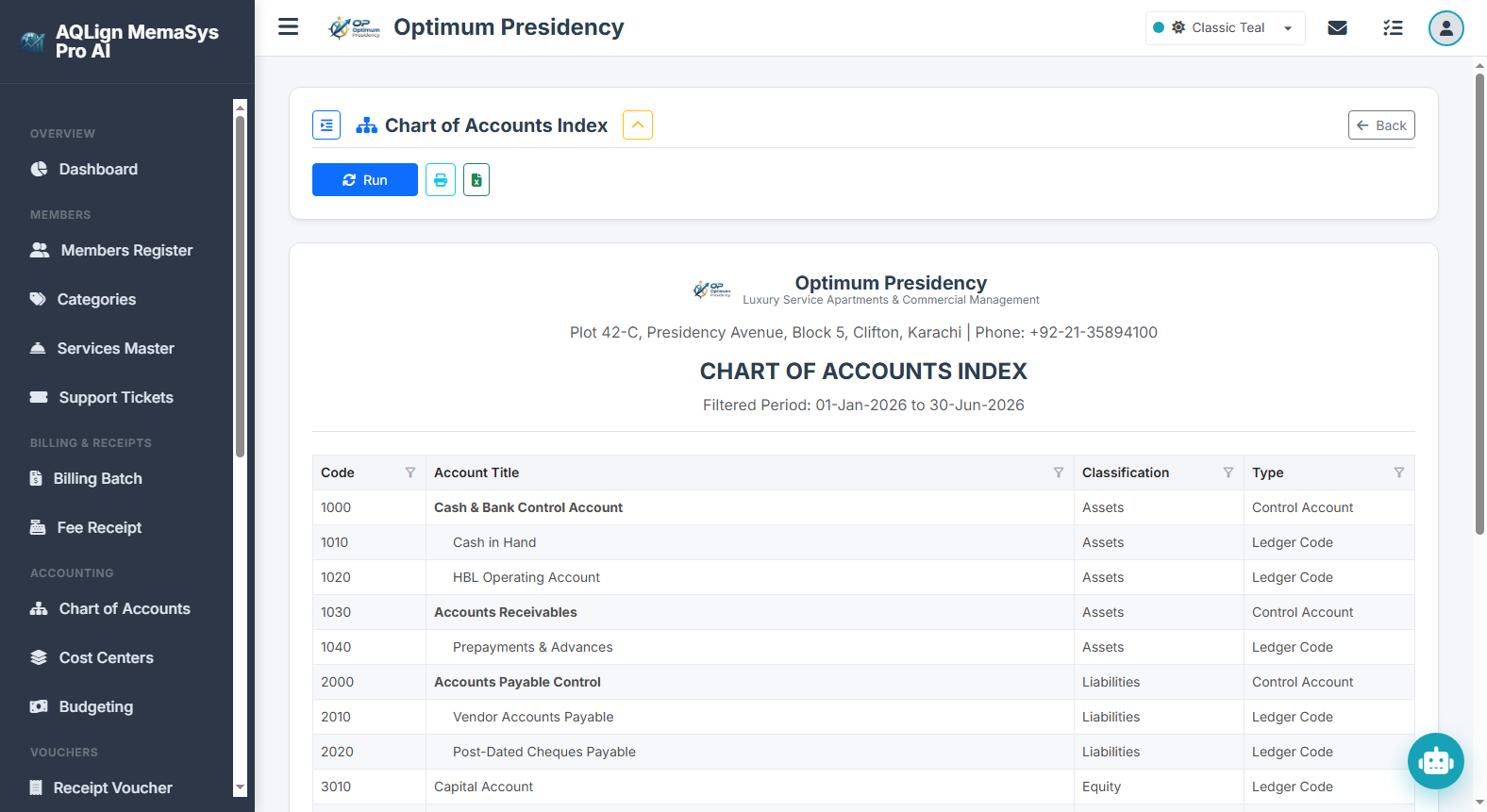
Corporate Value & Business Decision Impact: Renders the complete structural index of the corporate accounting tree. Used by accounting managers to review account hierarchies, verify control vs subsidiary account mappings, and ensure standardized account coding.
Filter Options & Output Columns: Includes Account Class filters (Assets 1000s, Liabilities 2000s, Equity 3000s, Revenue 4000s, Expenses 5000s). Output rendered: Account Code, Account Name, Account Class Type, Parent Control Account, Is Control Account Flag, and Active Status.
Source Module Connection: Extracted directly from Chapter 9 (Chart of Accounts Master Tree Structure).
Real-World Scenario (Optimum Presidency): Prior to adding new regional vendor sub-ledgers, the Accounting Manager prints the Chart of Accounts Index to verify available account code ranges under Control Account 2010 Payables.
Category C: Financial Statements & Executive Reports
13. Cash Flow Summary (`/company/reports/cashflow`)
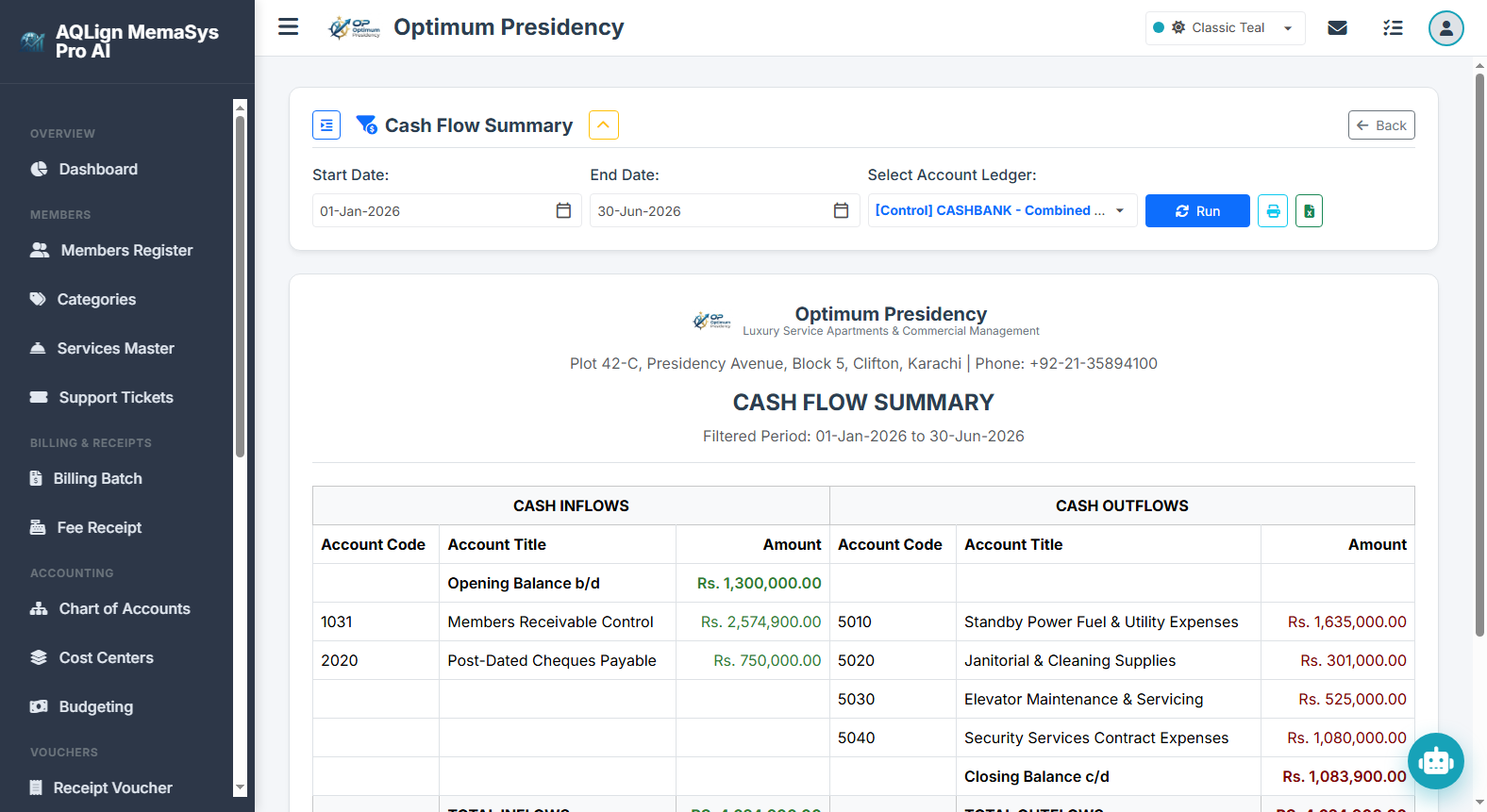
Corporate Value & Business Decision Impact: Evaluates enterprise liquid cash movement velocity over any operational period. Crucial for treasury managers and board directors to verify that operating activities generate positive net cash flow to sustain corporate obligations.
Filter Options & Output Columns: Includes Date Range selectors (Monthly / Quarterly / Annual). Sections rendered: Operating Cash Inflows (Member Receipts, Refunds), Operating Cash Outflows (Utilities, Salaries, Vendor Settlements), Net Operating Cash Flow, Opening Liquid Cash Position, and Closing Liquid Cash Position.
Source Module Connection: Consolidates all liquid cash/bank entries from Fee Receipts (Chapter 8) and Vouchers (Chapters 12-13).
Real-World Scenario (Optimum Presidency): The Board of Directors reviews the Q2 Cash Flow Summary report to confirm that net operating cash inflows (Rs. 1,450,000) adequately cover planned capital infrastructure reserves.
14. Receivable / Payable Statement (`/company/reports/recpay`)
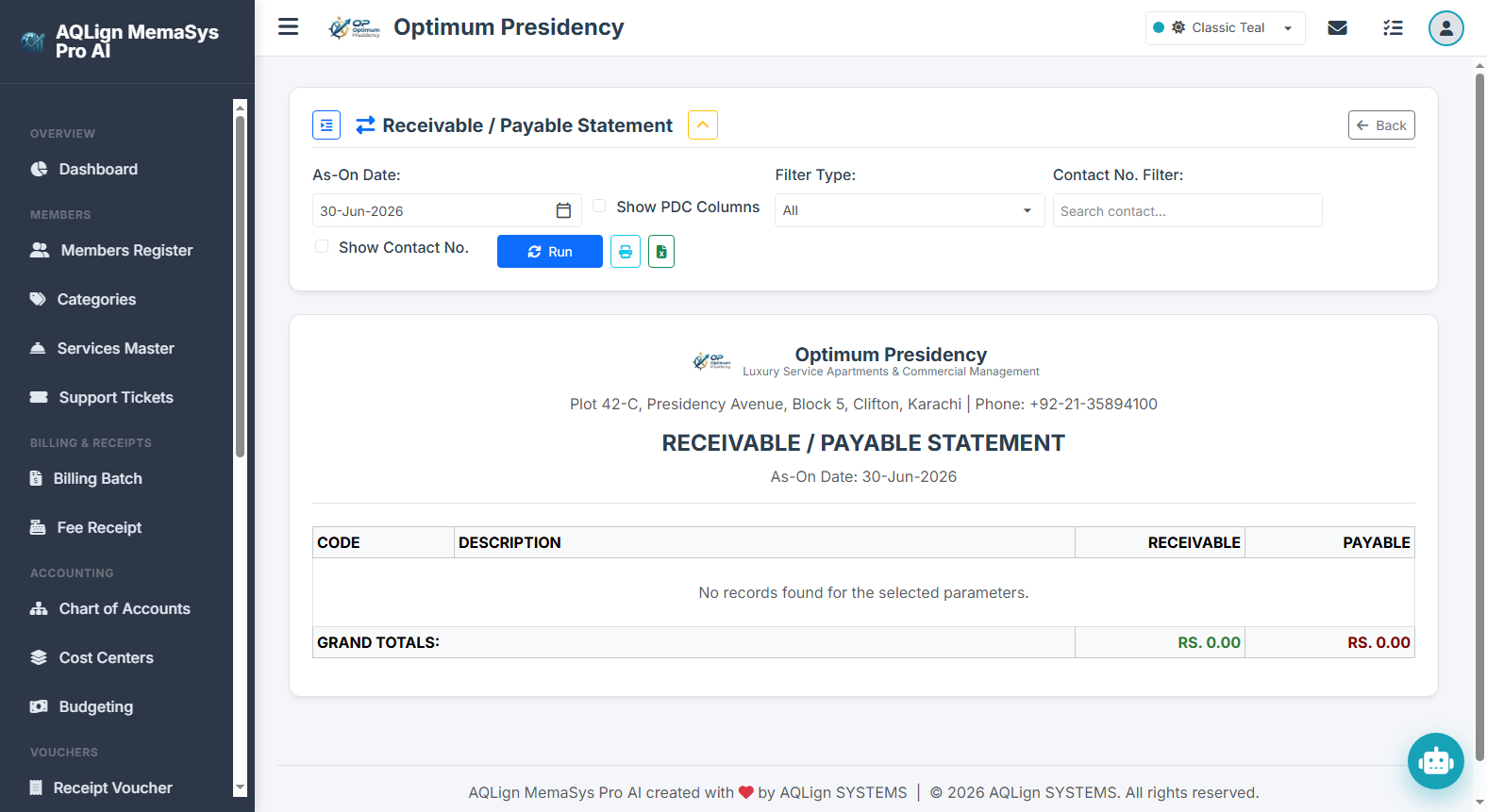
Corporate Value & Business Decision Impact: Delivers comprehensive aging analysis for customer receivables and vendor payables. Essential for credit control managers to identify delinquent accounts, calculate debt collection velocity, and manage vendor payment schedules.
Filter Options & Output Columns: Includes As-of Date selectors and Aging Bracket filters (Current, 30-Day, 60-Day, 90+ Day). Output rendered: Customer / Vendor Code, Account Name, Current Due, 30-Day Overdue, 60-Day Overdue, 90+ Day Overdue, and Total Outstanding Balance.
Source Module Connection: Synthesizes member billing arrears (Chapters 7-8) and vendor payables from Vouchers (Chapter 13-14).
Real-World Scenario (Optimum Presidency): Credit Controllers filter the 60+ Day Overdue Receivable statement to identify accounts with severe arrears, triggering automated final payment reminders.
15. Trial Balance (2 Column) (`/company/reports/tb2`)
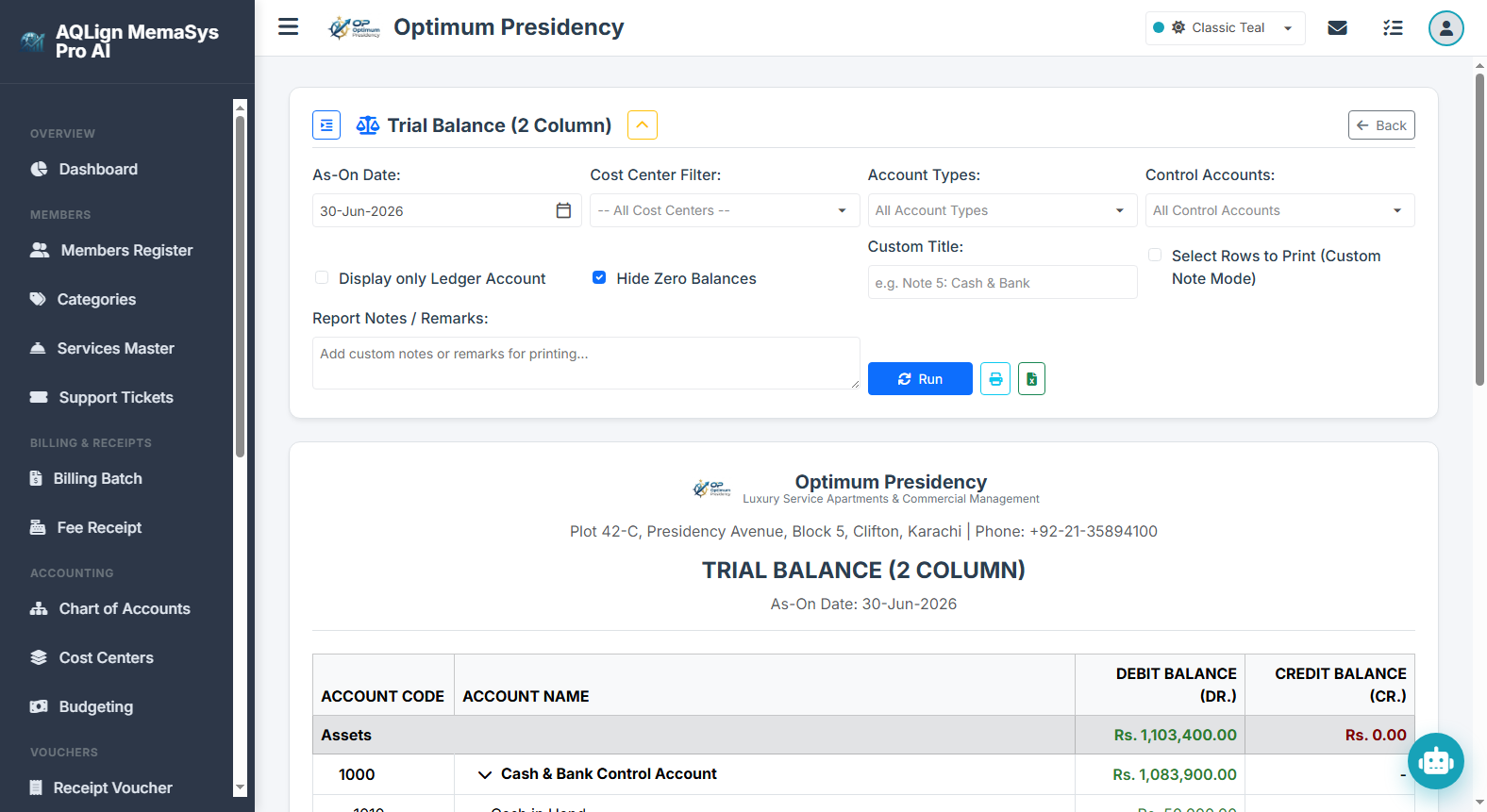
Corporate Value & Business Decision Impact: Establishes fundamental double-entry financial integrity by listing the net debit or credit balance of every active account. Assures CFOs and auditors that total General Ledger debits equal total credits before preparing final financial statements.
Filter Options & Output Columns: Includes As-of Date selectors and Zero Balance Hide toggles. Output rendered: Account Code, Account Name, Net Debit Balance, Net Credit Balance, and bottom-row Grand Total Debits vs. Grand Total Credits (equal balance assurance).
Source Module Connection: Aggregates balances across the entire Chart of Accounts (Chapter 9) and all transaction vouchers (Chapters 7-15).
Real-World Scenario (Optimum Presidency): The CFO reviews the 2-Column Trial Balance at month-end, confirming that Grand Total Debits (Rs. 14,850,000) equal Grand Total Credits (Rs. 14,850,000) before finalizing the Profit & Loss statement.
16. Trial Balance (6 Column) (`/company/reports/tb6`)
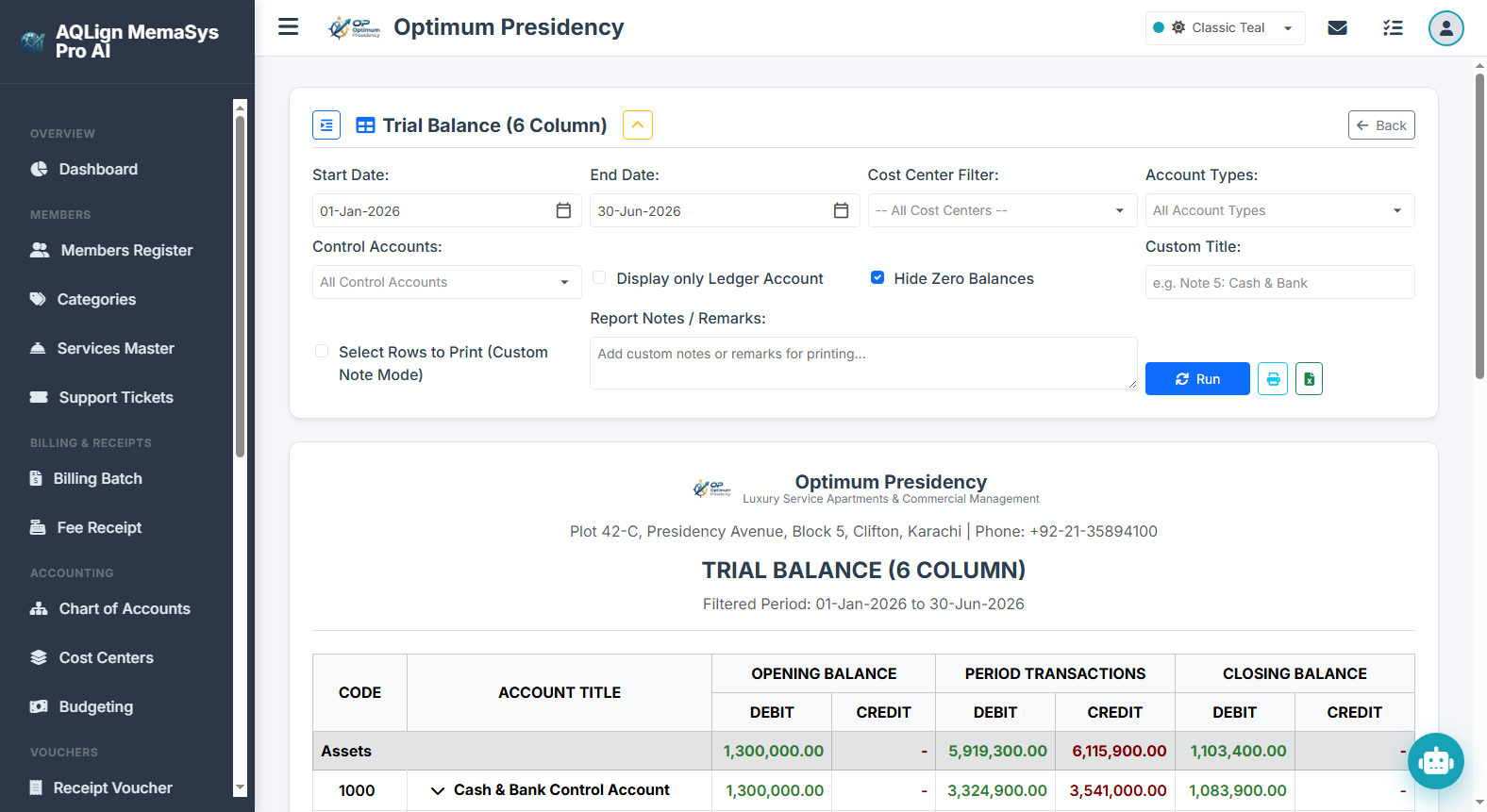
Corporate Value & Business Decision Impact: Provides an exhaustive operational audit of account movement velocity by displaying opening balances, period debit/credit movements, and closing balances for every ledger account. Indispensable for statutory annual audits.
Filter Options & Output Columns: Includes Period Date Range selectors (Period Start to End). Output rendered: Account Code, Account Name, Opening Debit, Opening Credit, Period Debit Movement, Period Credit Movement, Closing Debit, and Closing Credit.
Source Module Connection: Synthesizes opening balances (Chapter 9) and period voucher flows (Chapters 7-15).
Real-World Scenario (Optimum Presidency): External auditors utilize the 6-Column Trial Balance during year-end audit verification to trace opening balances and net period transaction volume across all asset, liability, revenue, and expense ledgers.
17. Profit & Loss / Income Statement (`/company/reports/pnl`)
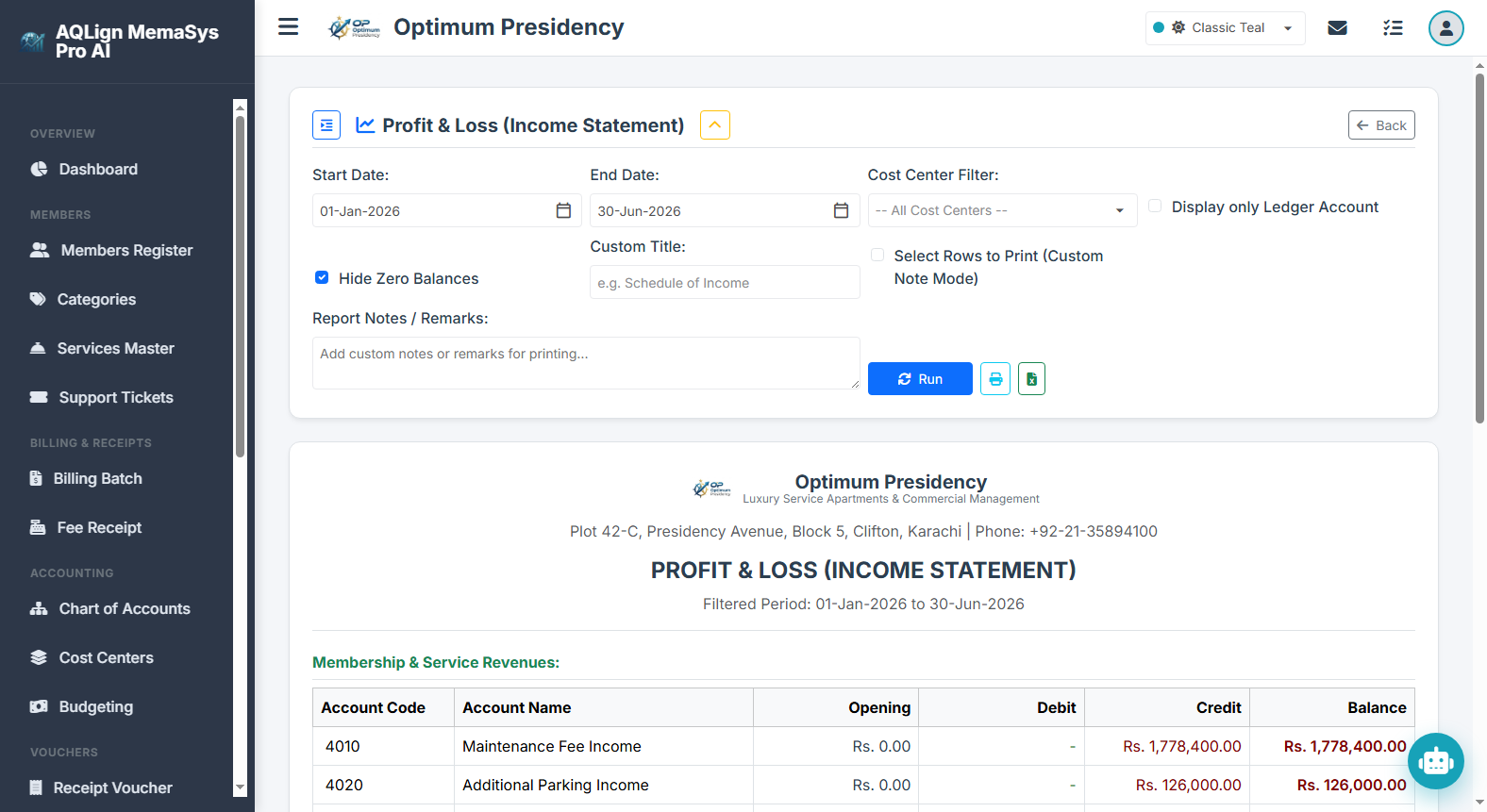
Corporate Value & Business Decision Impact: Measures overall enterprise financial performance and net operational profitability over any period. Used by executive management and shareholders to evaluate revenue growth, analyze cost structures, and calculate net profit margins.
Filter Options & Output Columns: Includes Date Range selectors (Monthly / Quarterly / Annual). Sections rendered: Operating Revenues (4000s), Total Gross Revenue, Operating Expenses (5000s), Total Operating Expenses, and Net Operating Profit / Loss.
Source Module Connection: Combines member subscription revenues (Chapter 7), surcharge income (Chapter 8), and operational expense vouchers (Chapters 12-14).
Real-World Scenario (Optimum Presidency): Management reviews the monthly Profit & Loss statement to evaluate net operating profit (Rs. 420,000 for July 2026), ensuring operating expenses remain within healthy target ratios relative to gross revenue.
18. Balance Sheet (`/company/reports/bs`)
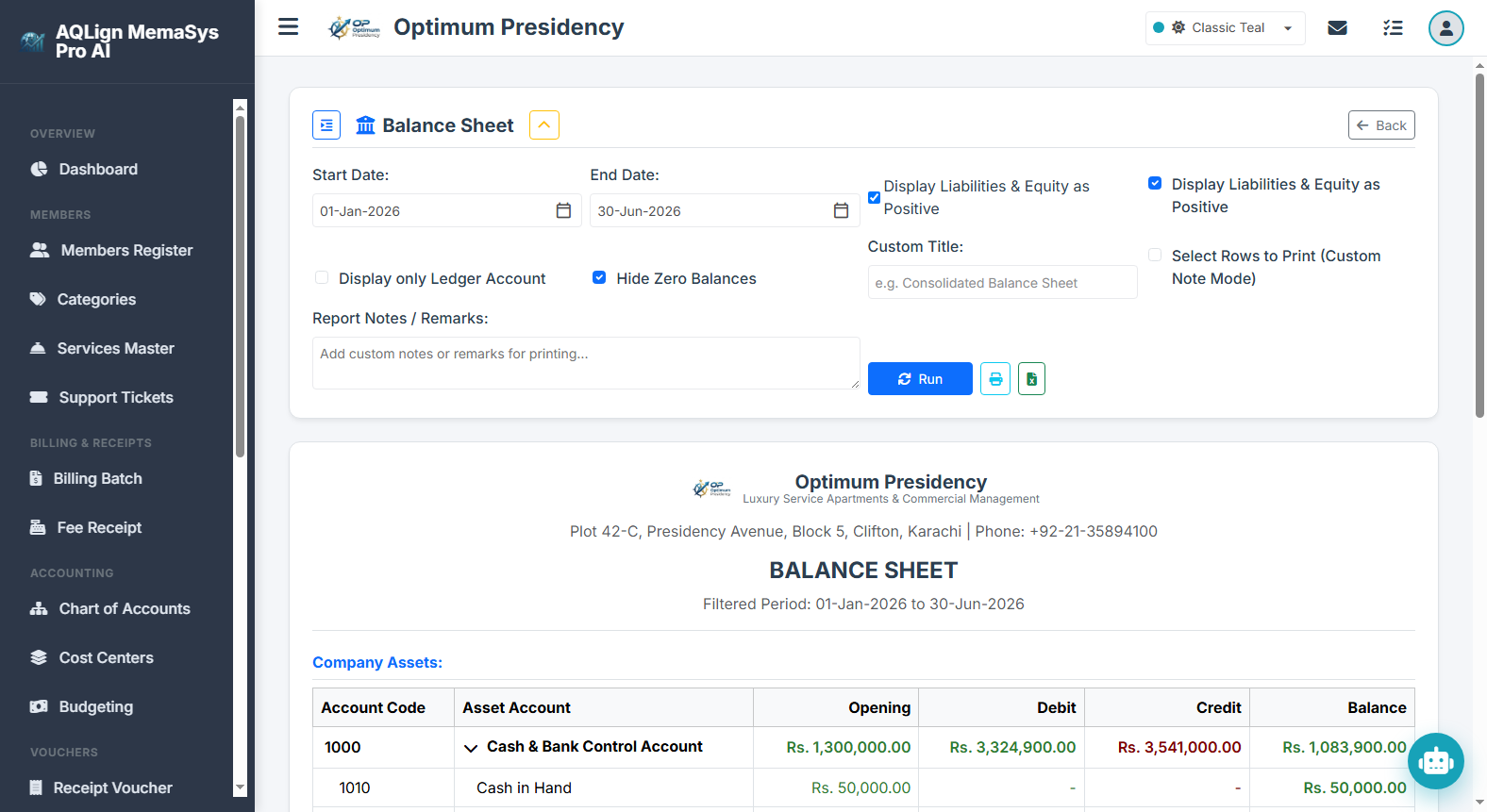
Corporate Value & Business Decision Impact: Represents the master statement of corporate financial position and net worth as of a specific date. Evaluated by bank lenders, investors, and board directors to assess capital structure, working capital liquidity, and solvency.
Filter Options & Output Columns: Includes As-of Date selectors. Sections rendered: Assets (Current & Fixed 1000s), Liabilities (Payables & Provisions 2000s), Equity (Capital 3000s & Retained Earnings), incorporating Net Profit from P&L, backed by the Assets = Liabilities + Equity Balance Equation Guarantee.
Source Module Connection: Integrates asset/liability/equity ledgers (Chapter 9) and net income calculated from the Profit & Loss statement (Chapter 16.17).
Real-World Scenario (Optimum Presidency): The Board of Directors reviews the annual Balance Sheet to assess net corporate assets (Rs. 28,500,000), verifying healthy working capital reserves and low long-term liability ratios.
19. Comparative Cost Center P&L (`/company/reports/ccpnl`)
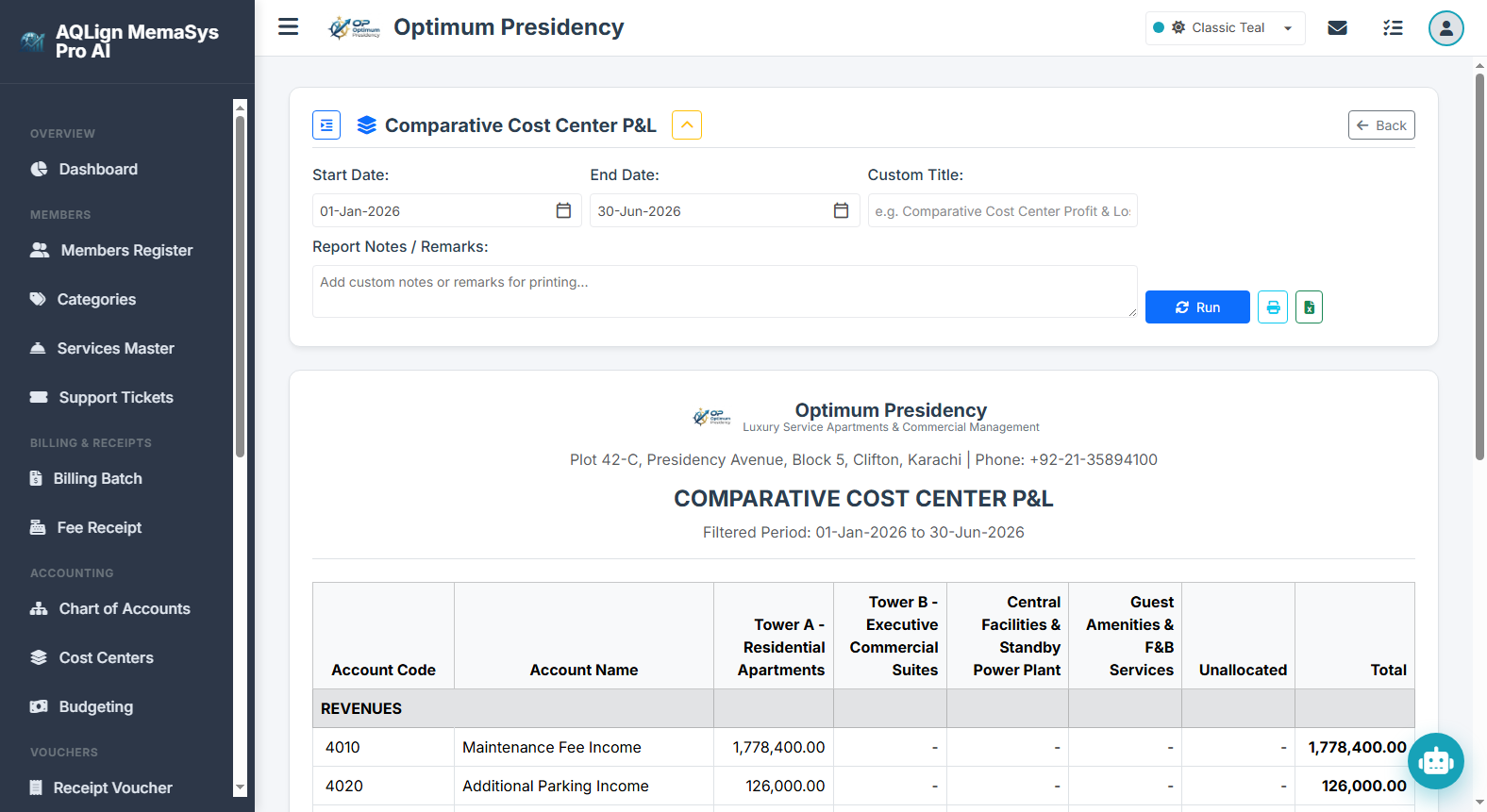
Corporate Value & Business Decision Impact: Delivers multi-segment operational profitability accounting. Allows business leaders to compare net revenue, expenses, and profit margins side-by-side across distinct facility towers, branches, or projects without cluttering the Chart of Accounts.
Filter Options & Output Columns: Includes Date Range selectors and Cost Center Multi-Select dropdowns. Output rendered: Account Code & Title, side-by-side comparative profit/loss columns for each active cost center (e.g. CC-101 Tower A, CC-102 Tower B, CC-103 Commercial Plaza), and Total Enterprise Net Margin.
Source Module Connection: Powered by the Cost Centers Engine (Chapter 10) and line-item cost center voucher allocations (Chapters 12-14).
Real-World Scenario (Optimum Presidency): CFO reviews the Comparative Cost Center P&L report to compare net margins between Residential Tower A (Rs. 180,000 profit) and Commercial Shopping Plaza (Rs. 240,000 profit), allocating expansion budgets accordingly.
20. Budget vs. Actual Report (`/company/reports/budgetactual`)
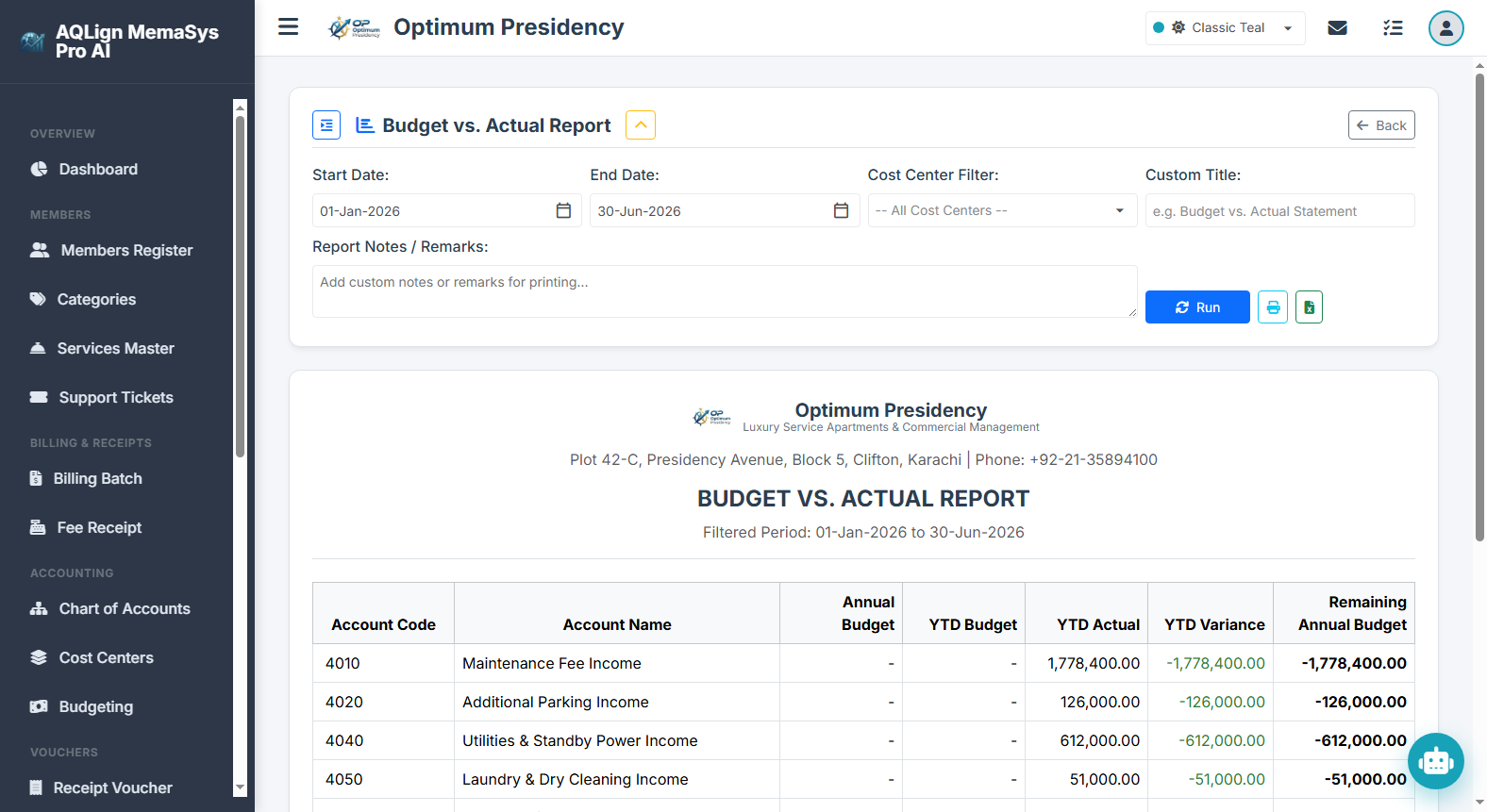
Corporate Value & Business Decision Impact: Serves as the ultimate fiscal control tool for variance analysis. Financial controllers use this report to compare actual ledger movements against planned monthly budgets, identifying operational overspending or revenue shortfalls early.
Filter Options & Output Columns: Includes Fiscal Year selectors, Cost Center filters, and Month dropdowns. Output rendered: Account Code & Title, Budgeted Target Amount, Actual Net Movement Amount, Variance Amount (Actual - Budget), Variance Percentage (%), and Visual Progress Bar Status Indicator.
Source Module Connection: Combines Month-wise Budgeting targets (Chapter 11) with actual General Ledger movements (Chapters 7-15).
Real-World Scenario (Optimum Presidency): Financial Controller reviews the monthly Budget vs. Actual report to analyze generator fuel variance (Rs. 15,000 overrun against Rs. 50,000 budget), allowing management to adjust Q4 operational spending targets.
17 Utilities & Settings — System & Control Settings (Core Architectural Backbone)
The System & Control Settings (`/company/settings`) module forms the absolute operational backbone of the entire application. It governs the double-entry routing of automated billing runs, sets operational fiscal boundaries, maps liquid asset accounts, and drives the global multi-language localization engine. If any control setting in this module is misconfigured or left blank, automated invoicing, fee receipt postings, and general ledger reconciliations will immediately halt across all portals!
17.1 Fiscal Year Range Parameters
The Fiscal Year Range setting defines the active financial operating period (Fiscal Year Start and Fiscal Year End). The core accounting engine enforces strict date validation against these boundaries: any financial voucher, recurring invoice batch, or fee receipt dated outside this defined window is automatically blocked and rejected to prevent transaction backdating or period corruption.
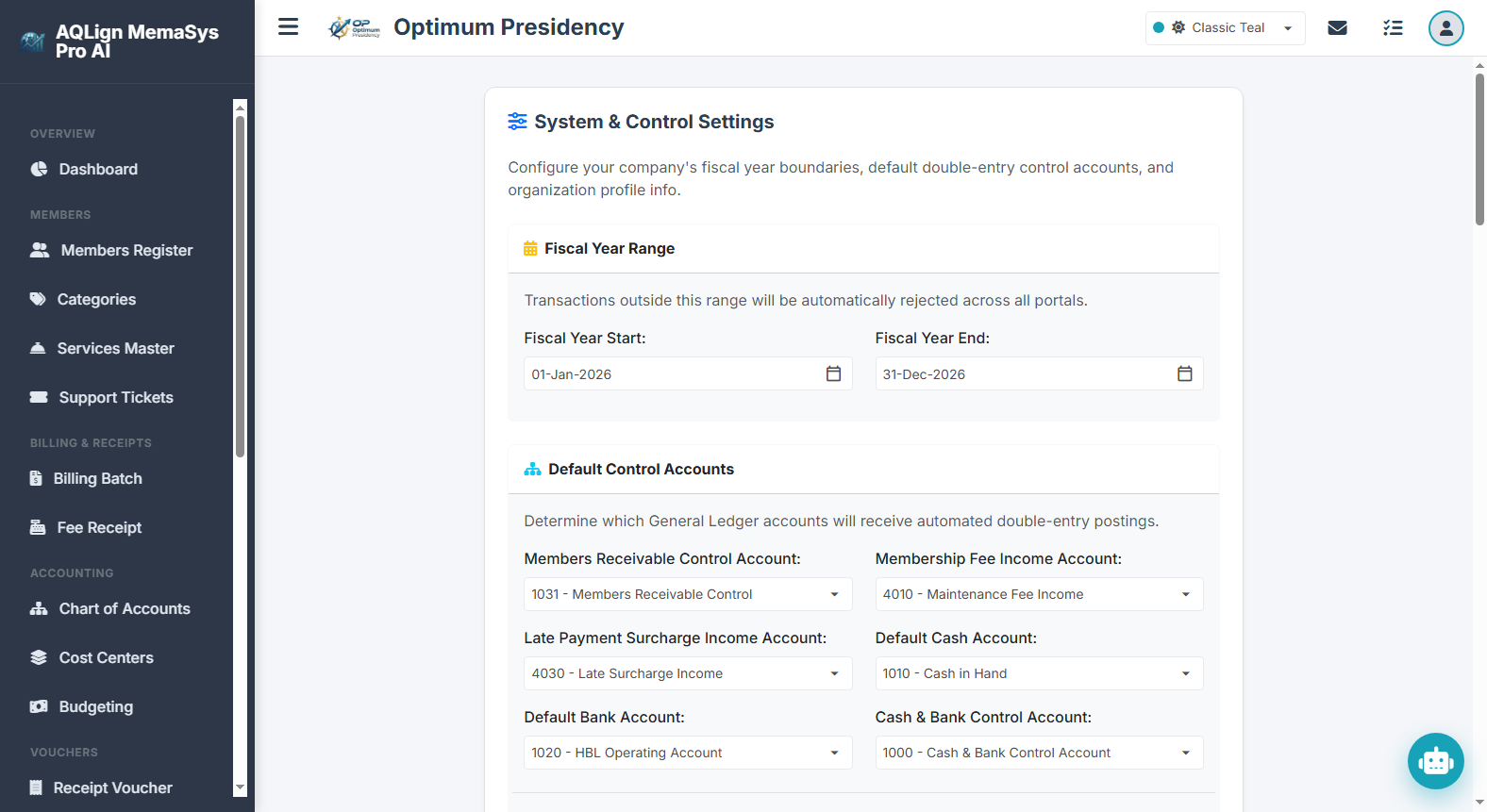
17.2 Default Double-Entry Control Accounts Mapping
This sub-system maps General Ledger control accounts to automated system workflows:
- Members Receivable Control Account (Default:
1031): Serves as the central GL Asset control account linked to all member subsidiary ledgers. Every automated billing run debits this account, while fee receipts credit it. - Membership Fee Income Account (Default:
4010): Target GL Revenue account credited during automated monthly recurring invoicing runs. - Late Payment Surcharge Income Account (Default:
4040): Target GL Income account credited when late payment surcharges are levied on overdue member balances. - Default Cash Account (Default:
1010) & Default Bank Account (Default:1020): Default financial accounts populated when processing cash or bank fee receipts and payment vouchers. - Cash & Bank Control Account (Default:
1000): Parent control account for liquid asset reconciliation. - Default Billing Cost Center: In the Advance Accounting module, assigns a default cost center tag (e.g. CC-101 Standby Power or Global/General) to automated monthly invoice batches for departmental revenue mapping.
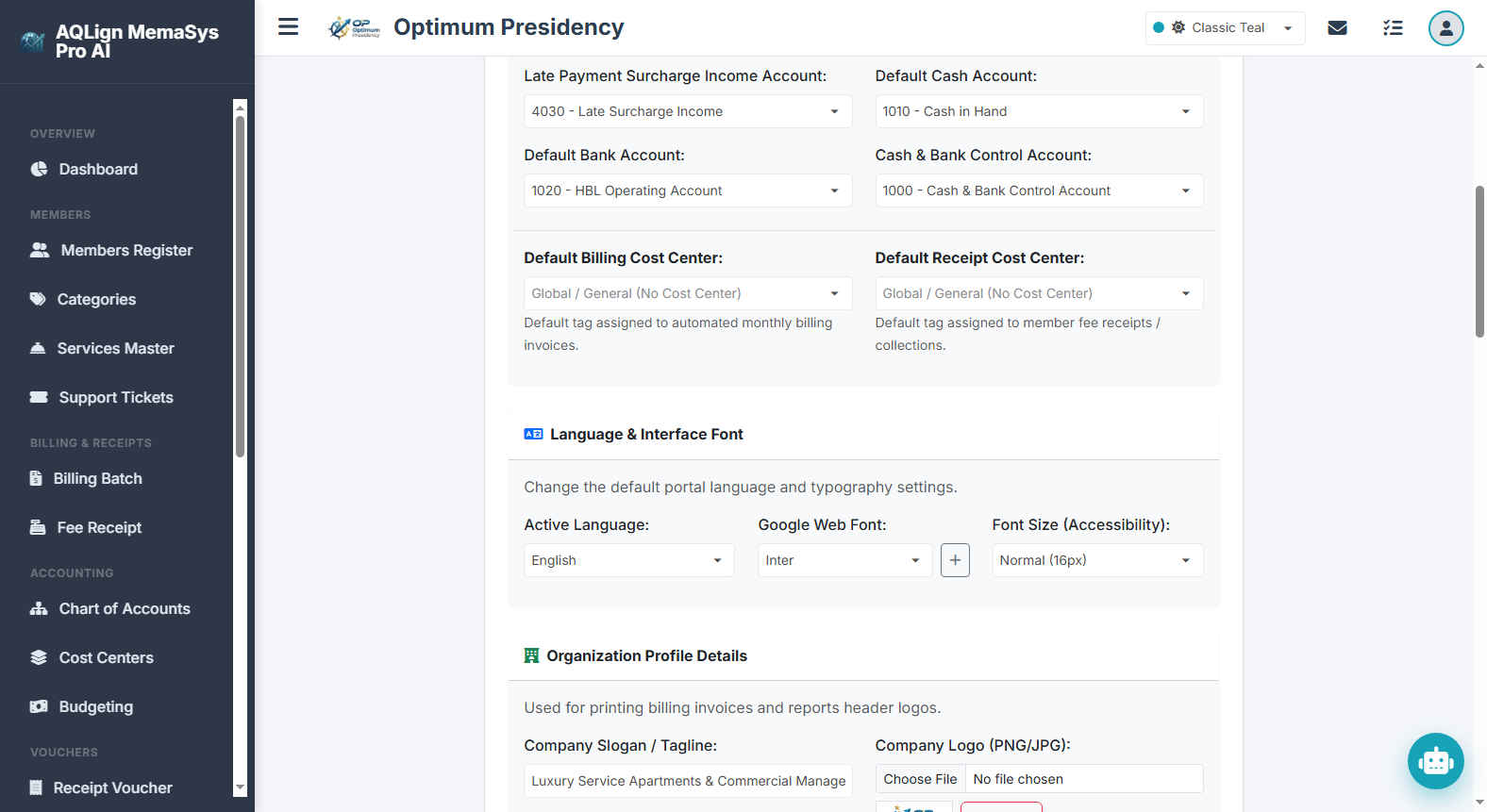
17.3 Multi-Language & RTL Layout Localization Framework Engine
AQLign MemaSys Pro AI features a deeply embedded multi-language localization framework. Language selection (English en, Urdu ur, or Arabic ar) is not a superficial translation overlay; it is natively integrated into the Blazor rendering tree:
- Full UI & Label Translation: Dynamically translates every navigation menu, button caption, form input label, table header, report title, and system notification into the selected language.
- Native RTL / LTR Directional Switching: Automatically flips the layout framework between Left-to-Right (LTR for English) and Right-to-Left (RTL for Urdu and Arabic), restructuring sidebars, tables, and modal dialogs for natural reading flow.
17.4 Organization Profile & System Branding
Configures company profile metadata—including Organization Name, Slogan, Address, Contact Info, and Logo Upload (stored as an encrypted Base64 string). These attributes dynamically render on all printed invoices, fee receipts, voucher vouchers, and financial report headers.
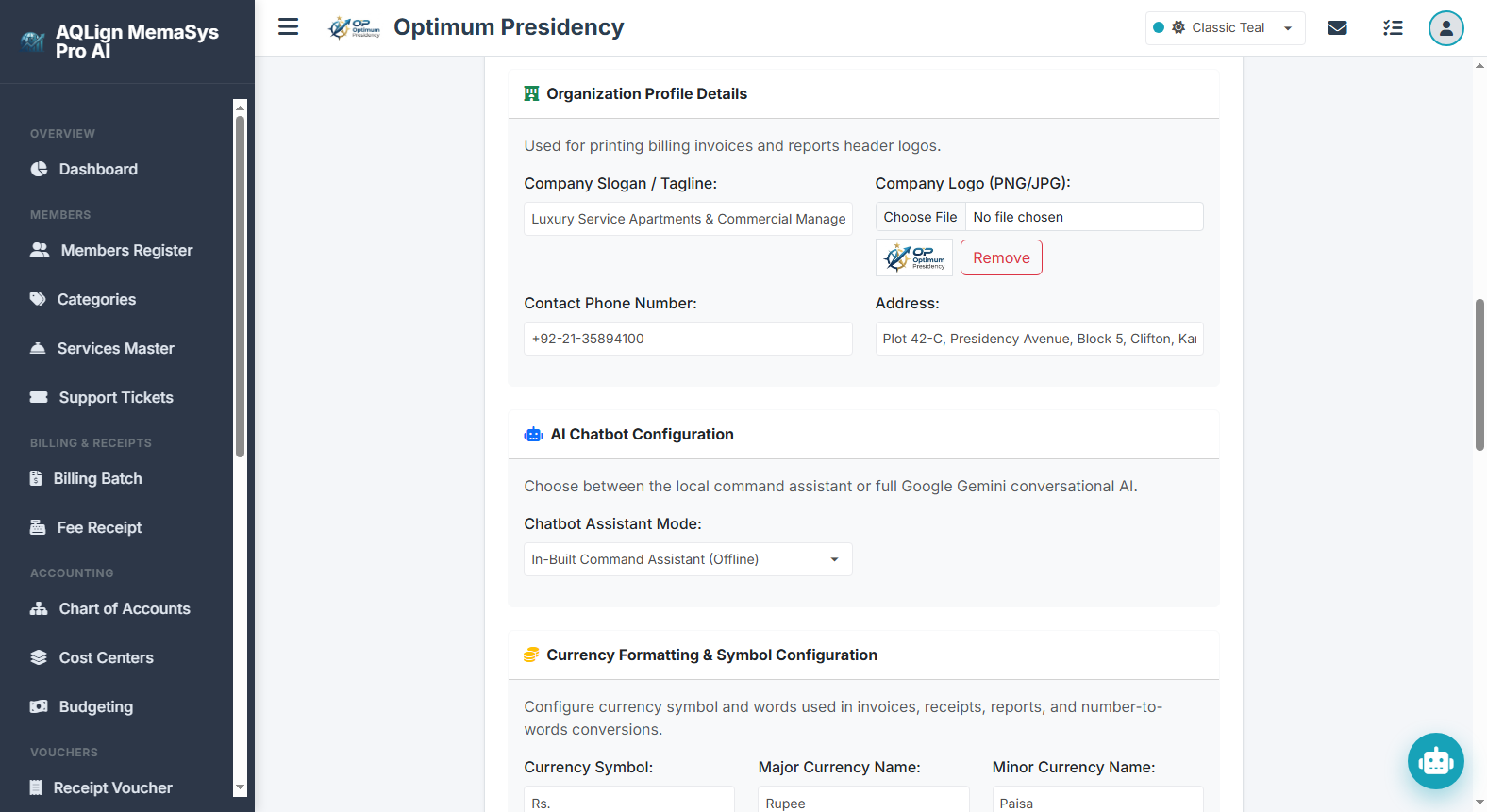
18 Utilities & Settings — Manage Users & Role-Based Access Control (RBAC)
The User Management & Security module (`/company/users`) provides complete control over staff user accounts, authentication credentials, and granular Role-Based Access Control (RBAC) permissions.
18.1 User Profile & Account Management
Administrators create and manage staff accounts by defining usernames, full names, email addresses, login passwords, and uploading profile photos. User credentials enforce strict multi-tenant session isolation.
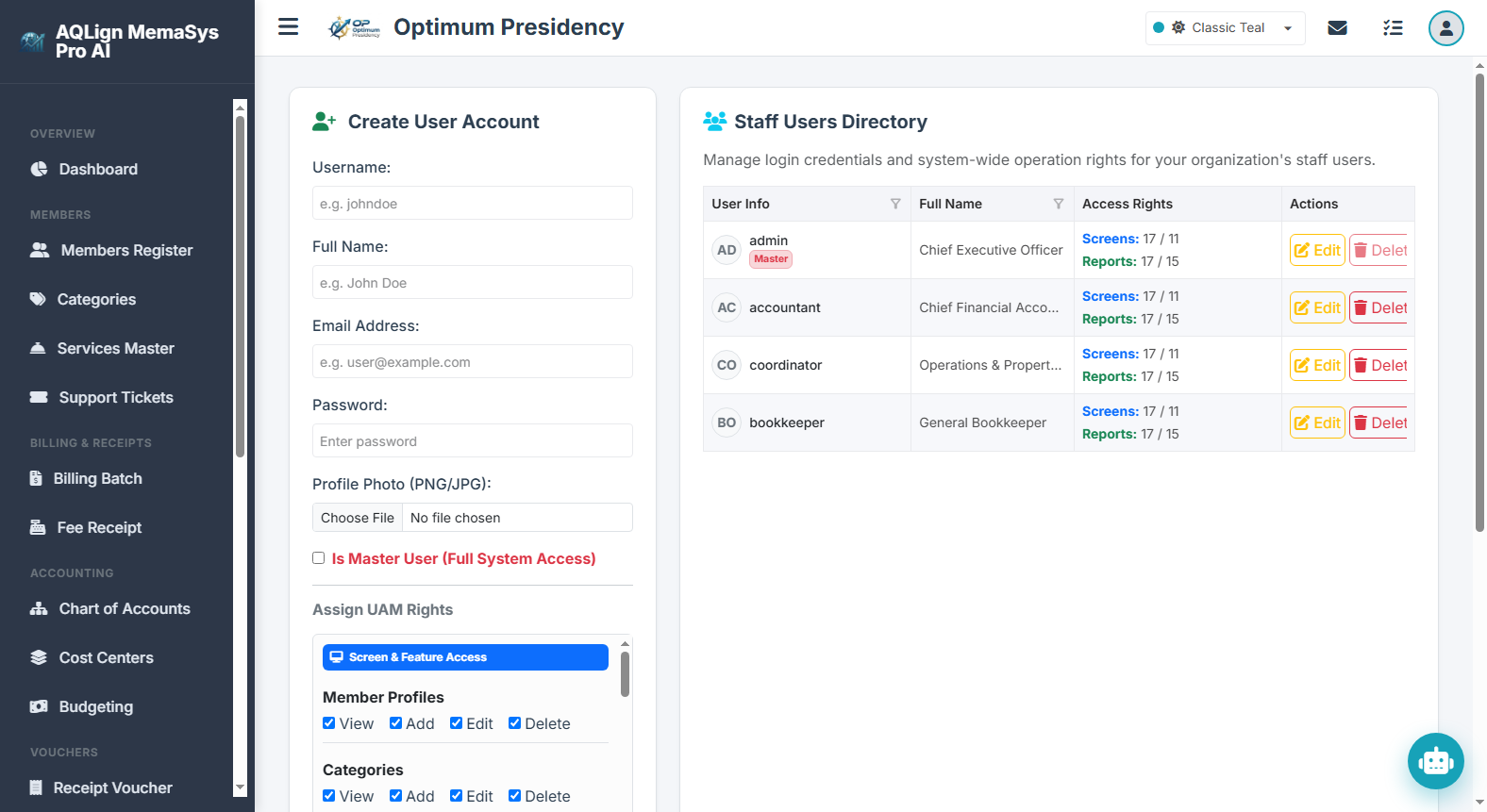
18.2 Granular UAM Rights & Permission Matrix
To enforce internal controls and segregation of duties, the system features a granular User Access Management (UAM) rights matrix:
- Master User Privilege (Full Access): When enabled, grants complete, un-restricted administrative access across all screens, accounting vouchers, user creation, and database utilities.
- Granular Rights Matrix (Assigned per user when Master User is unchecked):
- Member Profiles: Independent checkboxes for View, Add, Edit, and Delete permissions.
- Categories & Services Master: Independent View, Add, Edit, and Delete access controls for subscription catalog setup.
- Chart of Accounts & Cost Centers: Add Accounts Permission controls whether a user can create or modify General Ledger account codes.
- Financial Vouchers: Post Vouchers Permission controls whether a user can post or edit double-entry Receipt, Payment, and Journal Vouchers.
- Billing Batch & Fee Receipts: Generate Billing Permission and Post Receipts Permission separate invoice generation from cash collection duties.
- System Utilities & Reports: Independent flags for View Reports Permission, Manage Tasks Permission, Backup & Restore Permission, and Security Audit Log Permission.
19 Utilities & Settings — Audit History (Optional Module B)
19.1 Module Overview & Security Architecture
The Audit Logging Suite (accessible via /company/audit-logs) provides an un-alterable, tamper-proof enterprise audit trail that records every critical operation performed within the application. From user authentication events (logins and logouts) to master entity creations, voucher edits, and record deletions, the audit engine captures a comprehensive digital paper trail ensuring total administrative accountability.
• Package License Feature Flag: Access requires the EnableAuditLogging package entitlement to be enabled for the active tenant subscription.
• Staff User Privilege: Viewing audit logs requires explicit CanViewAuditLogs user permission granted via User Management.
• Immutable Append-Only Architecture: Audit log records are generated automatically by system triggers and cannot be modified, edited, or deleted by any system user, ensuring audit integrity.
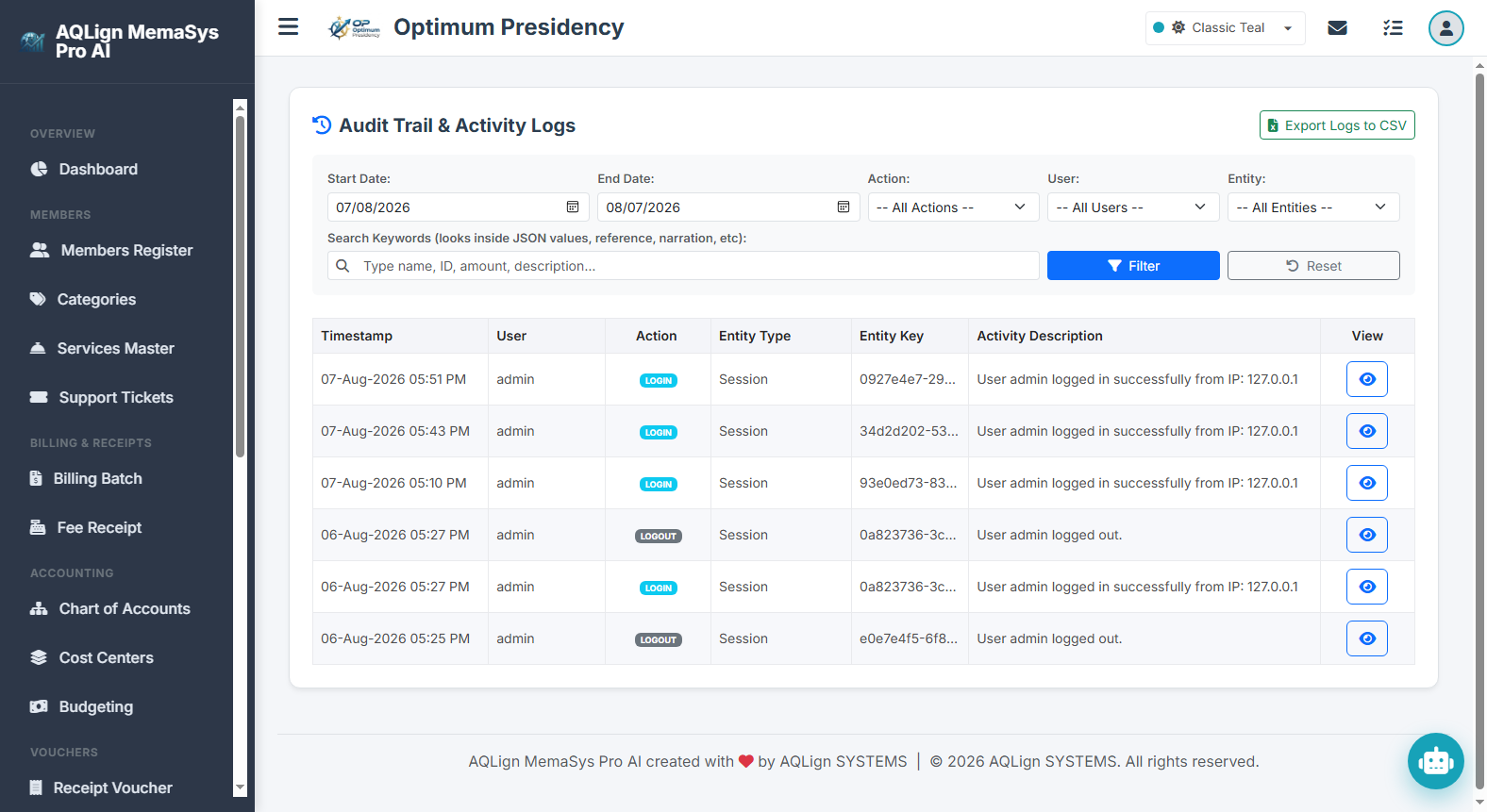
19.2 Multi-Criteria Filter Controls & Deep Search Engine
The Audit History panel features a multi-criteria filtering panel enabling auditors and executive management to isolate specific activity logs across large operational databases:
- Start Date & End Date Filters: Restricts audit log queries to specific calendar date windows (defaults to the past 30 days).
- Action Type Filter: Filters activity by operation category:
- CREATE Record creation events (e.g. new fee receipt, new member registration, new journal voucher).
- UPDATE Modification events (e.g. voucher amount edit, member contact update, category rate adjustment).
- DELETE Record deletion events (e.g. voided transaction or deleted line item).
- LOGIN Staff login authentication timestamps with IP address logging.
- LOGOUT Staff logout session termination events.
- User Account Filter: Dynamically populated dropdown listing all staff usernames who have executed audited operations.
- Entity Module Filter: Dynamically populated dropdown listing system module entities (e.g.
JournalVoucher,PaymentVoucher,ReceiptVoucher,Member,MemberCategory,ChartOfAccount,CostCenter,SystemSettings). - Keyword Search Engine: Deep-search filter that scans inside JSON property payloads, document reference numbers, narrations, descriptions, and user names.
- Action Controls: Includes a 1-click Filter button to execute queries and a 1-click Reset button to restore default 30-day view parameters.
19.3 Activity Logs Grid & Field Specifications
The primary Activity Logs Grid presents structured metadata for all queried events:
| Field Name | Display Format | Operational Description |
|---|---|---|
| Timestamp | dd-MMM-yyyy hh:mm tt |
System date and exact time of execution in local tenant timezone. |
| User | String (Username) | Staff user account responsible for executing the activity. |
| Action | Color-Coded Badge | Operation classification badge (CREATE, UPDATE, DELETE, LOGIN, LOGOUT). |
| Entity Type | String (Module Name) | System module or database record classification affected by the action. |
| Entity Key | String (ID / Code) | Unique record primary key or document reference number (e.g. PV-202608-0042, M-101). |
| Activity Description | Text Summary | Human-readable summary of the recorded operation. |
| View Control | Eye Action Icon Button | Launches or toggles the right-hand Comparative Change Viewer panel. |
19.4 Comparative Change Viewer (Field-Level Diff Engine)
Clicking the View (Eye) icon on any activity log entry opens the side-by-side Comparative Change Viewer drawer. This panel provides granular property-level diff tracking:
- Metadata Summary Header: Displays exact UTC/Local Timestamp, User Account, Action Type, Workstation IP Address, and Reference Entity Key.
- Property Diff Table: Displays a 3-column comparative audit grid:
- Field Name: Name of the modified property attribute.
- Value Before: Original property state prior to modification, highlighted in high-contrast red background with strike-through formatting for modified fields.
- Value After: Updated property state post-modification, highlighted in high-contrast green background with bold formatting for modified fields.
19.5 1-Click CSV Audit Evidence Export
Auditors and executive management can export the active audit log query results by clicking the Export Logs to CSV button. The system generates an instant timestamped .csv file (e.g. AuditLogs_20260822_170000.csv) containing full event metadata, workstation IP addresses, activity descriptions, and detailed concatenated property diff strings (e.g. Amount: "50000.00" → "85000.00"), providing ready-to-file digital audit evidence.
19.6 Real-World Enterprise Scenario & Step-by-Step Audit Guide
Context: At Optimum Presidency, an internal auditor conducting monthly bank reconciliation detects an unexpected discrepancy. Payment Voucher PV-202608-0042 (originally issued for Rs. 50,000 for elevator maintenance) shows an updated general ledger amount of Rs. 85,000. The manager needs to trace who modified the voucher, the exact timestamp, the workstation IP address used, and verify the original versus updated line item amounts.
Step-by-Step Investigation Guide to Deduct Record Change History:
- Access Audit Suite: Navigate to Utilities & Settings → Audit History (
/company/audit-logs) from the primary navigation menu. - Set Audit Date Window: In the filtering area, set Start Date to the beginning of the target month and End Date to today.
- Apply Action & Entity Filters: Select Action: UPDATE from the Action dropdown and select Entity: PaymentVoucher from the Entity dropdown.
- Execute Keyword Search: Enter the target voucher number
PV-202608-0042into the Search Keywords box and click the Filter button. - Locate Activity Log Entry: The Activity Grid displays the matching modification log row, revealing the staff username who executed the change, timestamp, workstation IP address, and summary description.
- Launch Comparative Change Viewer: Click the View (Eye icon) button on the target row to open the right-hand Comparative Change Viewer panel.
- Analyze Field-Level Diffs: Review the highlighted Property Diff Table:
- Field
Amount: Value Before:50000.00(red background with strike-through) → Value After:85000.00(green background with bold text). - Field
Narration: Value Before:Elevator Monthly Maintenance→ Value After:Elevator Maintenance & Emergency Battery Unit.
- Field
- Download Tamper-Proof Audit Evidence: Click Export Logs to CSV to download a timestamped CSV report documenting the complete audit trace for official compliance review.
20 Utilities & Settings — Tasks & Work Assignment System, Database Backup Sovereignty, & Platform About (Agency Governance)
Chapter 20 covers administrative tools safeguarding business continuity, work delegation, and the governing framework between Developer (AQLign SYSTEMS), Authorized Sales Partners (Agencies), and Client Tenants.
20.1 Multi-User Task & Work Assignment System (`/company/tasks`)
The Tasks and Reminders feature is a comprehensive, multi-user task delegation framework embedded directly within the software:
- Task Delegation & Assignment: Staff and managers delegate work directly to team members via the Assigned To selector.
- Work Status Lifecycle: Monitors progress across Pending, In Progress, Completed, Cancelled, and Deferred.
- Priority Caps & Deadlines: Assigns priority levels (High, Medium, Low) and strict deadline dates with visual alerts.
- Managerial Progress Monitoring: Managers track assigned work across departments before, during, and after task completion.
20.2 Database Backup & Instant Disaster Recovery (`/company/utilities/backup`)
Guarantees disaster recovery and client data sovereignty:
- Single-Tenant Isolated Database Architecture: Every company operates on its own dedicated, isolated SQLite database archive (`.db` format).
- Instant Disaster Recovery: In the event of hardware failure, uploading the backed-up database restores 100% of financial data instantly.
- Absolute Data Sovereignty & Zero Vendor Lock-in: Standard `.db` SQLite backup downloads ensure 100% client data ownership without restrictions or vendor lock-in.
20.3 Master Data Import & Export (`/company/utilities/import`)
Provides automated CSV/Excel import wizards for chart of accounts, member profiles, and opening balances.
20.4 Platform About, Authorized Sales Partner (Agency) Support Governance & Financial Dealing Cautions (`/company/about`)
The Platform About (`/company/about`) module acts as the official governance center defining the commercial and operational relationships between the software developer, authorized regional sales agencies, and client tenants.
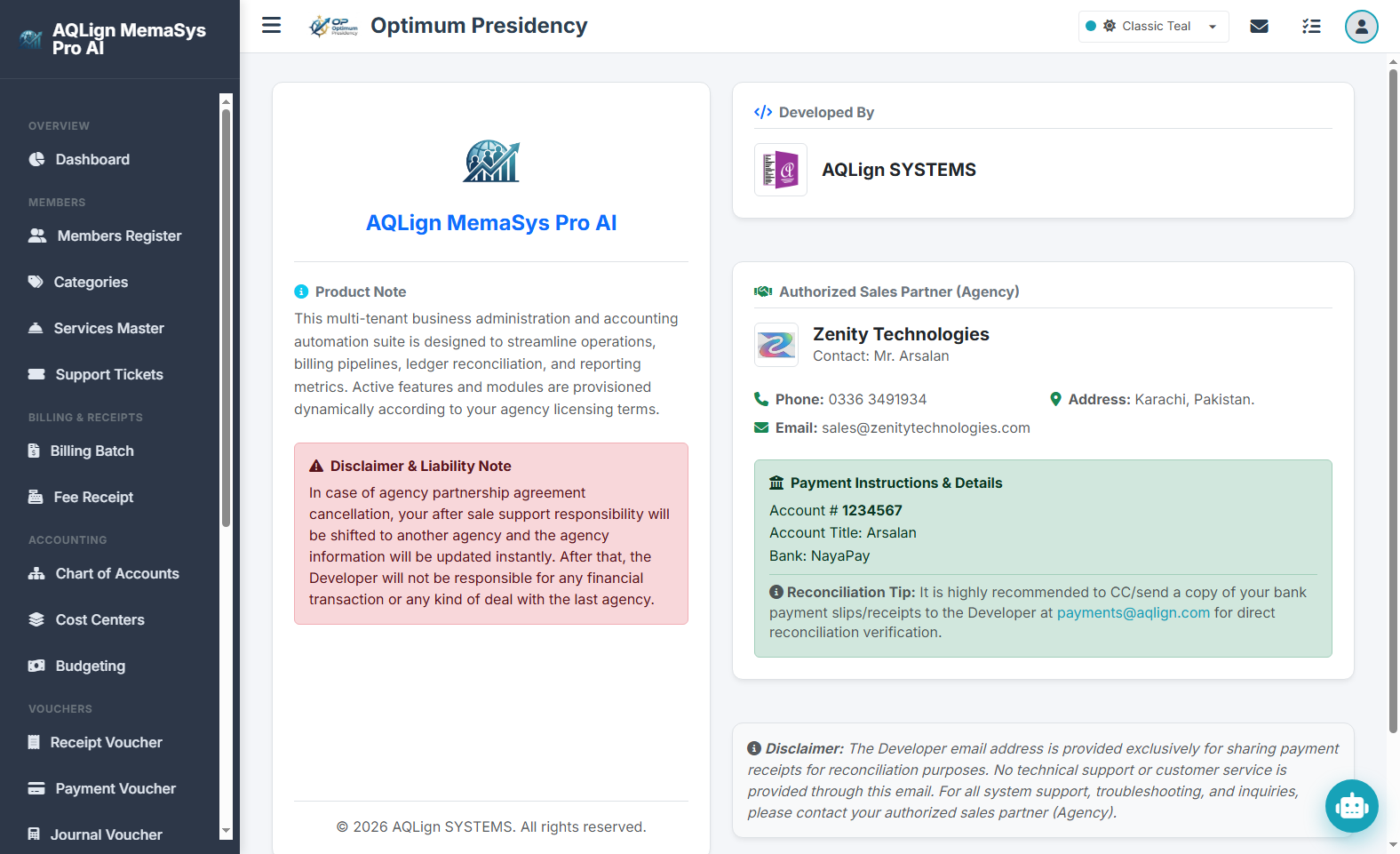
Official Partnership Cancellation Protocol & Liability Disclaimer:
In the event of a partnership agreement cancellation or transition between the Developer (AQLign SYSTEMS) and an Authorized Sales Partner (Agency), the client tenant company will be immediately reassigned to a new authorized agency, and all agency contact details within the software will be updated instantly.
After an agency partnership transition is executed, the Developer (AQLign SYSTEMS) shall bear NO responsibility or liability for any financial transactions, payments, fee collection deals, or agreements conducted with the former agency.
- Primary Client Technical Support Responsibility:
The Authorized Sales Partner (Agency) listed on the About screen is exclusively responsible for providing day-to-day customer support, user training, operational troubleshooting, and system inquiries to the client tenant. No direct customer technical support or phone troubleshooting is provided through the Developer email. - Official Agency Bank Payment Instructions:
All software subscription renewals, agency licensing fees, and service charges must be remitted strictly according to the (the official Agency Payment Instructions). - Direct Developer Payment Reconciliation Tip (CC Protocol):
To guarantee payment transparency and protect against financial discrepancy, clients are strongly advised to CC or send a copy of all bank payment deposit slips/receipts directly to the Developer email (support@aqlign.com) for direct reconciliation verification and license validation!
21 AI-Supported Virtual Assistant (MemaBot AI Engine)
The AI-Supported Virtual Assistant (`MemaBot AI Engine`) provides an intelligent, multi-modal conversational interface in AQLign MemaSys Pro AI. Accessible via a persistent floating assistant icon across all back-office management pages, MemaBot combines hands-free voice recognition, interactive text messaging, offline command parsing, and optional Google Gemini LLM API integration. Designed to streamline daily workflows for accountants, receptionists, and senior managers, it allows users to navigate complex system modules, pre-fill transaction forms, and query financial records instantly through voice or text commands.
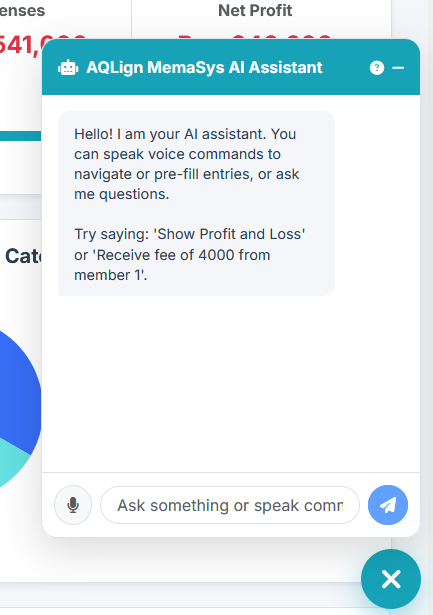
21.1 Dual Interaction Engine & Multilingual Voice Synthesis
MemaBot offers flexible, accessible interaction modes tailored to operational environments:
- Hands-Free Voice Speech Recognition: Equipped with integrated Web Speech recognition, users can click the microphone icon to speak commands naturally. The assistant captures spoken audio, converts it into structured text commands, and executes actions immediately.
- Audio Speech Output & Visual Drawer: The assistant responds with spoken audio feedback while displaying real-time message bubbles in a sleek slide-out drawer window.
- Interactive Text Drawer & Command Help Dialog: Users can type commands in the text input box or click the quick
Help & Commands Listicon (`?`) to view an interactive cheat-sheet of available navigation, report, and form pre-filling shortcuts.
21.2 Default Offline Command-Based Parsing Engine & Dictionary
Out-of-the-box, MemaBot operates on a high-performance offline command parser requiring zero external internet connectivity or API keys:
- Automated Page Navigation Shortcuts:
"Show Profit and Loss"or"Show PnL"→ Navigates directly to `/company/reports/pnl`."Show Balance Sheet"→ Navigates to `/company/reports/balancesheet`."Show Trial Balance","Show TB2","Show TB6"→ Opens 2-Column or 6-Column Trial Balance statements."Show Comparative Cost Center P&L"or"Show CCPnL"→ Opens `/company/reports/ccpnl`."Show Budget vs Actual"→ Opens `/company/reports/budgetactual`."Show PDC Register"→ Opens `/company/reports/pdcregister`."Show Members","Show Accounts","Show Settings","Show Users"→ Opens respective master directories.
- Transaction Form Pre-Filling & Dynamic Shortcuts:
- Fee Receipt Entry Pre-Filling: Saying "Receive fee of 4000 from member 2" or "Receive fee of 5000 from Tariq Memon" automatically opens the Fee Receipt Entry form (`/company/billing/receipt-entry`), performs a database lookup for the member, and pre-fills the payment amount and member selector.
- Member Registration Pre-Filling: Saying "Add member Tariq Memon with phone 03001234567" opens the Member Registry modal pre-filled with the contact details.
- Chart of Accounts Creation Pre-Filling: Saying "Add account Office Rent under Administrative Expenses" opens the COA account creation modal with parent account mapped.
- Voucher Posting Pre-Filling: Saying "Create JV voucher with narration rent account 5010 debit 5000" opens the Voucher Entry form (`/company/accounting/voucher-entry`), sets voucher type to `JV`, enters narration, maps account `5010`, and pre-fills `5000` debit.
21.3 True AI Google Gemini LLM API Integration
For organizations seeking deep natural language query intelligence, MemaBot seamlessly connects to Google's Gemini LLM engine:
- System Settings Configuration (`/company/settings`): System Administrators enter their personal Google Gemini API key (`GeminiApiKey`) and select `True AI Chatbot` mode.
- Context-Aware Read-Only Database Queries: Powered by the
gemini-2.5-flashmodel and specialized `ExecuteReadOnlyQuery` tool functions, the assistant interprets complex conversational questions (e.g. "Show me top 5 members with highest overdue balance" or "What was total generator fuel expense last month?"), executes read-only SQLite `SELECT` queries against tenant database tables, and synthesizes clear analytical answers. - Multilingual Support & Markdown Data Tables: Supports natural language conversations in English, Urdu, Arabic, and regional languages, formatting numerical lists and financial summaries into clean markdown tables.
21.4 Real-World Enterprise Operational Scenario
Consider a practical operational interaction at Optimum Presidency:
Step 1: Voice Navigation to Financial Reports
During an executive management meeting, the Financial Controller clicks the microphone icon on the ChatBot drawer and speaks: "Show Comparative Cost Center P&L". MemaBot instantly responds with voice feedback and navigates the browser directly to `/company/reports/ccpnl`.
Step 2: Rapid Fee Receipt Pre-Filling
A cashier at the counter receives a payment of Rs. 15,500 from member Mr. Tariq Memon. The cashier types: "Receive fee of 15500 from Tariq Memon" into MemaBot. The assistant resolves the member ID, opens Fee Receipt Entry, and populates the amount (Rs. 15,500) and member name instantly, saving counter processing time.
21.5 Step-by-Step Guide for ChatBot Operations
- Open MemaBot Drawer: Click the floating robot icon in the bottom corner of any page.
- Execute Voice Command: Click the microphone icon, speak your command (e.g. "Show Profit and Loss" or "Receive fee of 5000"), and listen to voice confirmation.
- Execute Text Command: Type your command in the input box and press Enter or click the Send paper-plane button.
- Inspect Command Cheat-Sheet: Click the
?icon in the ChatBot header to view all supported navigation and pre-filling commands. - Enable Google Gemini LLM Mode:
- Navigate to Utilities & Settings → System & Control Settings (`/company/settings`).
- Enter your personal Google Gemini API Key.
- Set ChatBot Mode to True AI Chatbot and click
Save Settings. - Ask complex database questions in MemaBot to receive AI-generated summaries and SQL query analysis.
22 Member Self-Service Portal (Client Portal)
The Member Self-Service Portal (`/login/member`) provides a dedicated, secure client-facing interface in AQLign MemaSys Pro AI. Designed to deliver 24/7 account accessibility, it empowers commercial tenants, residential members, and corporate clients to inspect outstanding balances, manage service subscriptions, log support complaints, and update personal profile details without requiring staff intervention. When a single user credential (e.g. member login ID `m101`) manages multiple member accounts—such as a commercial tenant owning multiple shop units—a multi-profile dropdown in the top navigation bar allows switching between member profiles seamlessly in one click.
22.1 Executive Member Dashboard & Account Dues Overview
Upon authenticating into the Member Portal, members land on their personalized executive dashboard:
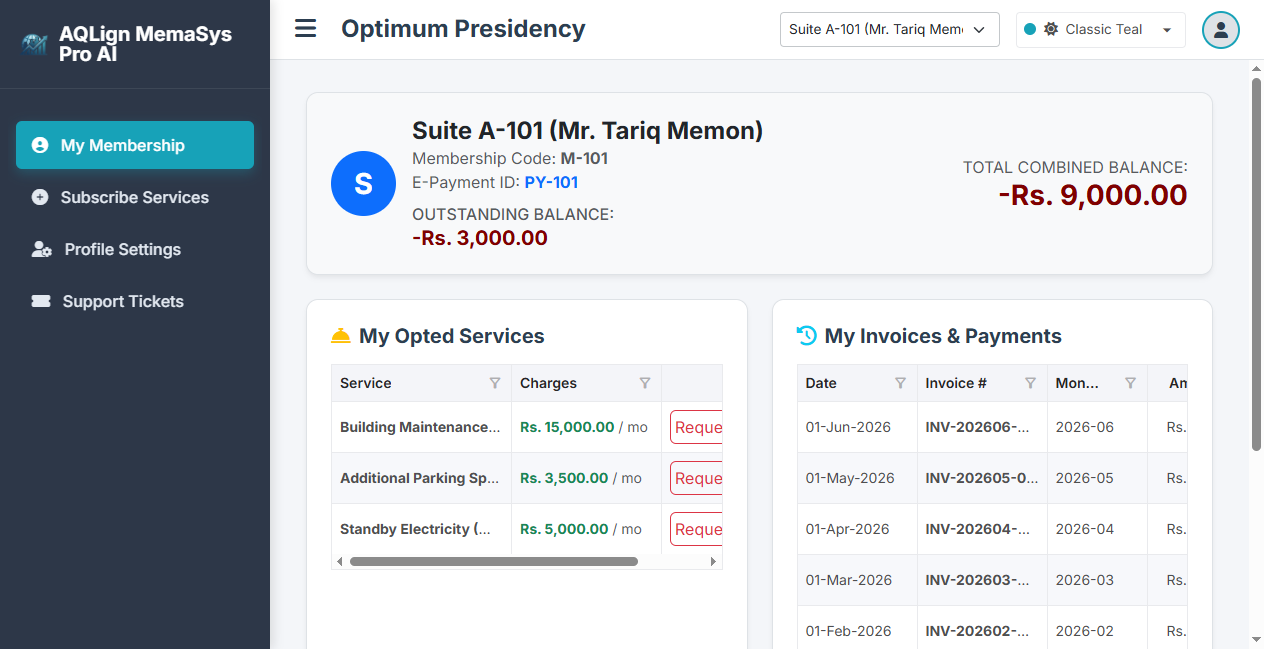
- Total Combined Balance Badge: A prominent financial status card rendering the member's net outstanding balance across all monthly maintenance invoices, utility charges, and overdue surcharges.
- Active Opted Services Summary: Displays total subscribed optional services with monthly tariff breakdowns.
- Open Support Tickets Counter: Displays active support tickets logged by the member awaiting staff resolution.
- Request Cancellation Feature: Next to each active service, a dedicated
Request Cancellationbutton allows members to submit formal service un-subscription requests directly to company management. Upon submission, the request enters the administrative queue where company staff review and process the un-subscription in the back-office portal.
22.2 Service Subscriptions & Optional Catalog Management
Members can manage their service portfolio directly through the service subscription portal (`/member/subscribe`):
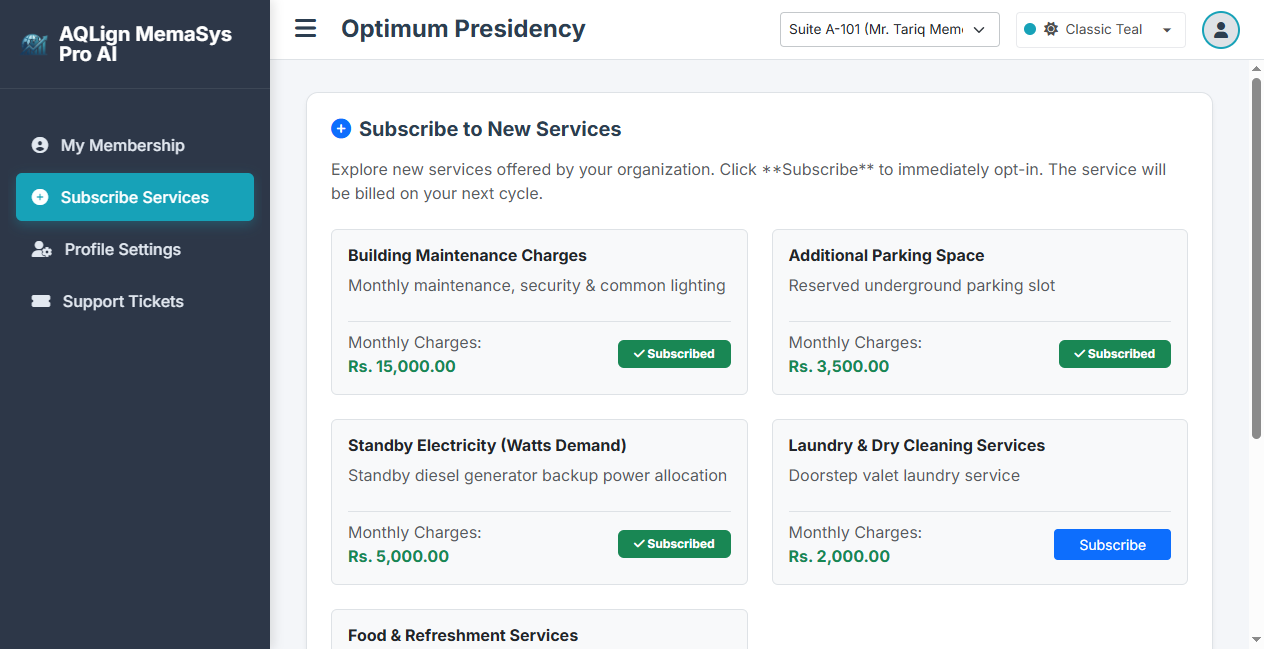
- Subscribed Services Review: Members view active recurring services (e.g. Standby Generator Power, Dedicated Basement Parking, Executive Club Access) alongside monthly charges and activation dates.
- Browsing Available Catalog: Displays all optional enterprise services published by management. Members can request new service activations by clicking
Request Subscription. - Automated Staff Dispatch: Subscription and cancellation requests automatically trigger notifications in the back-office tenant portal, ensuring prompt staff verification before service charges are added to billing batches.
22.3 Profile Settings & Personal Contact Management
The profile settings module (`/member/profile`) allows members to maintain accurate contact information:
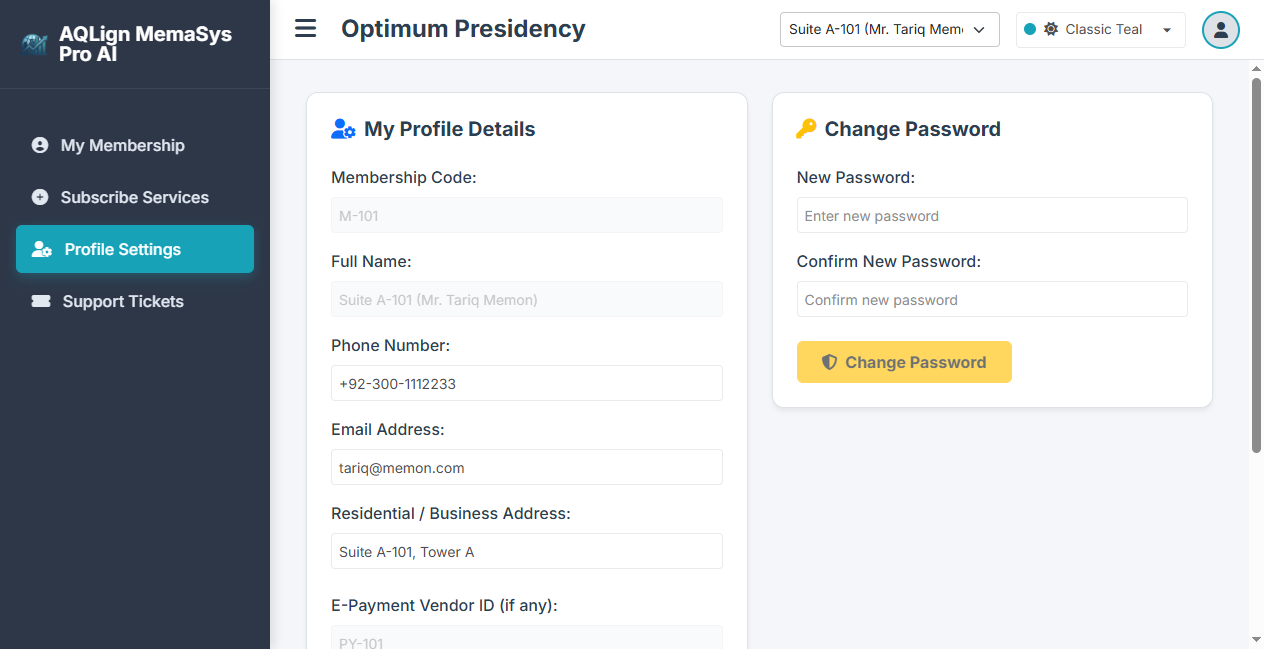
- Personal Contact Information: Members update primary contact phone numbers, emergency contacts, email addresses, and mailing addresses.
- Credential Management: Secure password update fields allow members to change portal login passwords independently.
22.4 Member Support Complaints & Ticket Lifecycle
The Member Support Portal (`/member/tickets`) serves as the primary communication bridge between members and company management:
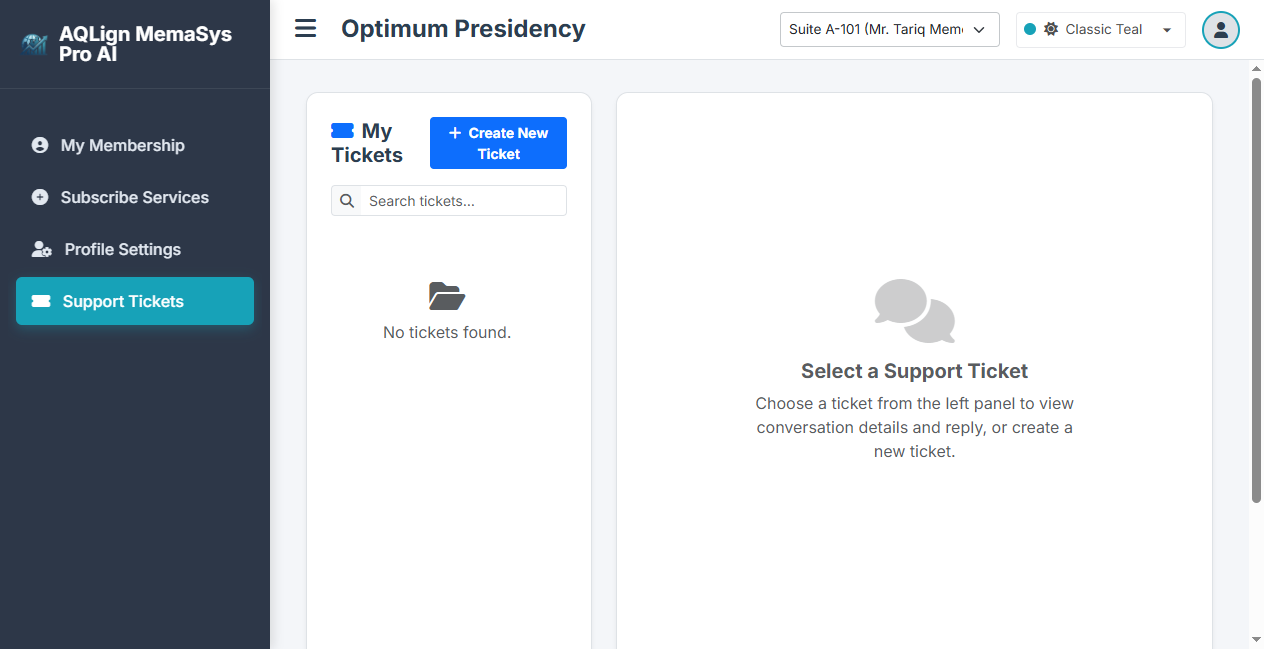
As documented in Chapter 6 (Members — Support Tickets Module), member-submitted complaints follow a structured enterprise resolution workflow:
- Member Complaint Submission: The member logs a ticket by selecting a Category (e.g. Maintenance & Utilities), typing a Subject (e.g. "Generator Voltage Fluctuation"), selecting Priority, and describing the issue.
- Administrative Queue & Staff Assignment: Company administrators receive the ticket in the back-office ticket portal and assign/forward the issue to specialized staff (e.g. Maintenance Engineer Fahad).
- Real-Time Conversation Thread: Staff and members exchange messages within the ticket thread, attaching diagnostic updates and resolution steps.
- Resolution & Closure: Once fixed, staff or member closes the ticket, logging a complete resolution audit trail.
22.5 Real-World Enterprise Operational Scenario
Consider a complete Member Self-Service Portal interaction at Optimum Presidency:
Step 1: Multi-Profile Authentication & Balance Review
Member Mr. Tariq Memon logs into the Member Portal (`/login/member`) using ID `m101` and password `pass123`. Using the top navbar multi-profile dropdown, he selects his commercial office profile. The dashboard renders a Total Combined Balance of Rs. 15,500.
Step 2: Submitting a Support Ticket
Mr. Tariq notices a minor power fluctuation in his office. He opens Support Tickets (`/member/tickets`), clicks Create Ticket, enters subject "Generator Voltage Fluctuation", and submits the ticket. Company staff receive the ticket, assign it to Maintenance Engineer Fahad, and post a thread update stating an engineer is en route.
Step 3: Service Cancellation Request
On the dashboard, Mr. Tariq clicks Request Cancellation next to an unused parking space service. The un-subscription request is forwarded to company staff, who process the cancellation before the next monthly billing run.
22.6 Step-by-Step Guide for Member Portal Operations
- Log Into Member Portal: Navigate to **Member Login** (`/login/member`), enter Login ID (e.g. `m101`) and Password (e.g. `pass123`), and click
Login. - Switch Member Profile (Multi-Profile Accounts): If managing multiple accounts, click the member profile selector in the top navbar and select the target member profile.
- Review Balance & Request Service Cancellation:
- Review the Total Combined Balance card on the dashboard.
- To un-subscribe from a service, click
Request Cancellationnext to the service item to send a request to company staff.
- Browse & Request Service Subscriptions: Navigate to Service Subscriptions (`/member/subscribe`), browse available optional services, and click
Request Subscription. - Update Profile Details: Navigate to Profile Settings (`/member/profile`) to update phone numbers, address, or change account password.
- Submit & Track Support Tickets: Navigate to Support Tickets (`/member/tickets`), click
Create Ticket, enter complaint details, and track real-time resolution updates from company staff.
Published by AQLign SYSTEMS
Copyright © 2026 AQLign SYSTEMS. All rights reserved.